How Do I Modify Team Members’ Access to Their Sites on the Dashboard?
Step 1 of 4
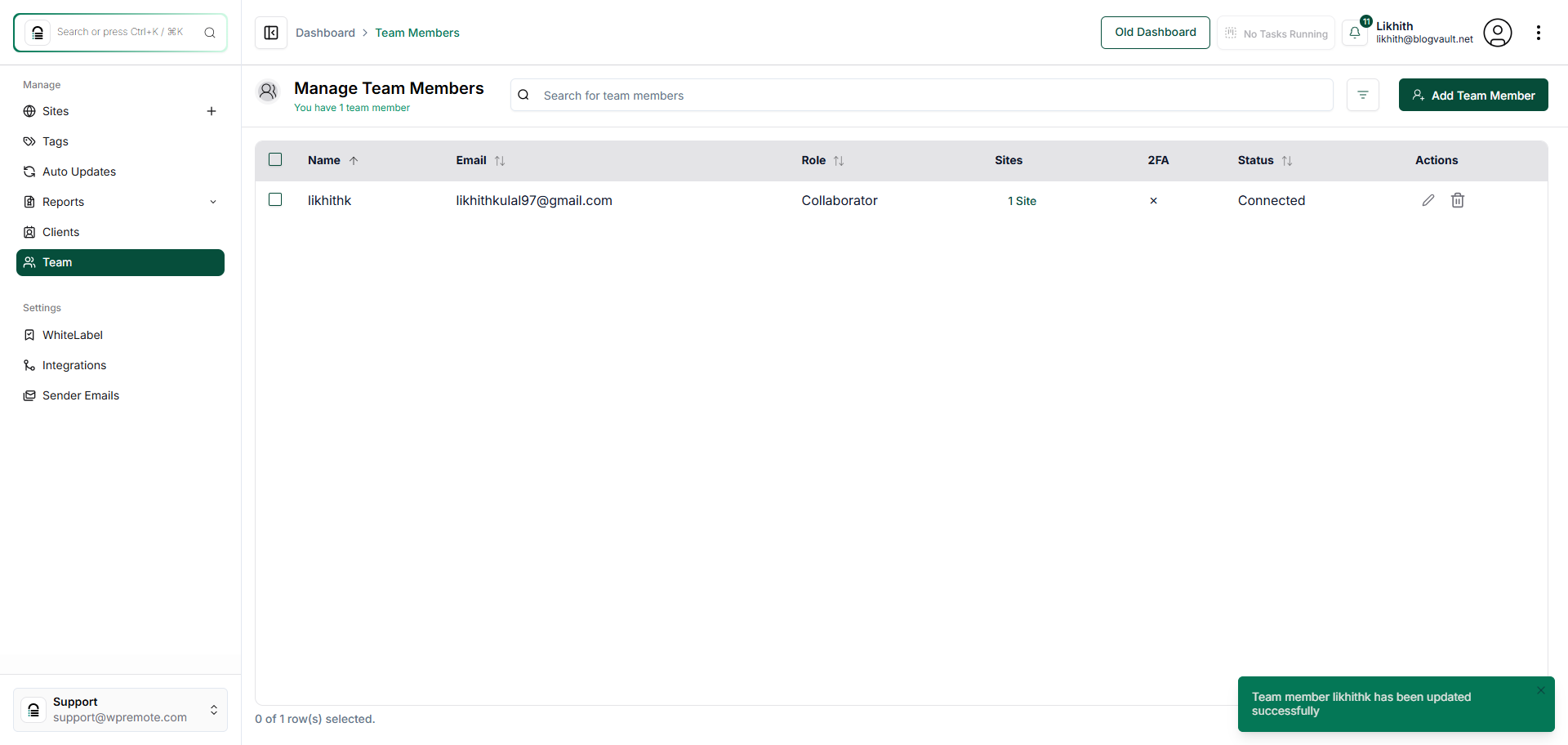
Open the Team Section
Click on the 'Team' option in the left sidebar to access team management settings.
Note: This section allows you to view and manage all team members associated with your account.
Step 2 of 4
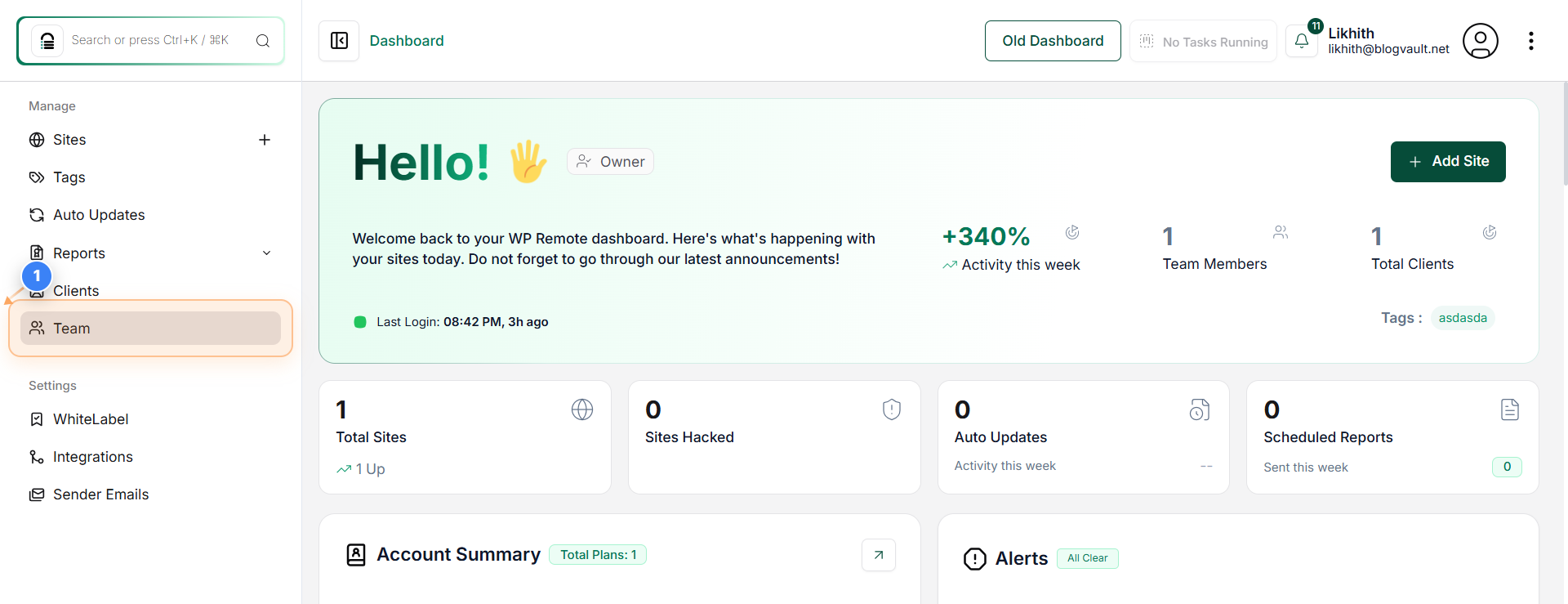
Edit a Team Member
Click the edit icon next to the team member's name on the Team Members page to open their profile for modification.
Note: Use this to modify your team member role, name, email address, company name, and give multiple site access, as required.
Step 3 of 4
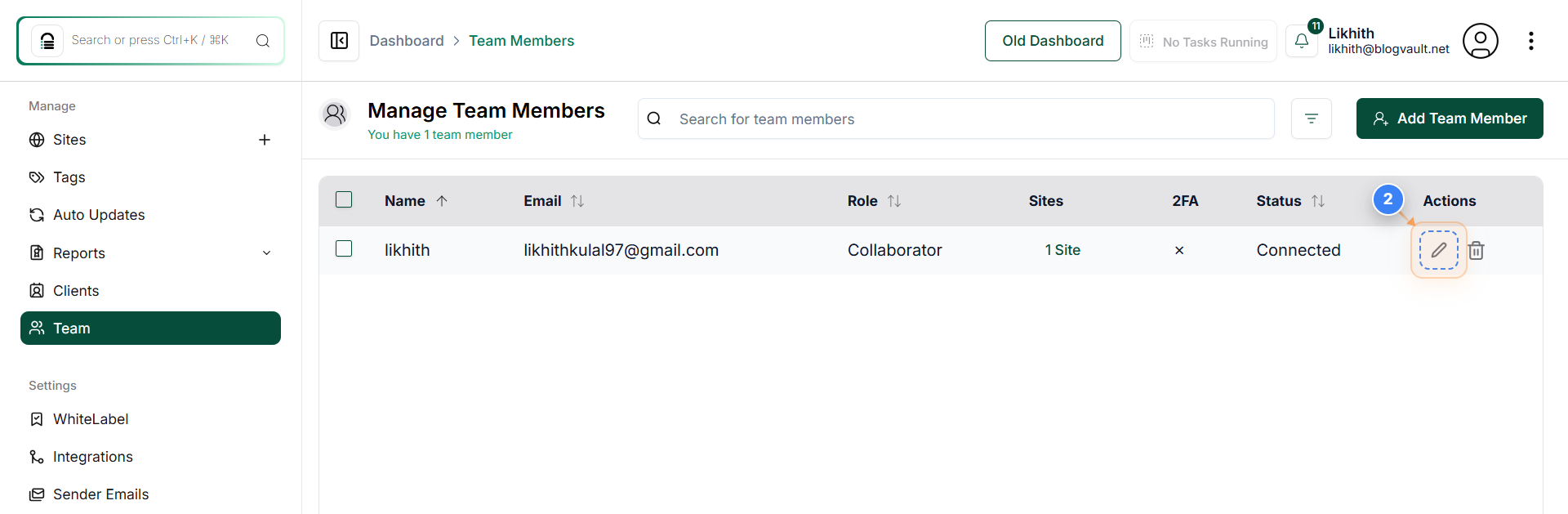
Update Team Member Details
Click the 'Update Team Member' button at the bottom of the page to save your changes.
Note: Ensure all required fields, such as role and email, are correctly filled before saving.
Step 4 of 4
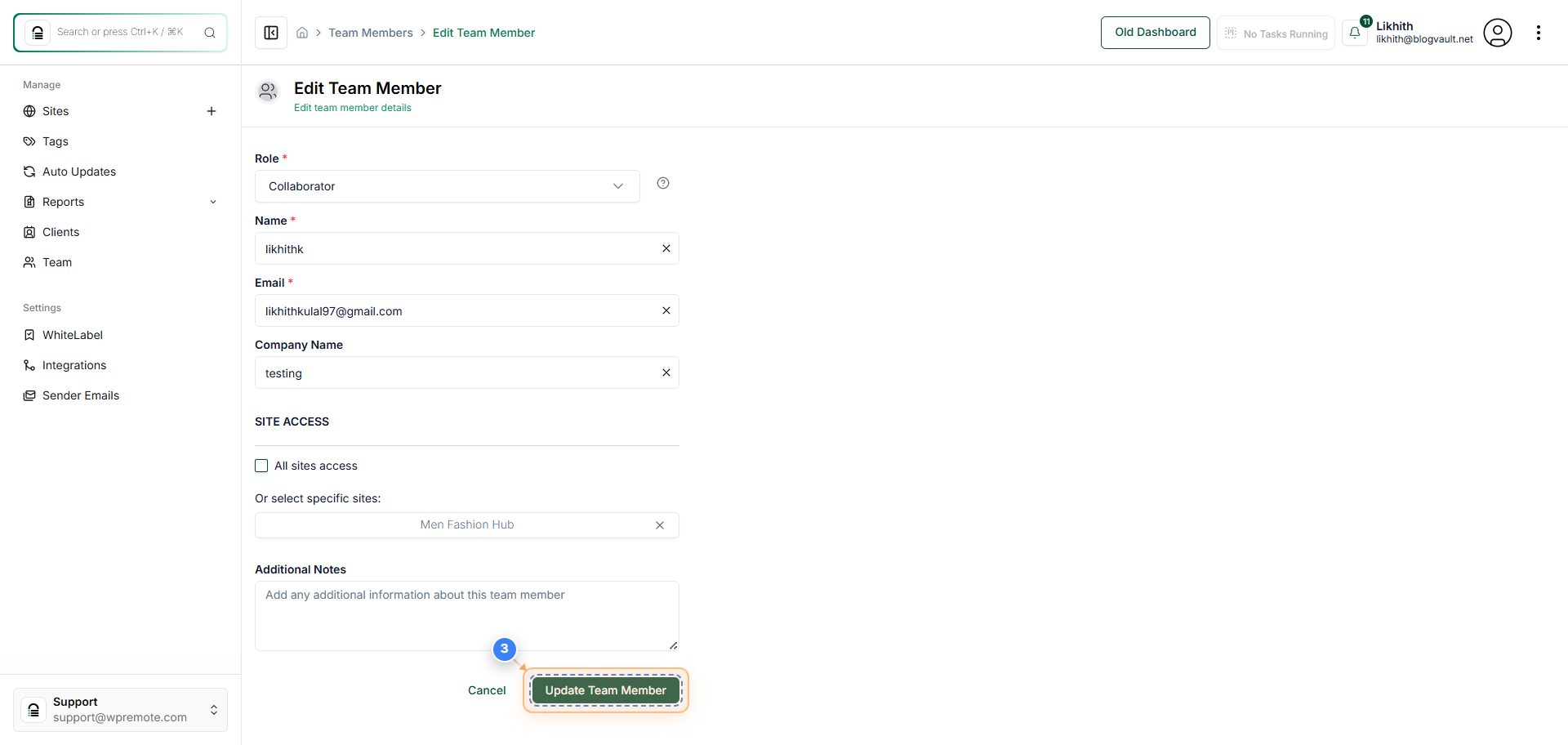
Verify Team Update
Review the Team Members page to confirm that the updated details appear correctly and that a success message is displayed.