How to Download a Staging Site from your dashboard.
Step 1 of 6
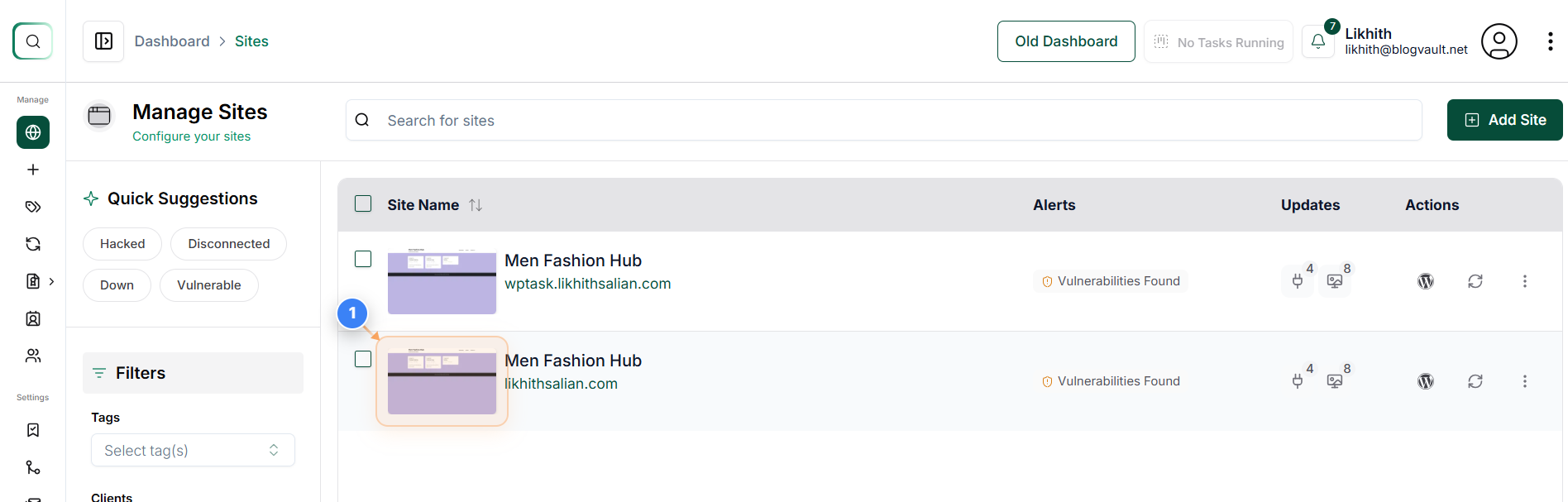
Open Site Management Dashboard
Click on your site thumbnail in the Sites Dashboard to open its management options.
Note: This allows you to access all settings, staging, and backup tools for the selected website.
Step 2 and 3 of 6
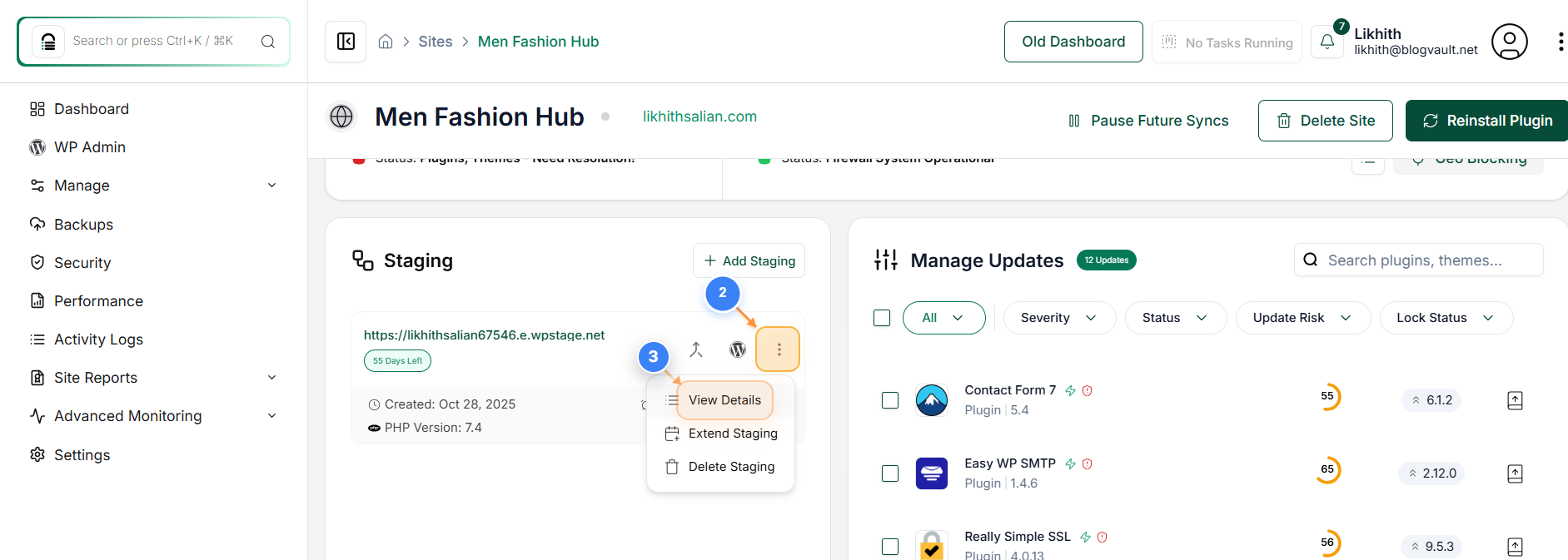
Access Staging Site Details
Click on three dot button. Step 3- Click the 'View Details' option under the staging section to open detailed information about the staging environment.
Note: This displays available staging controls such as extending or downloading your staging site.
Step 3 of 6
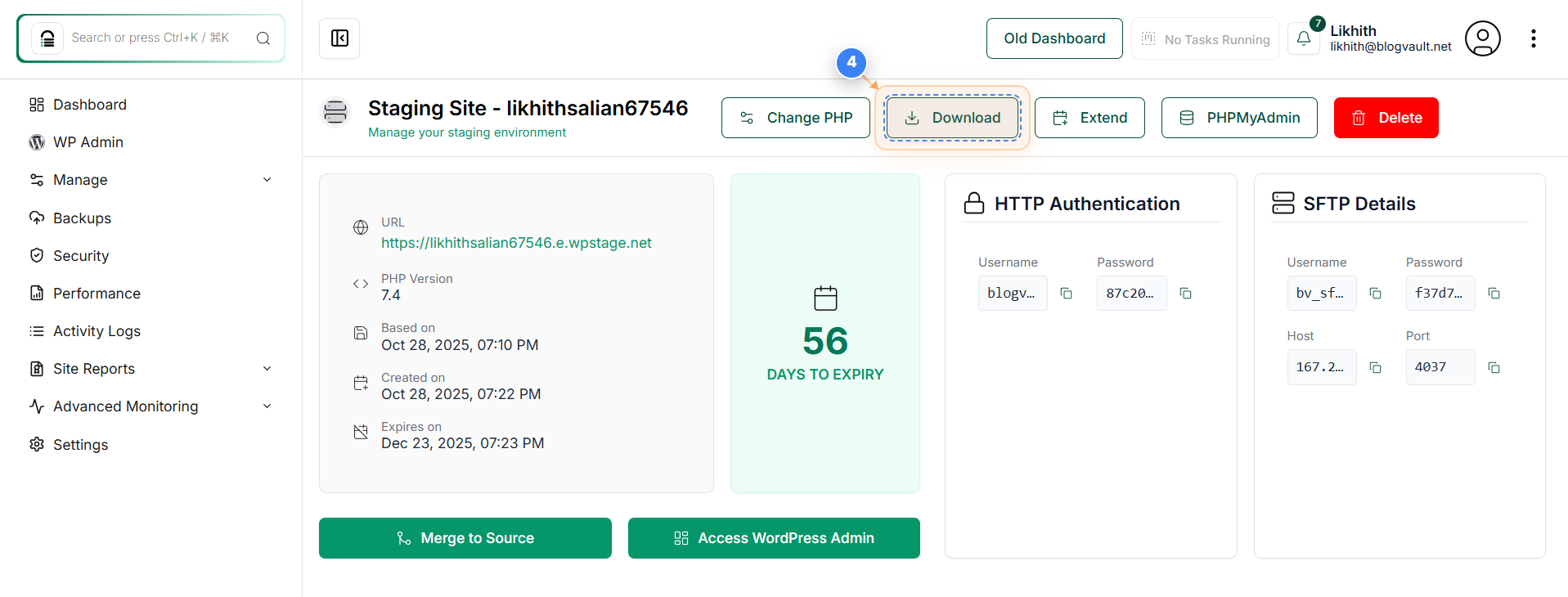
Open Download Options
Click the download icon at the top of the Staging Site page to open the download options for your staging site.
Note: This prepares the system to generate downloadable files for your selected staging environment.
Step 4 of 6
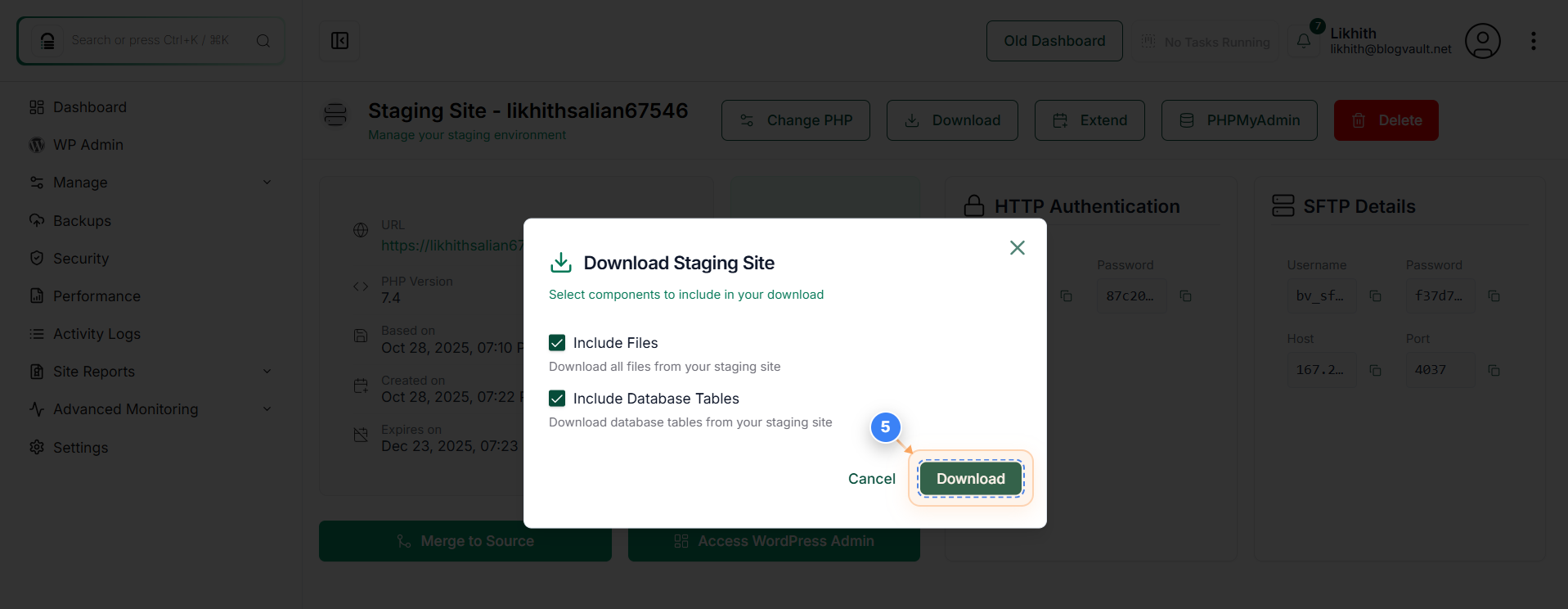
Confirm Staging Site Download
Click the 'Download' button in the pop-up dialog to begin downloading your staging site package.
Note: You can choose specific components (such as database or files) before confirming the download.
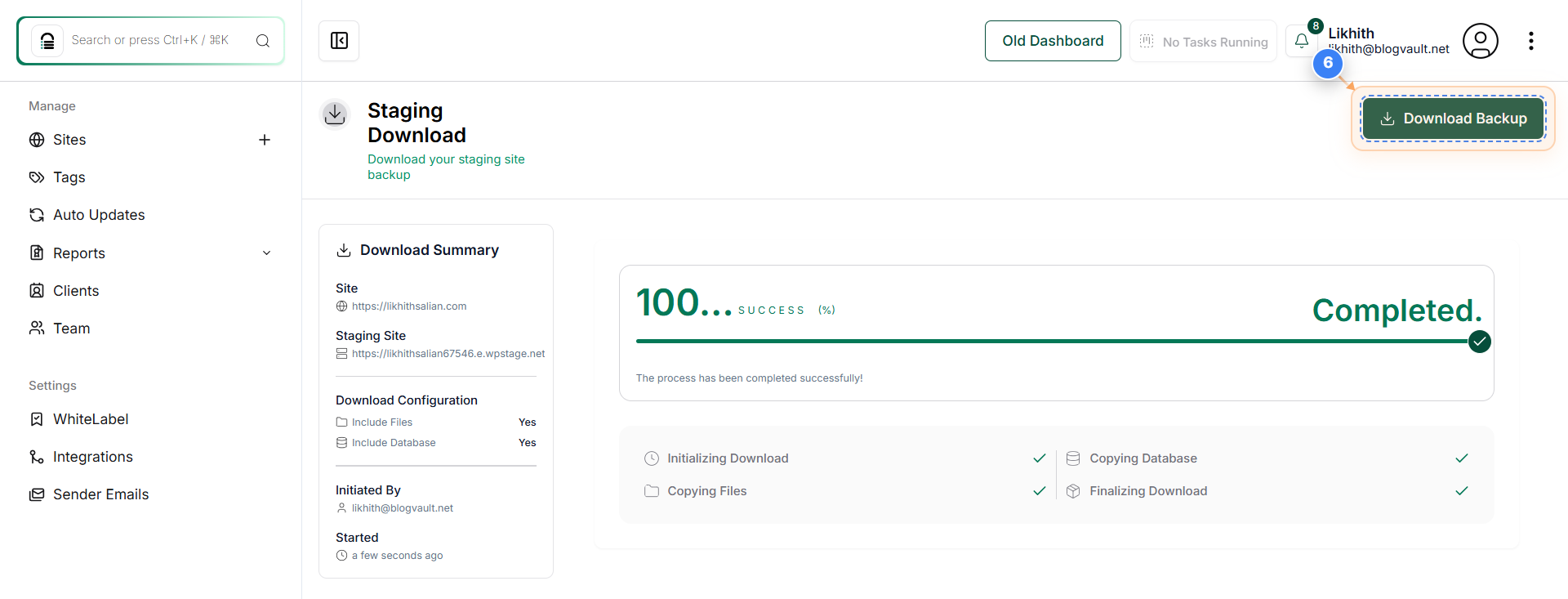
Step 6 of 6
Download Backup File
Once the process is completed. Click the 'Download Backup' button at the top-right corner of the page to save your backup file locally.
Note: This ensures you have a secure local copy of your staging site backup.