How Do I Set Up Automatic Backups Before Scheduled Updates?
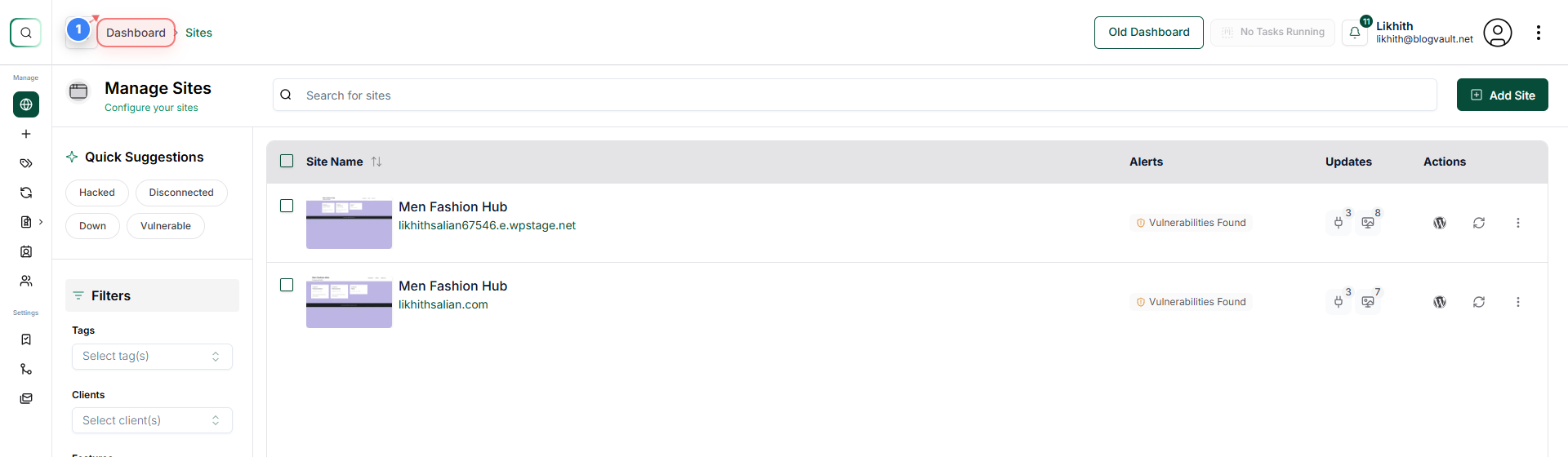
Step 1 of 4
Open Dashboard Overview
Click on the Dashboard link in the top-left navigation to return to the main site overview page.
Note: Use this to quickly access global management options for all sites.
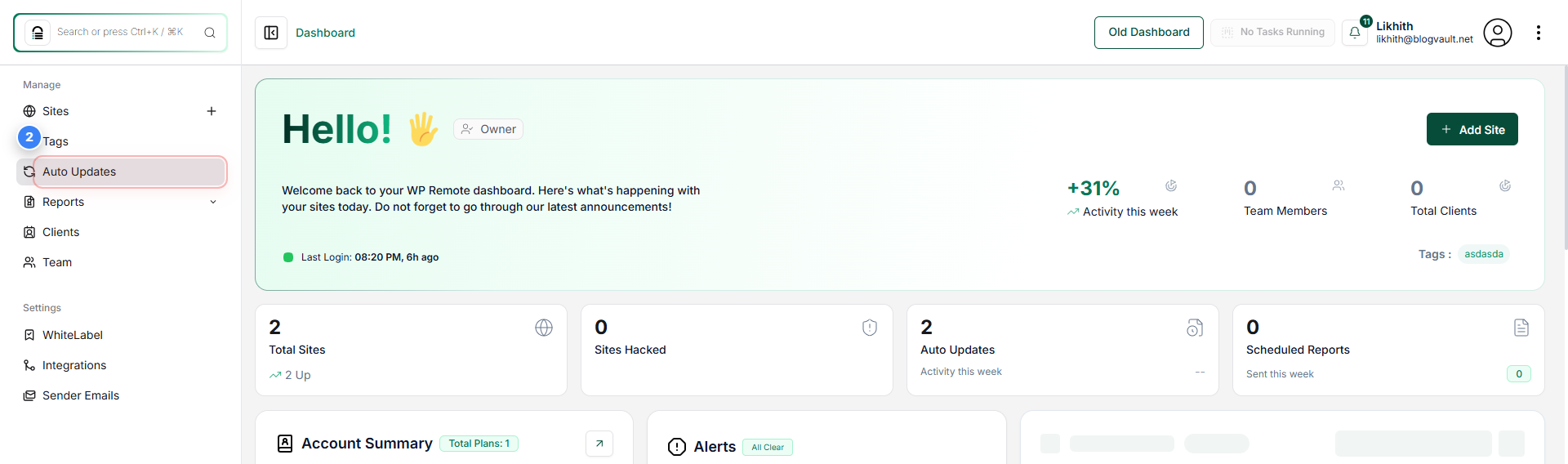
Step 2 of 4
Access Auto Updates
Click on the Auto Updates option in the left navigation panel to open the auto-update management area for your sites.
Note: This section lets you control plugin, theme, and core auto-update behaviour.
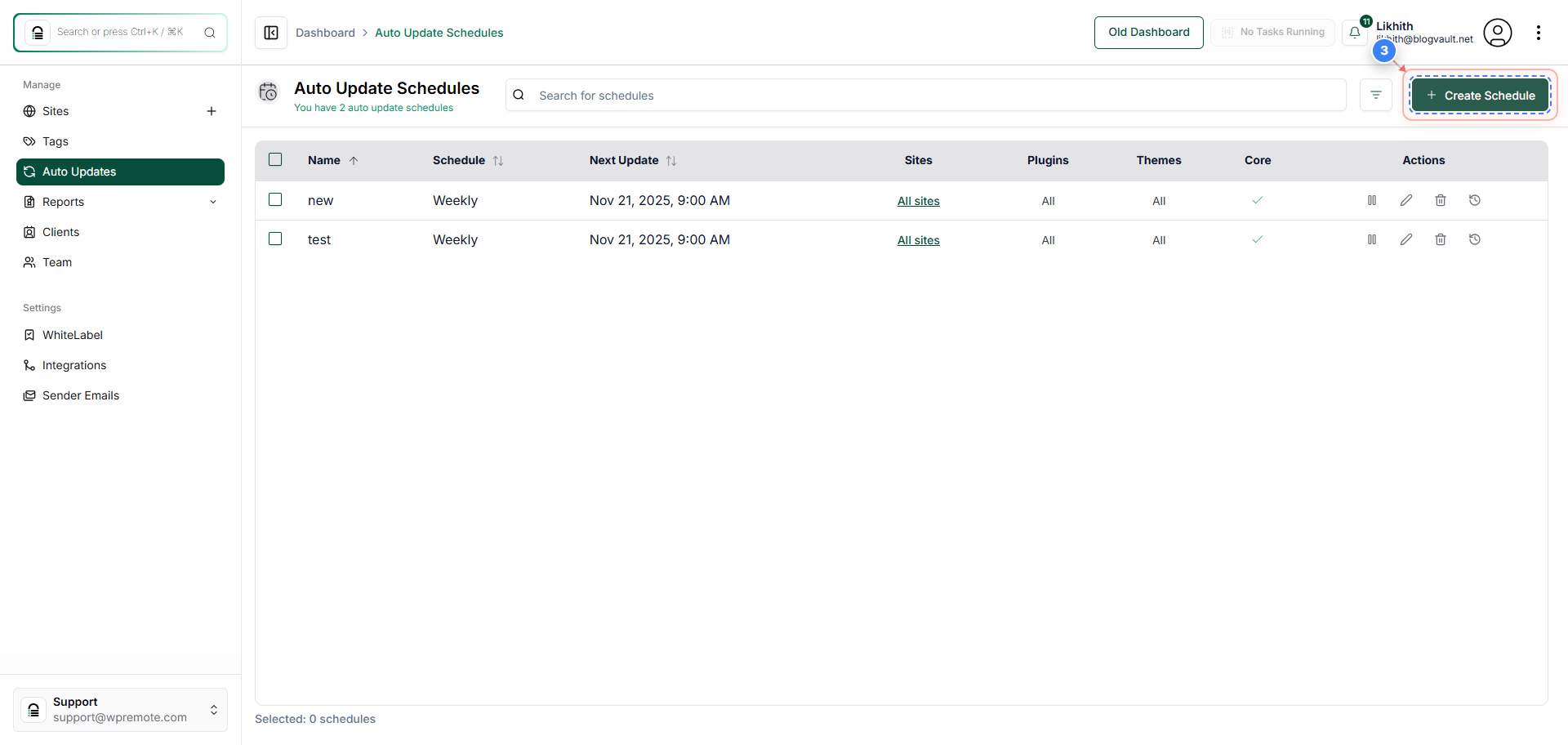
Step 3 of 4
Start Creating a Schedule
Click the Create Schedule button in the top-right area of the Auto Update Schedules page to begin setting up a new update schedule.
Note: You can define timing and rules for automated updates here.
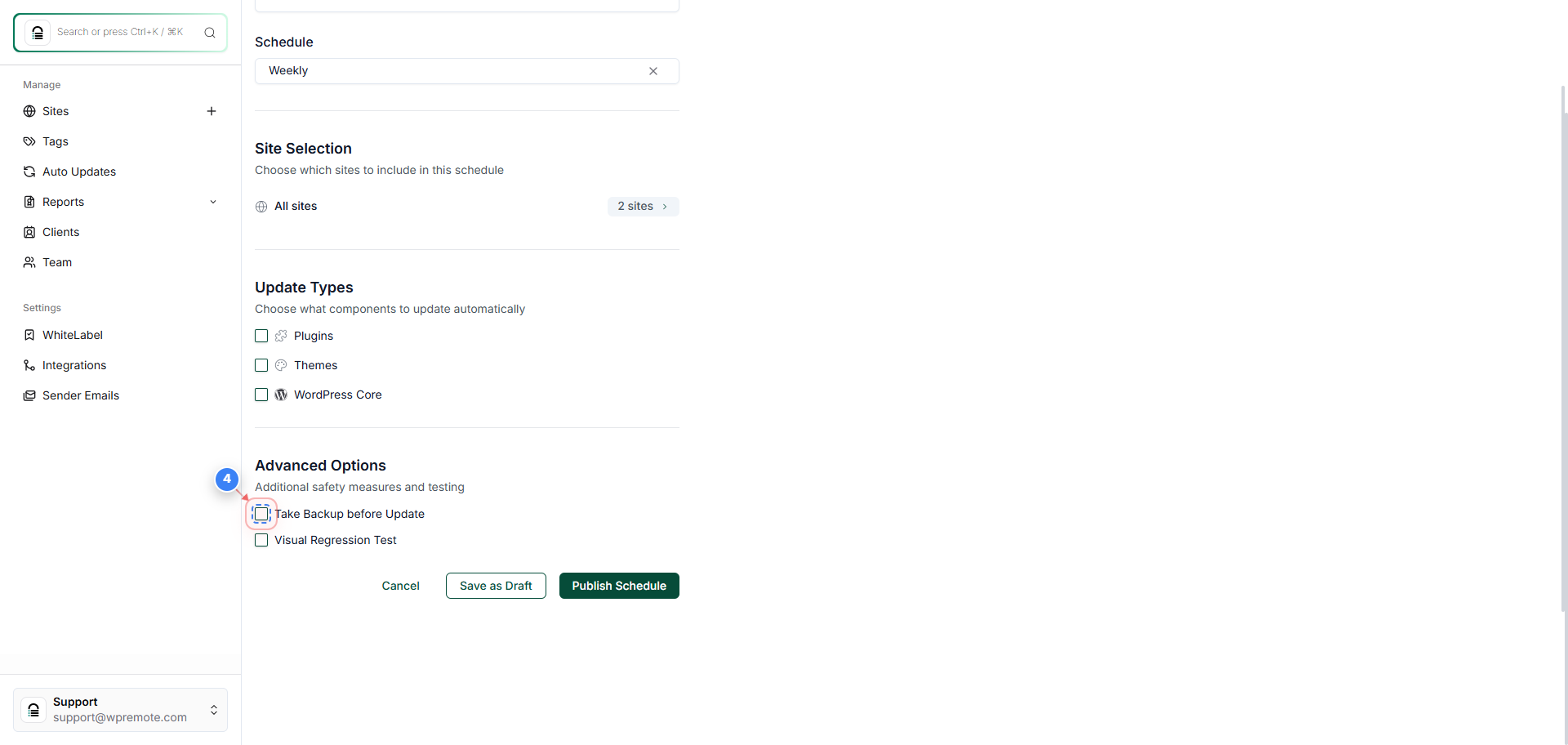
Step 4 of 4
Enable Backup Before Update
Click the Take Backup before Update option in the Advanced Options section to enable automatic backups prior to running updates, and click Publish Schedule.
Note: Recommended to prevent data loss in case an update fails.