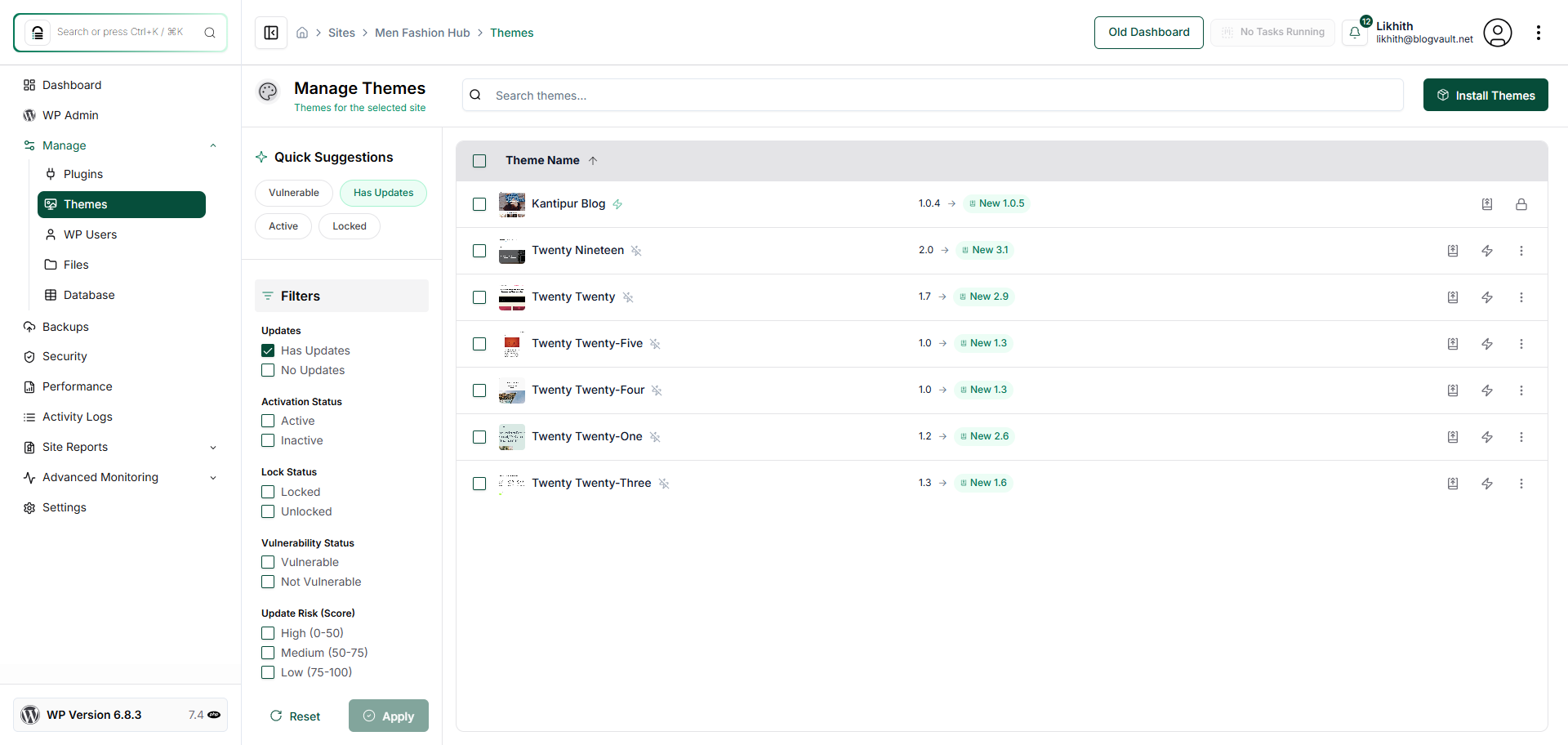
How do I see which plugins or themes need to be updated?
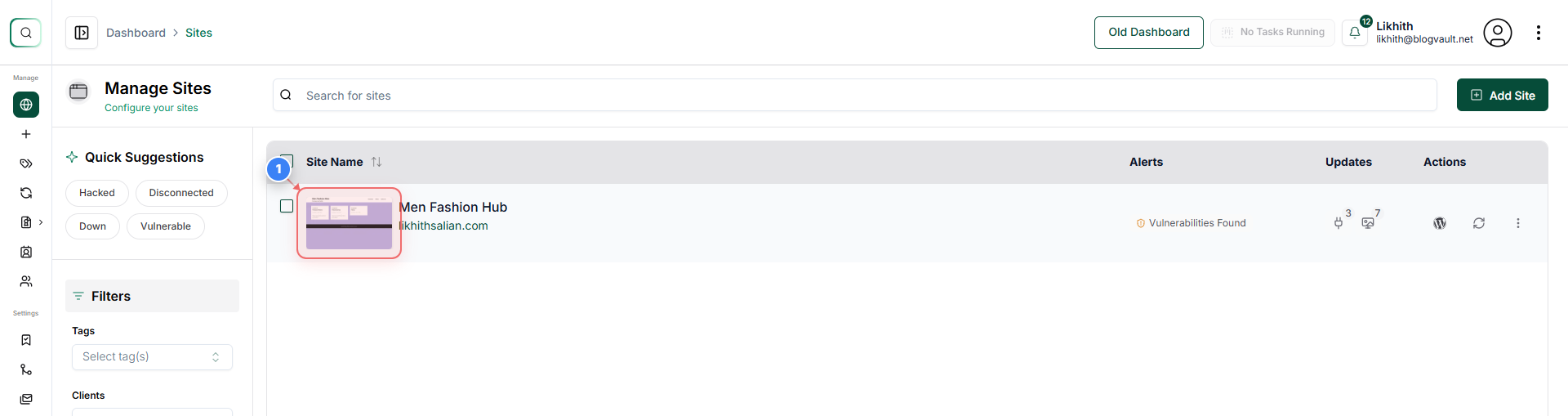
Step 1 of 9
Open the Site Dashboard
Click on your site.
Note: This takes you directly into the selected site's management area.
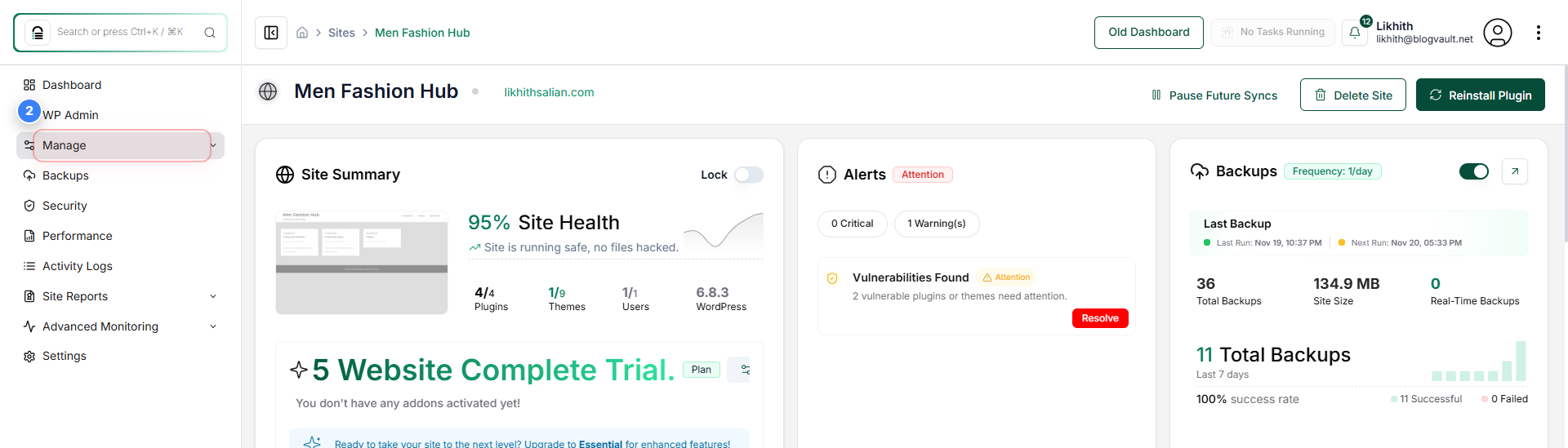
Step 2 of 9
Access the Manage Section
In the left sidebar, click **Manage** to view site management tools.
Note: The Manage menu provides access to plugins, themes, users, and other site controls.
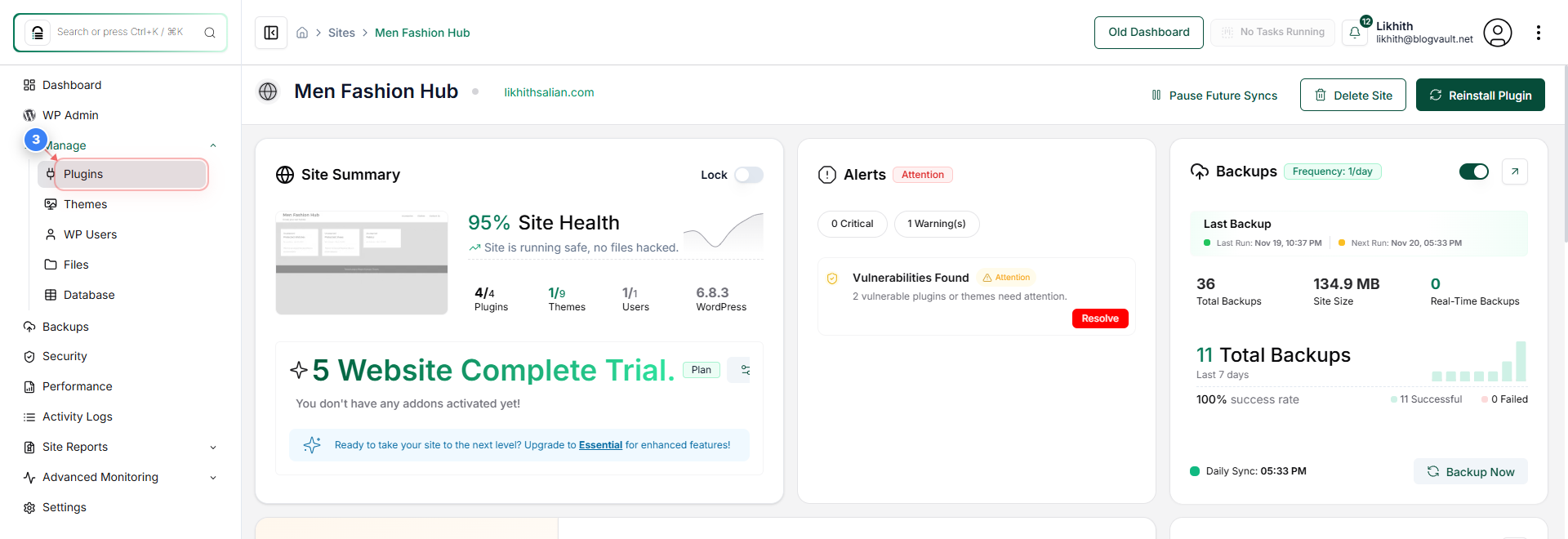
Step 3 of 9
Open the Plugins Management Page
Select **Plugins** from the Manage menu to view and manage all installed plugins.
Note: This section shows active, inactive, and updatable plugins.
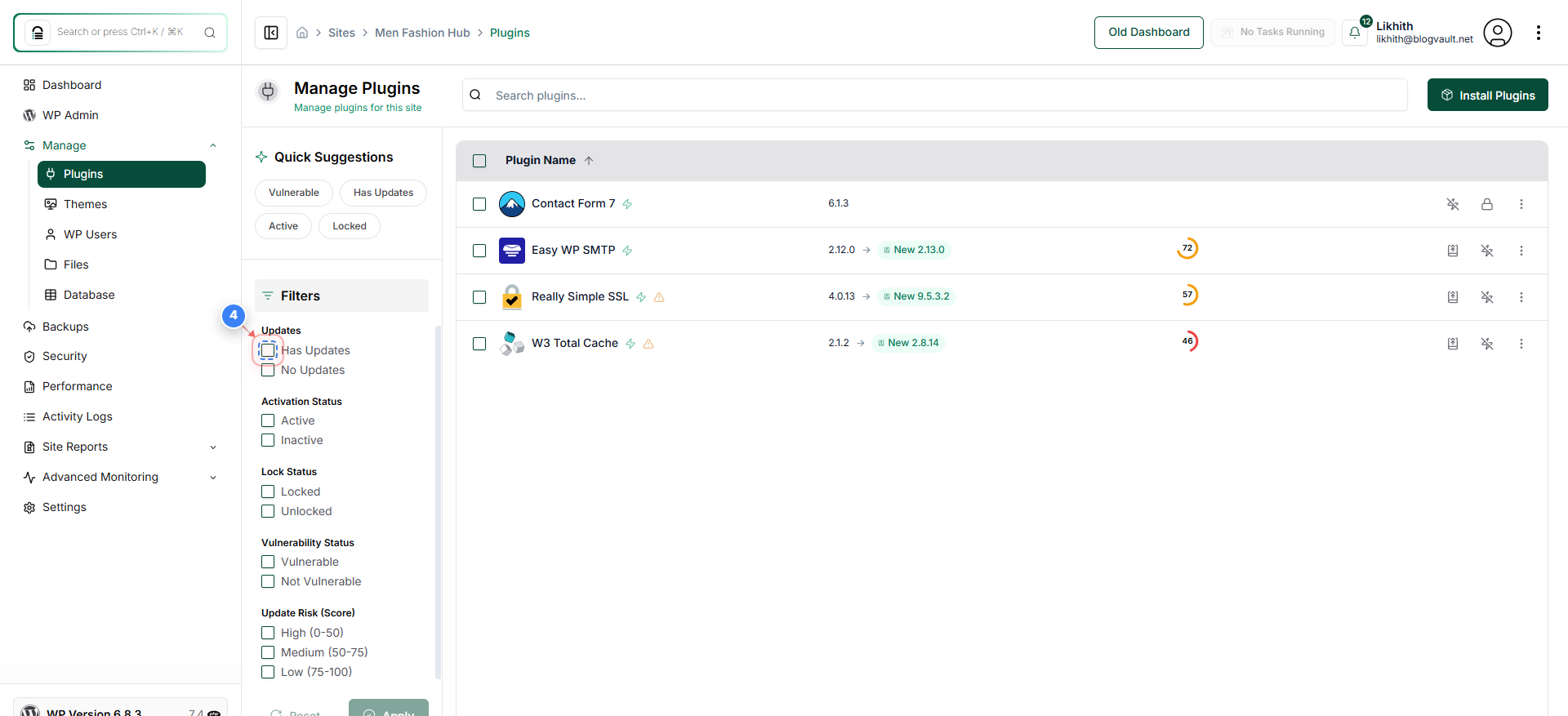
Step 4 of 9
Filter Plugins by Update Status
Click the **Has Updates** or **No Updates** checkbox to filter plugins based on their update availability.
Note: Use these filters to quickly identify plugins that need updating.
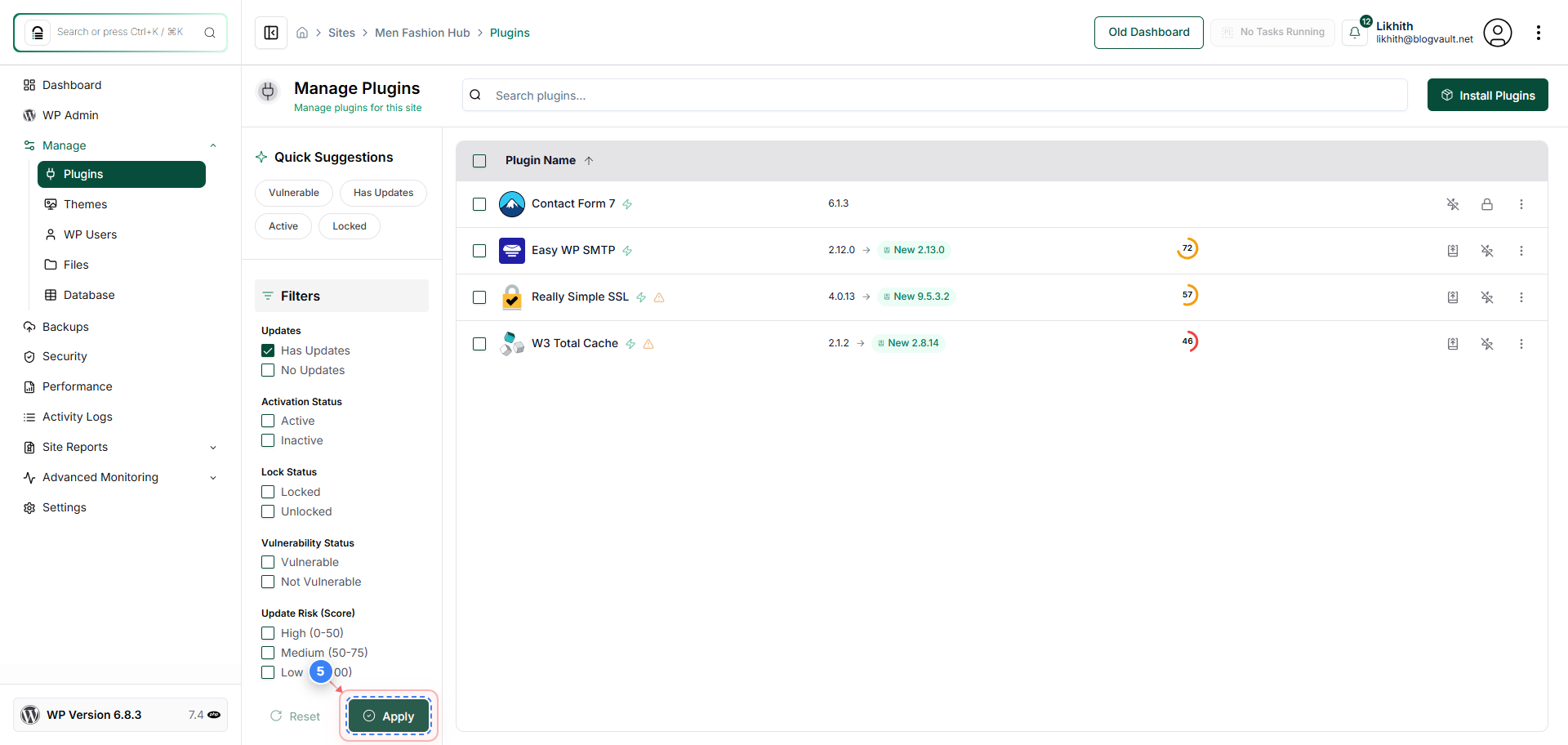
Step 5 of 9
Apply Plugin Filters
Click the **Apply** button to apply the selected filter and update the plugin list.
Note: The filtered results will display immediately after applying.
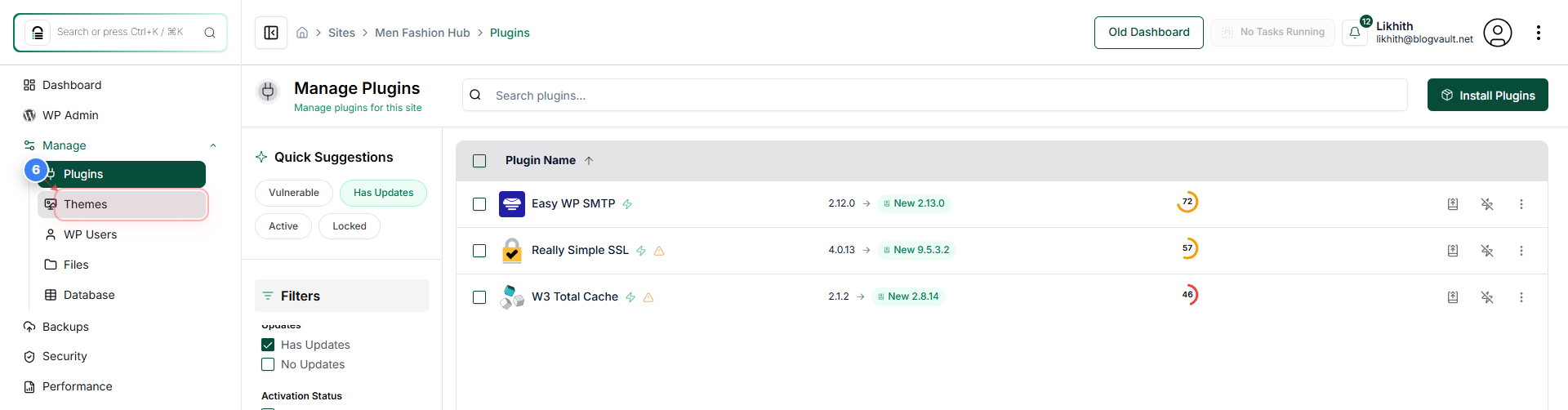
Step 6 of 9
Open the Themes Management Page
Click **Themes** in the left sidebar to switch to the themes management section.
Note: This allows you to manage active themes and any available updates.
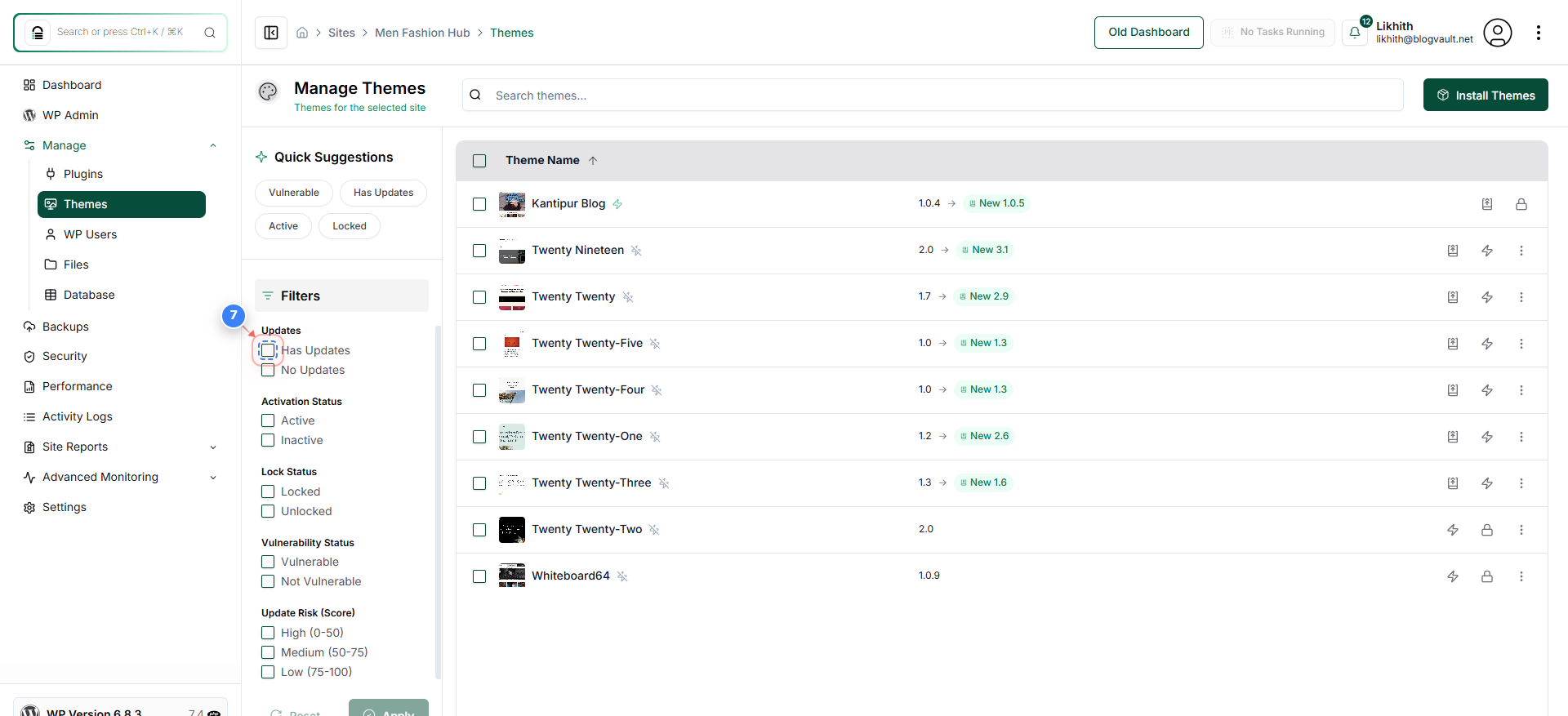
Step 7 of 9
Filter Themes by Update Status
Click the **Has Updates** or **No Updates** checkbox to filter themes based on available updates.
Note: Filtering helps identify themes that may require attention.
Step 8 of 9
Apply Theme Filters
Click the **Apply** button to apply the selected theme update filter.
Note: Your filtered theme list will update immediately after applying.
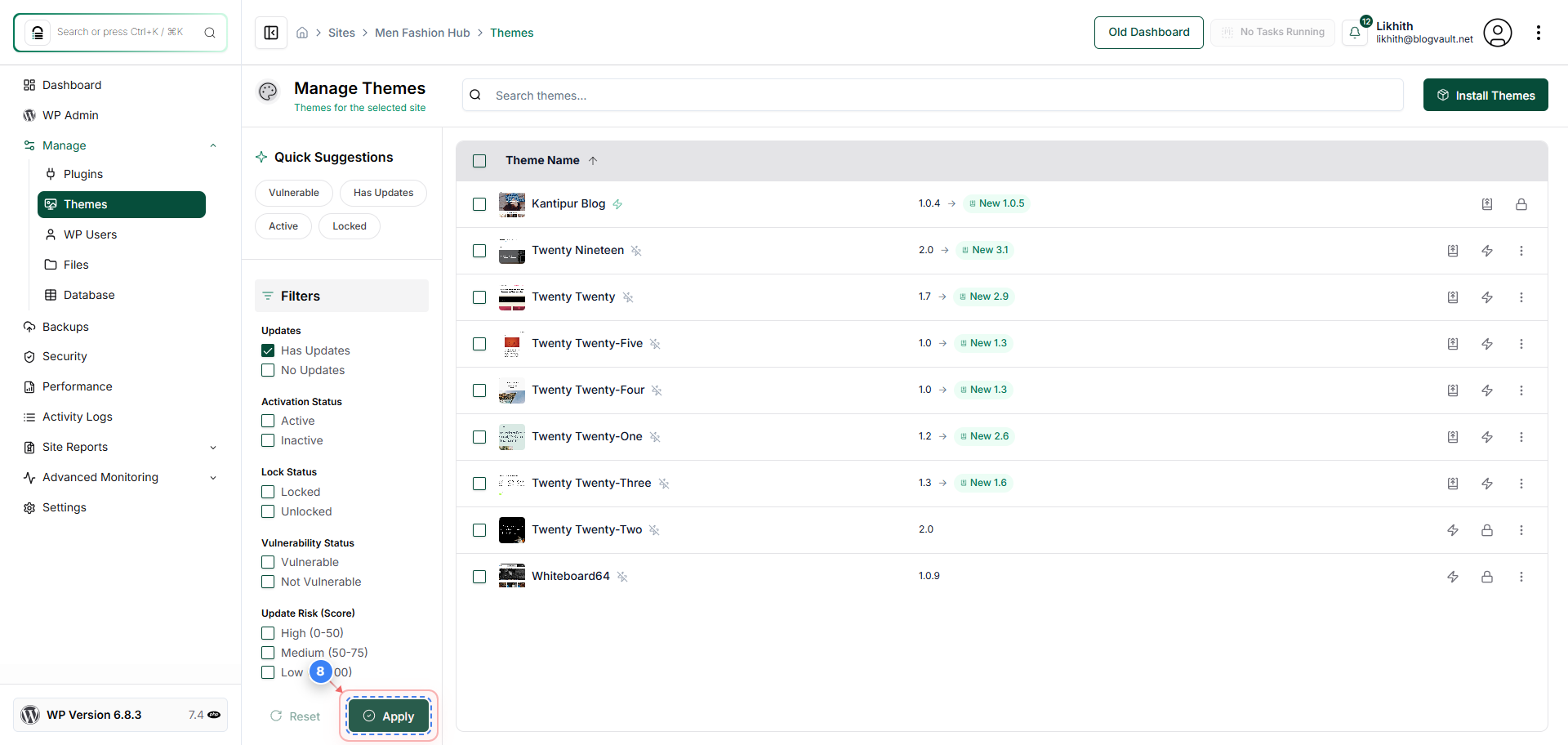
Step 9 of 9
Final page overview showing the result of all completed steps