
Export Your Plugin List in CSV Format
Step 1 of 8
Open Site Listing Page
Click on Sites in the top-left navigation to view all websites present in the account.
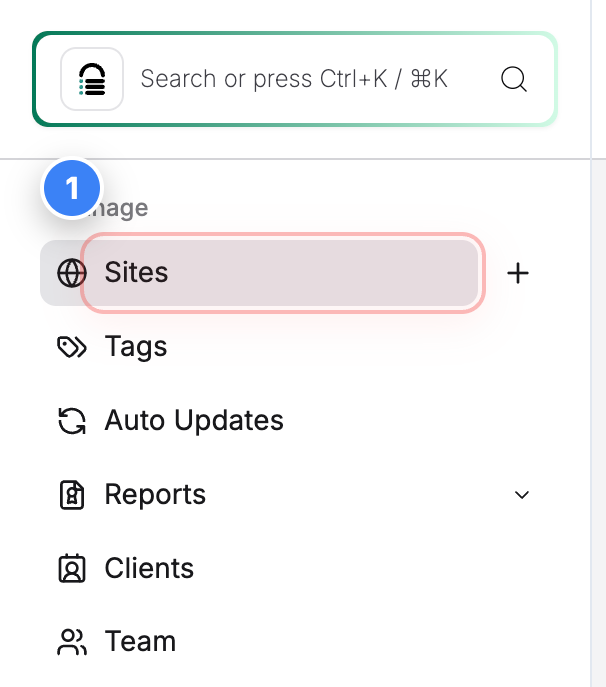
Step 2 of 8
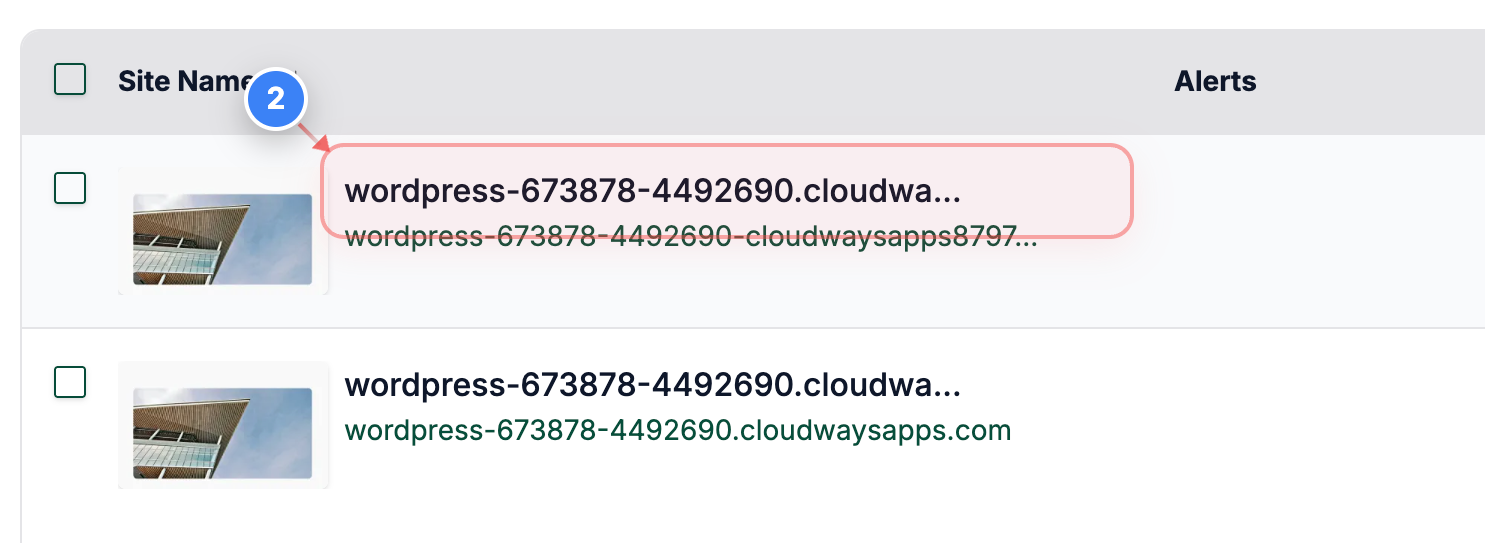
Select Your Site
Click on your site name to open its management options.
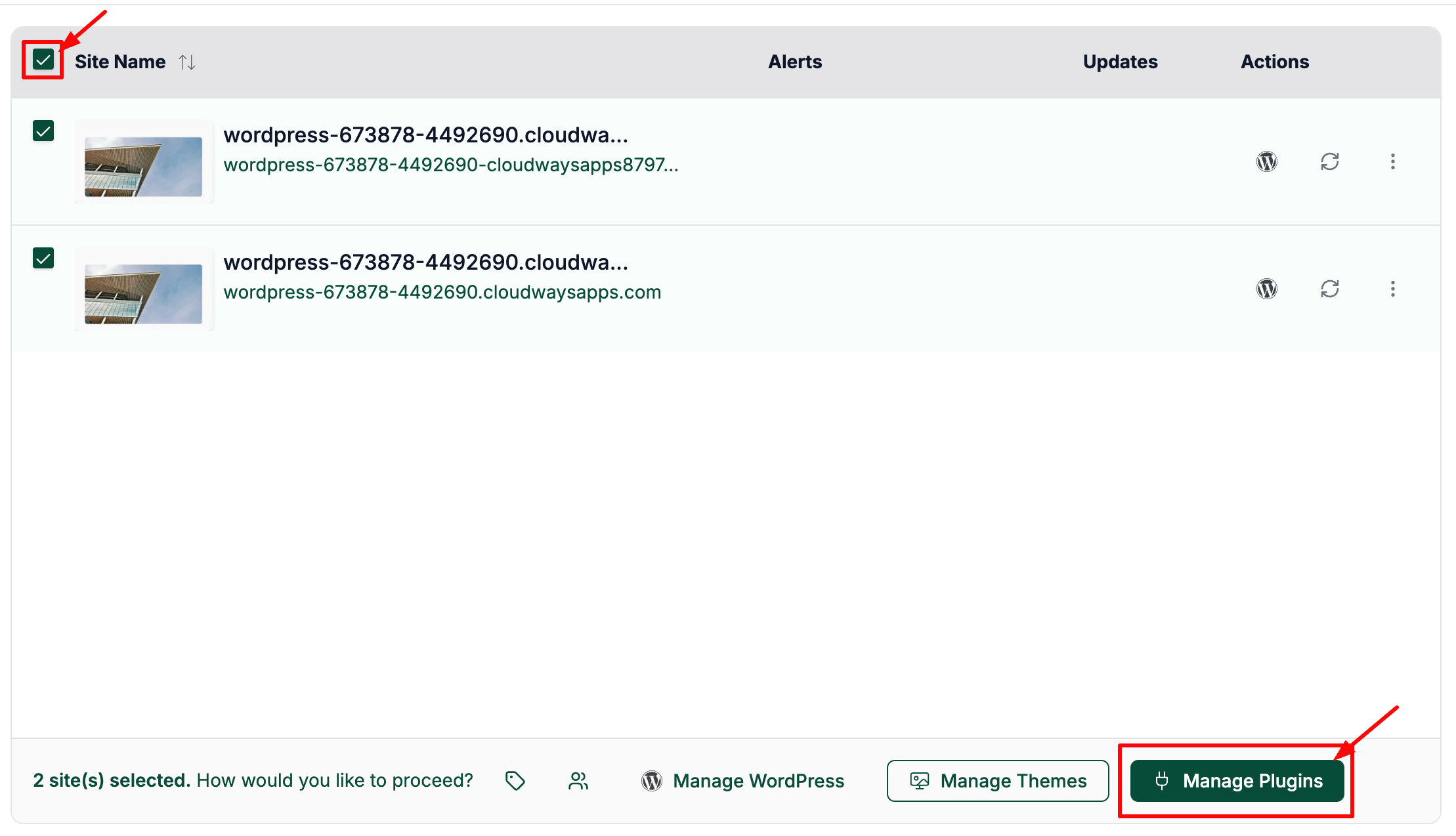
Note: You can select multiple sites to export all the plugins
Otherwise, select single/multiple sites and click on the "Manage Plugins" button as shown below to export all the plugins for the selected sites:
Step 3 of 8
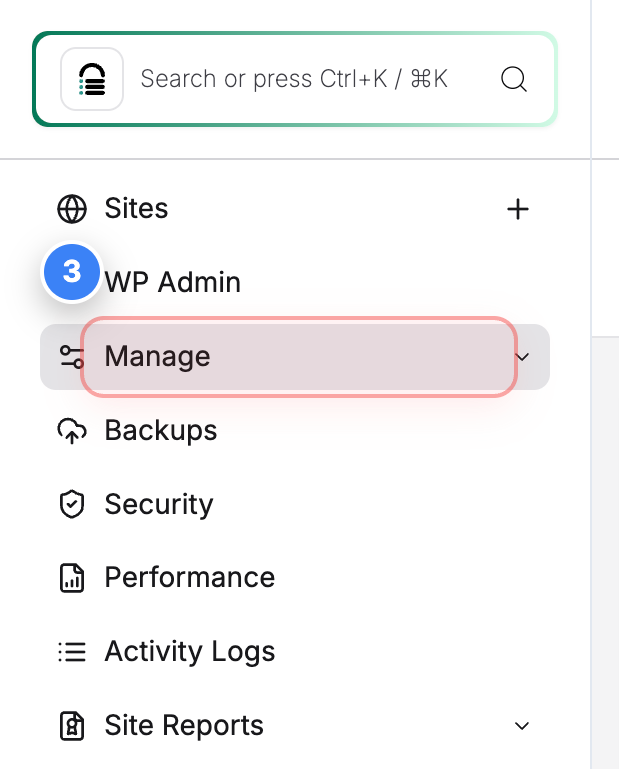
Open Manage Options
Click Manage in the left sidebar to access the plugin management page for the selected site.
Note: The Manage section contains plugins, themes, files & database table info for the site.
Step 4 of 8
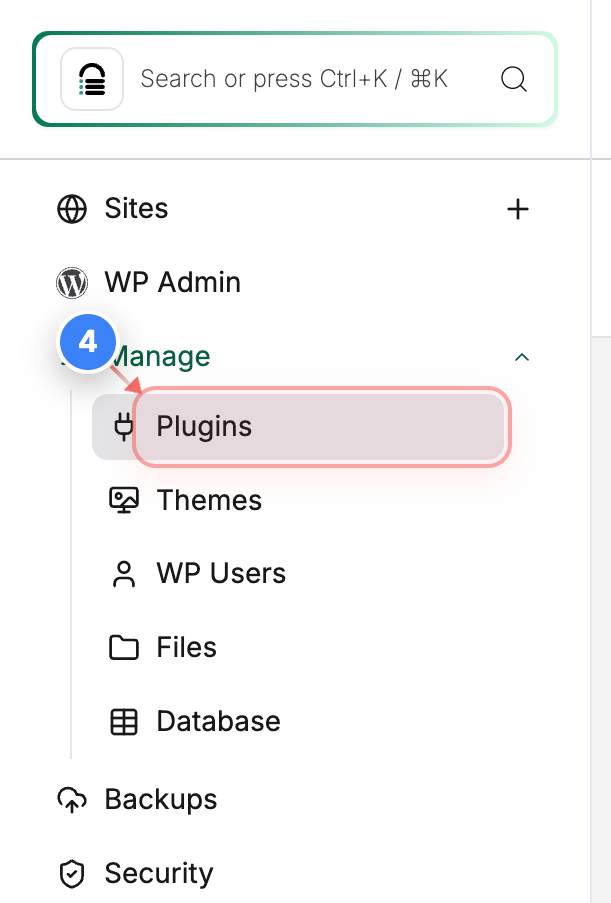
Go to Plugin Management
Click Plugins in the left sidebar to open the plugin management page for this site.
Step 5 of 8
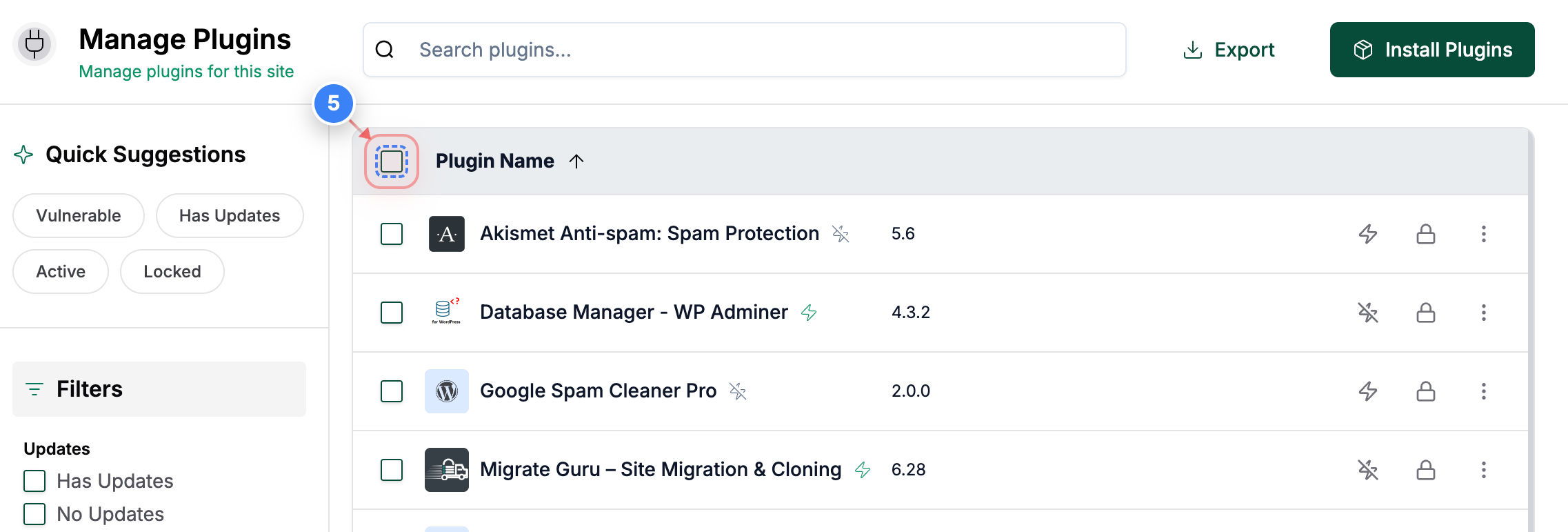
Select Plugins
Click the checkbox at the top of the plugin list to select all plugins shown on the page.
Note: Selecting all plugins ensures the full plugin list is included in the export. You may select the specific plugins or a filtered list.
Step 6 of 8
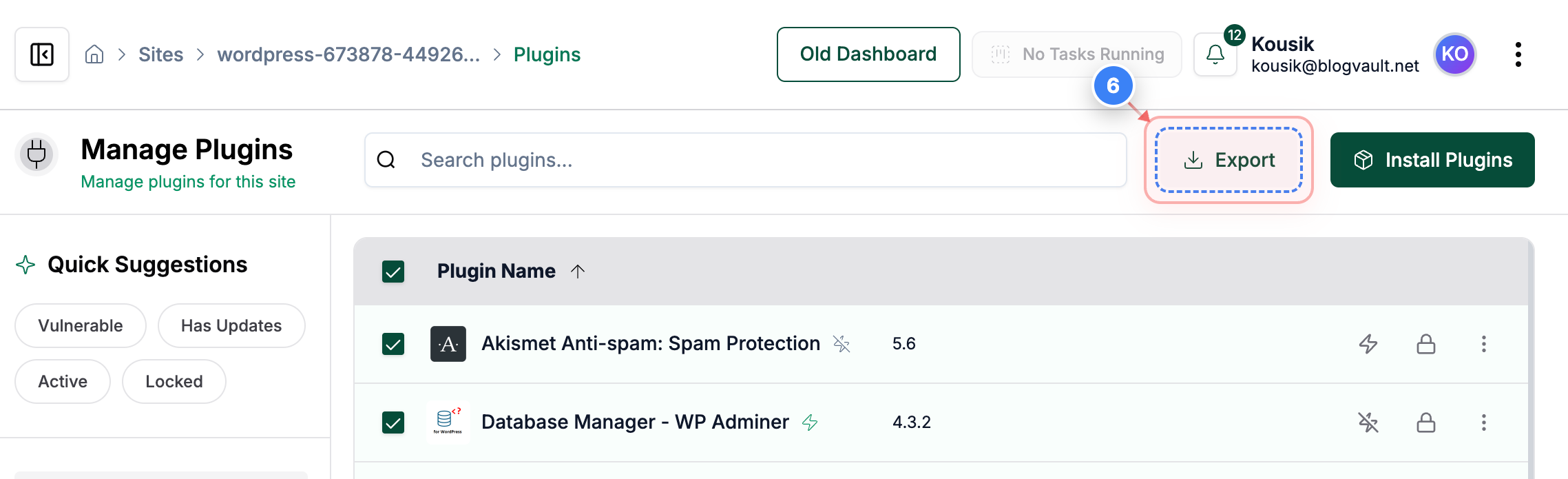
Export Plugins List
Click the Export option at the top-right of the Plugins page to download the list.
Note: The export includes site URL, plugin name, current version, available new version, status (active or inactive), plugin lock status, site lock status, and vulnerability status.
Step 7 of 8
Successful Export Data Message
Clicking the export button will download the file to your computer, and a successful message will appear.
Note: The file is downloaded in CSV format and can be opened in spreadsheet tools.

The exported CSV includes the site URL, plugin name, current version, available new version, status (active or inactive), plugin lock status, site lock status, and vulnerability status.