How do I add new plugins?
Step 1 of 5
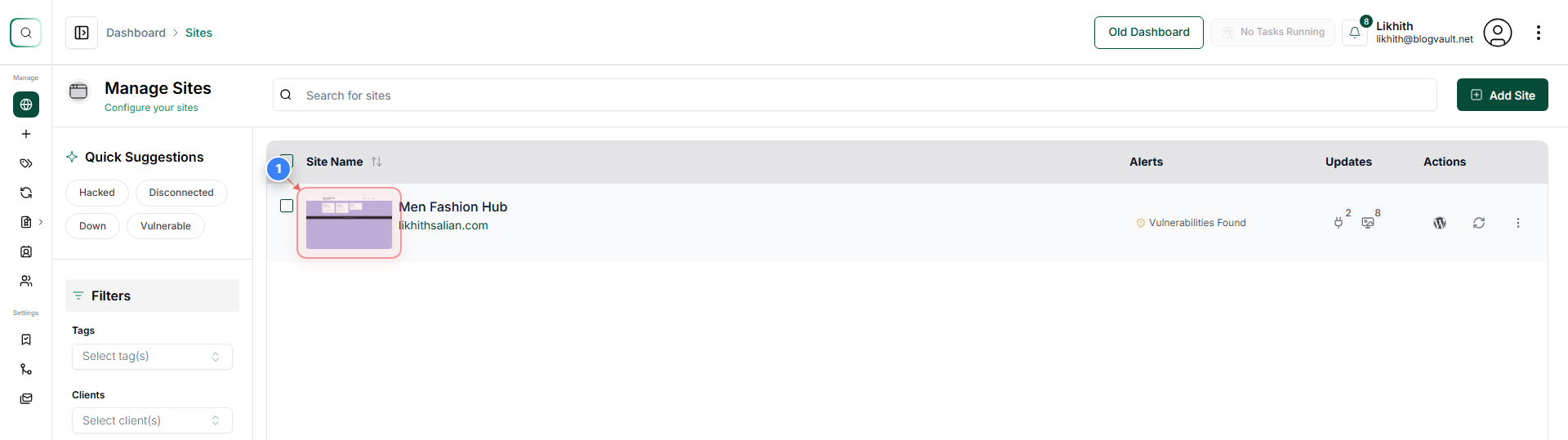
Open Site Overview
Click on your site to open its management dashboard.
Note: Use the site list to quickly switch between different websites you manage.
Step 2 of 5
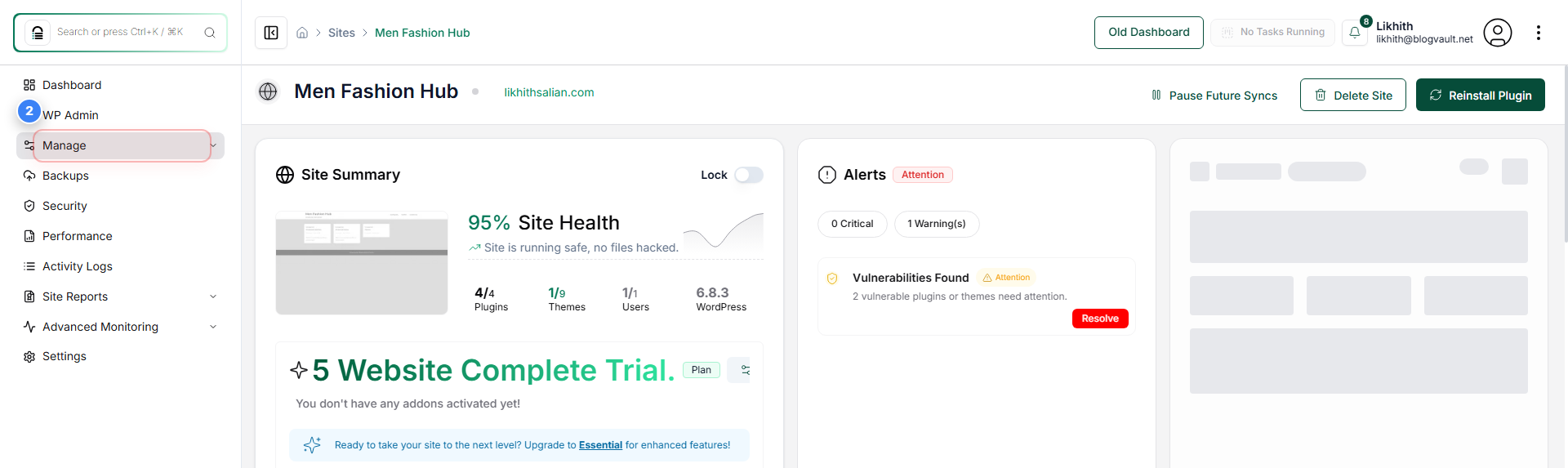
Access Site Management
Click the 'Manage' option in the left sidebar to view all management tools available for this site.
Note: This section provides access to updates, backups, plugins, themes, and security settings.
Step 3 of 5
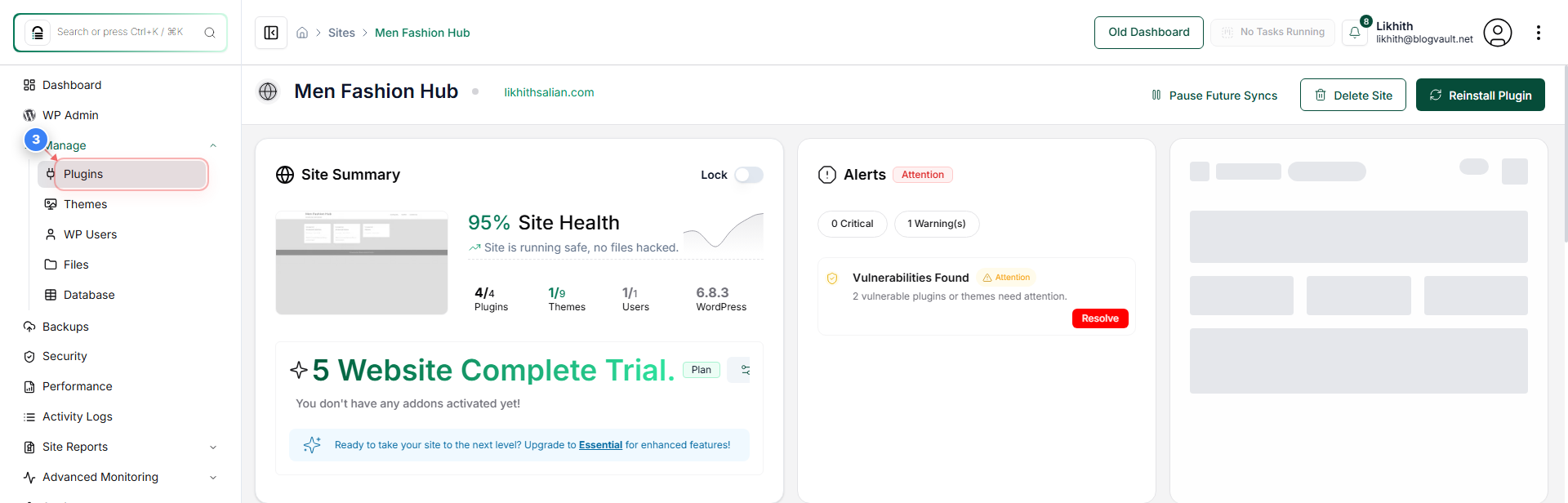
Open Plugin Management
Select the 'Plugins' option in the sidebar to view all plugins installed on the site and access update or activation controls.
Note: Use this section to enable, disable, or update plugins as needed.
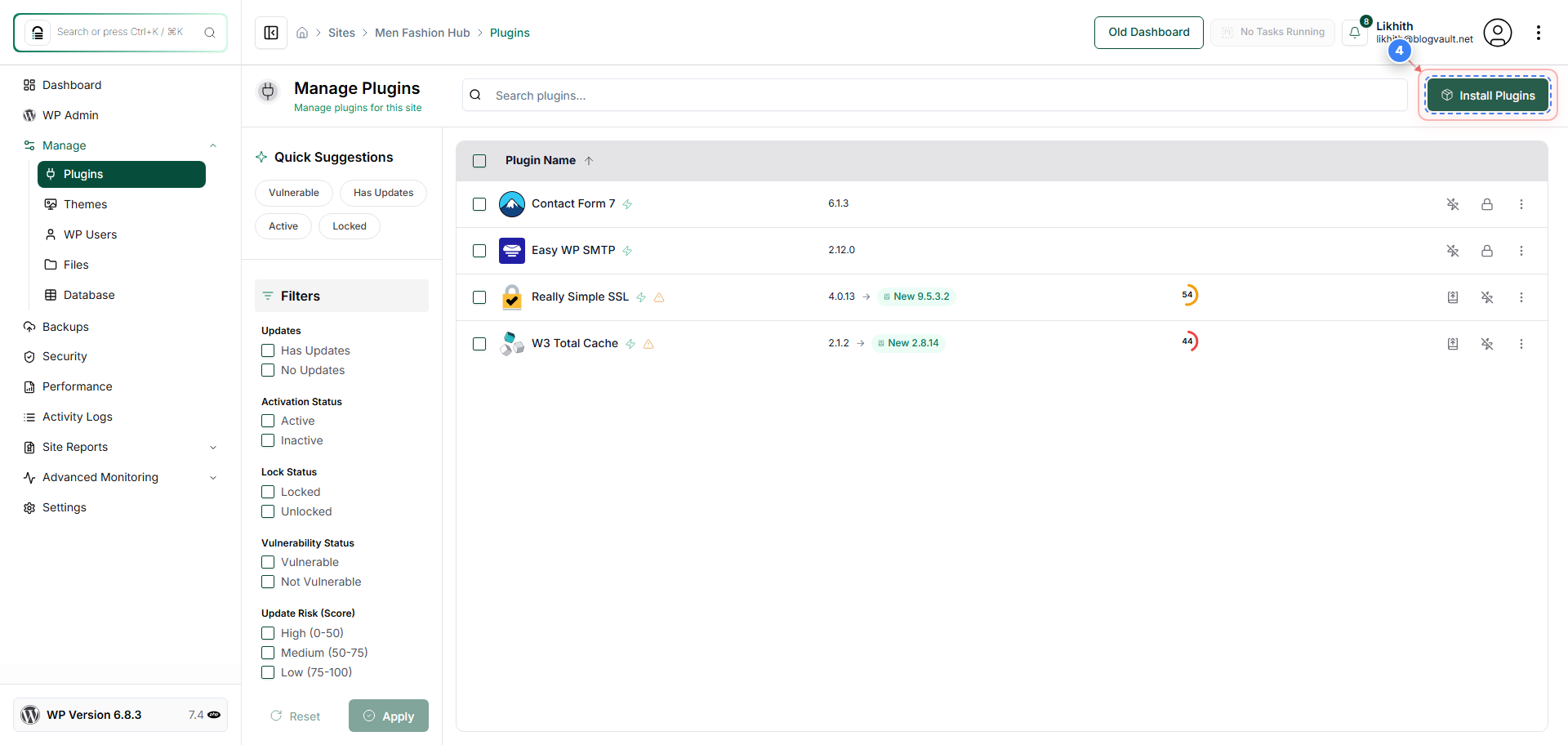
Step 4 of 5
Go to Install Plugins
Click the 'Install Plugins' link at the top-right of the Plugins page to browse and add new plugins to your site.
Note: You can search for plugins or upload your own ZIP files from this page.
Step 5 of 5
Review Plugin Installation Options
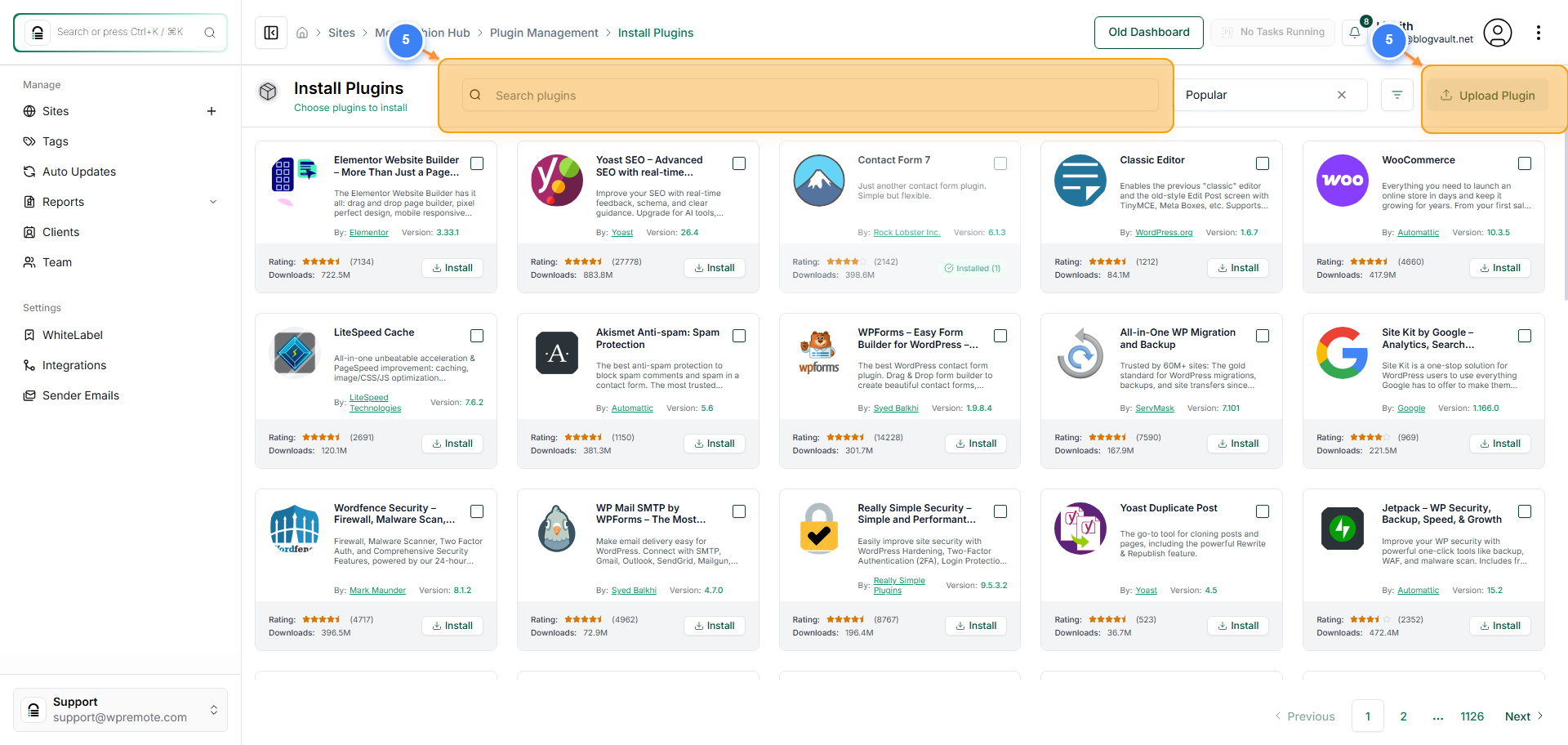
Once after click install plugin will redirect you to the page where you will see a list of plugins from the WordPress repo. You can search for Plugins in the search bar or upload a Plugin if you have the file on your PC.
Note: Verify that the plugin list loads correctly and use the search bar to quickly locate specific plugins.