How Do I Update an Existing Website URL on the Dashboard?
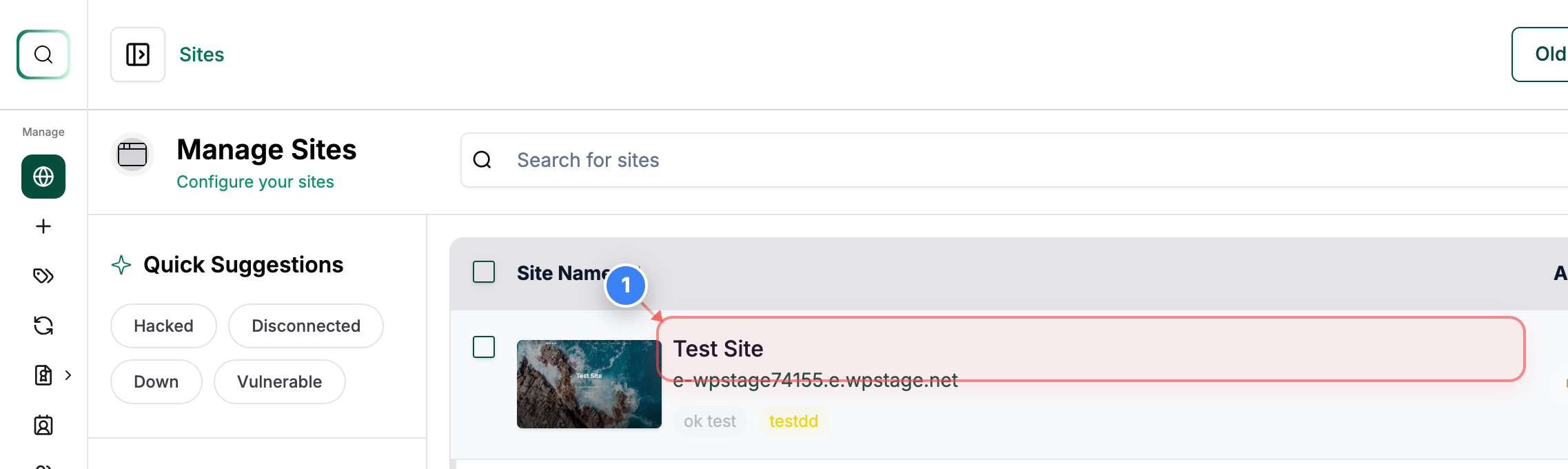
Step 1 of 7
Open Your Site
Click on your site name in the Sites list to open its management dashboard.
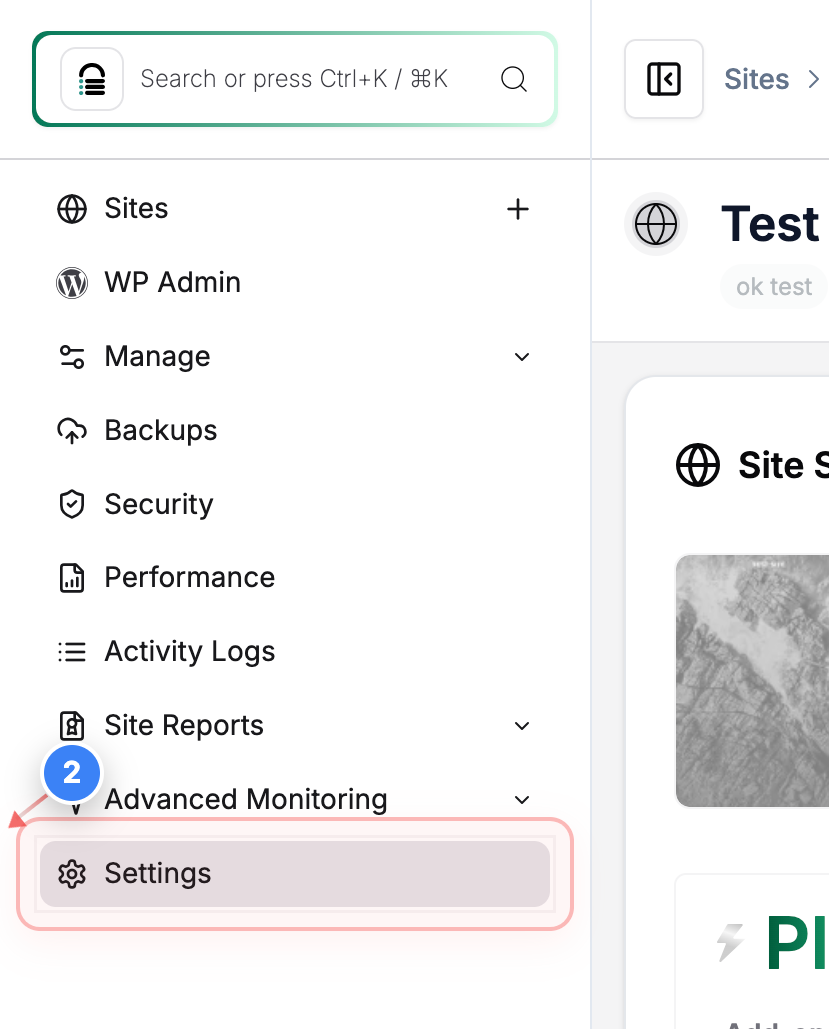
Step 2 of 7
Access Site Settings
Select the Settings option from the left sidebar to manage configuration options for your site.
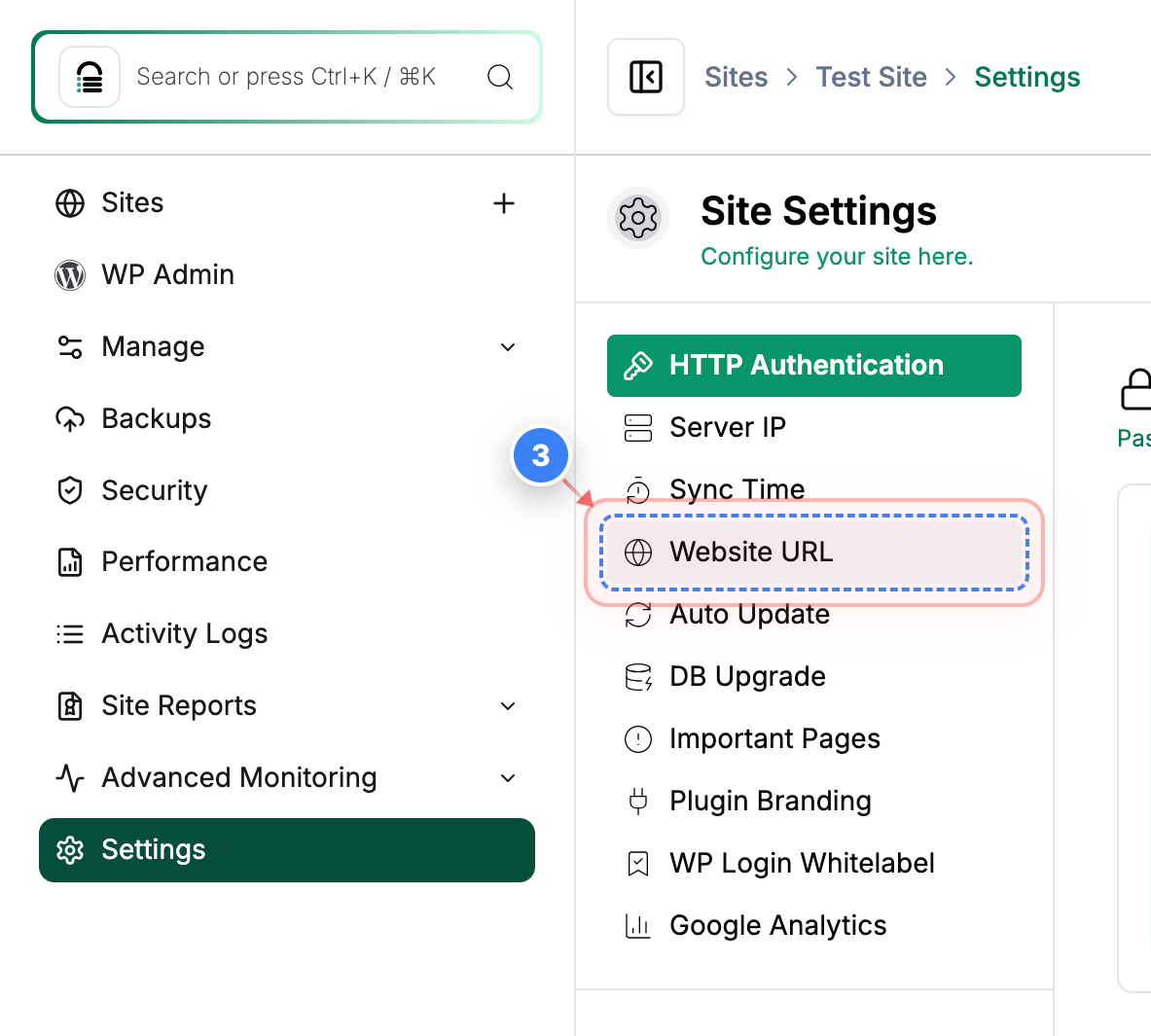
Step 3 of 7
Open URL Settings
Click the Website URL option in the Settings panel to view and edit your site's URL.
Step 4 of 7
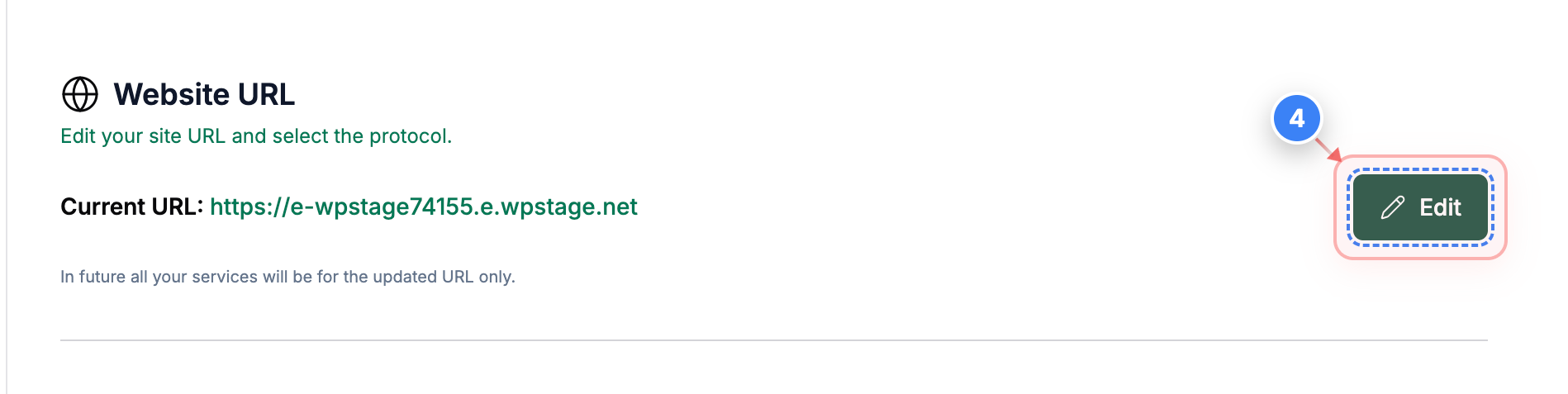
The URL Edit
Click the Edit button next to the Current URL to start updating your site's address.
Step 5 of 7
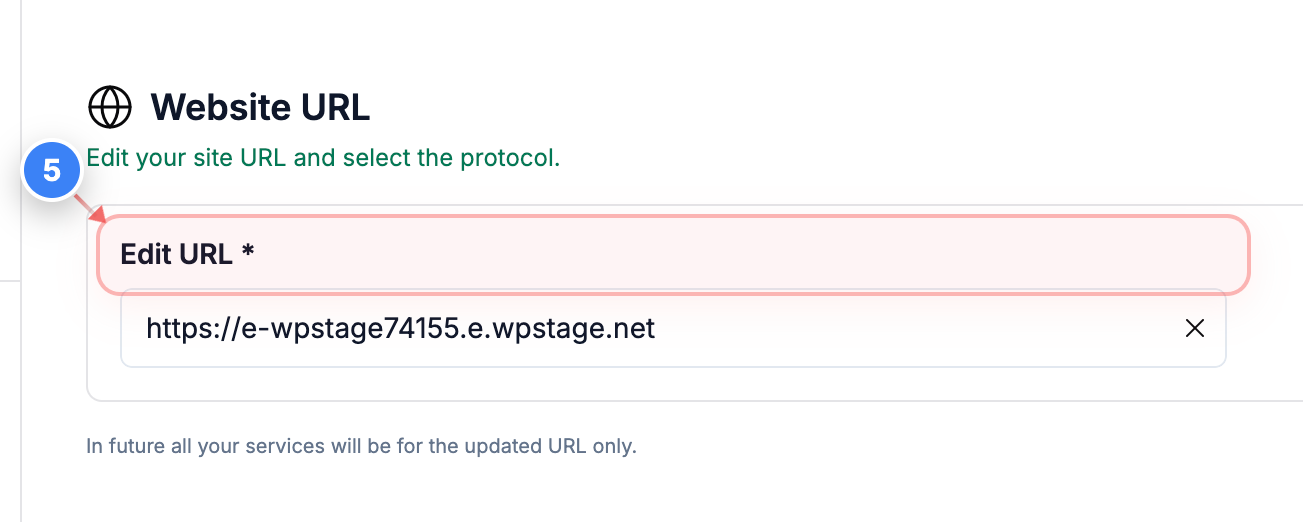
Update the URL
Enter the new site URL in the Edit URL field to change the primary address for your site.
Step 6 of 7
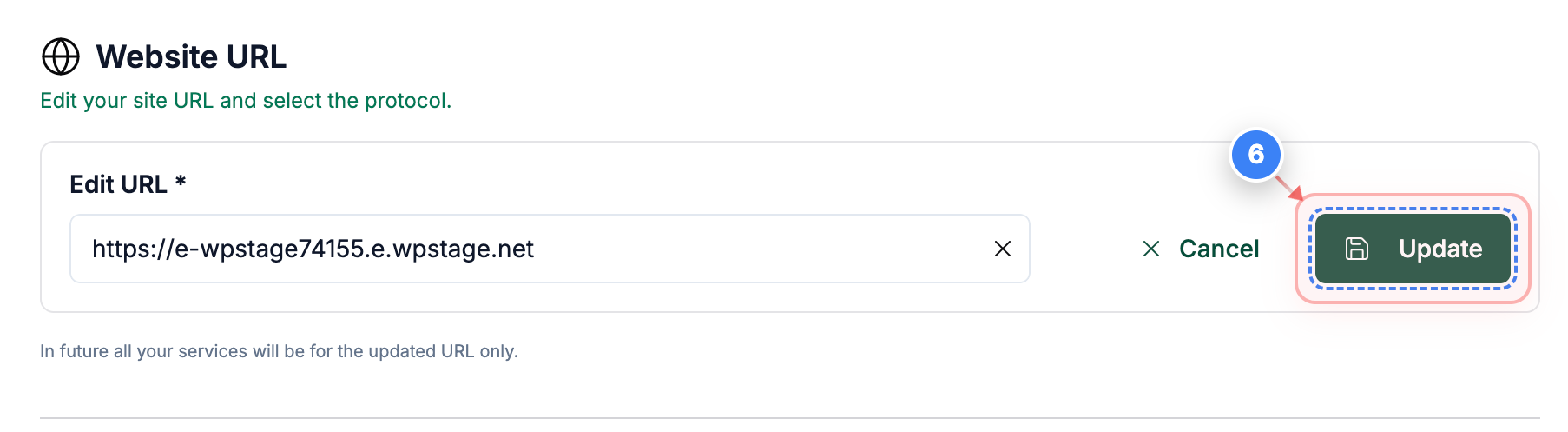
Save URL Changes
Click the Update button to apply the new URL and save your changes.
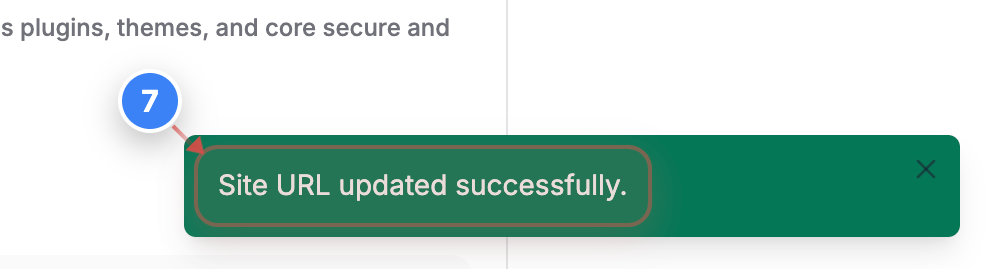
Step 7 of 7
Confirm Successful Update
Check the confirmation message indicating that your site URL was updated successfully.