How Do I View the Activity Logs for My Website?
Step 1 of 3
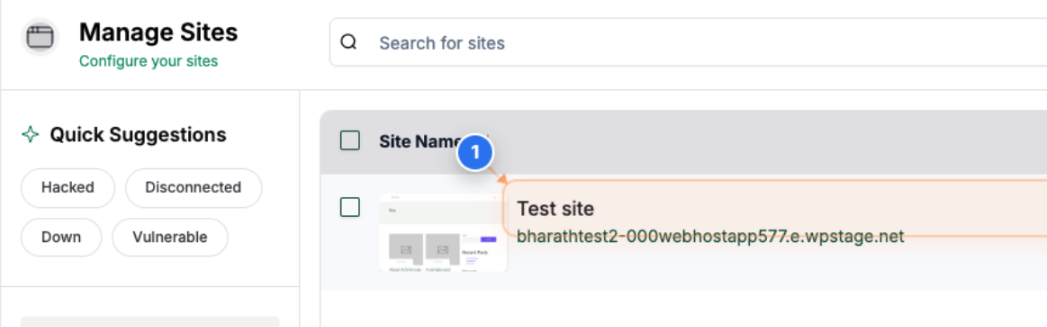
Open Site Overview
Click on the site in the center of the page to open its detailed overview and access site-specific management options.
Step 2 of 3
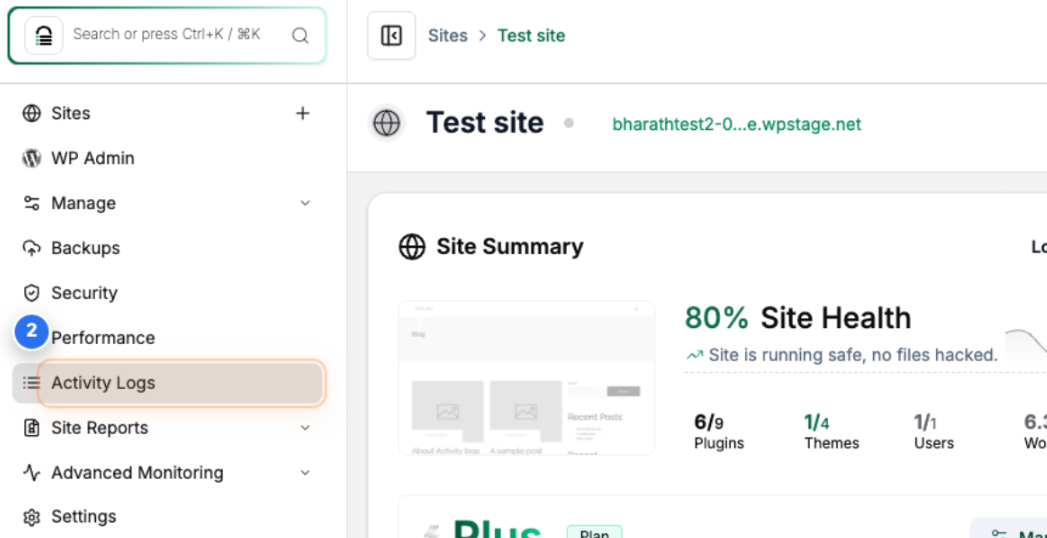
View Activity Logs
Click on 'Activity Logs' from the left sidebar menu to open the full Activity Logs section for the selected site.
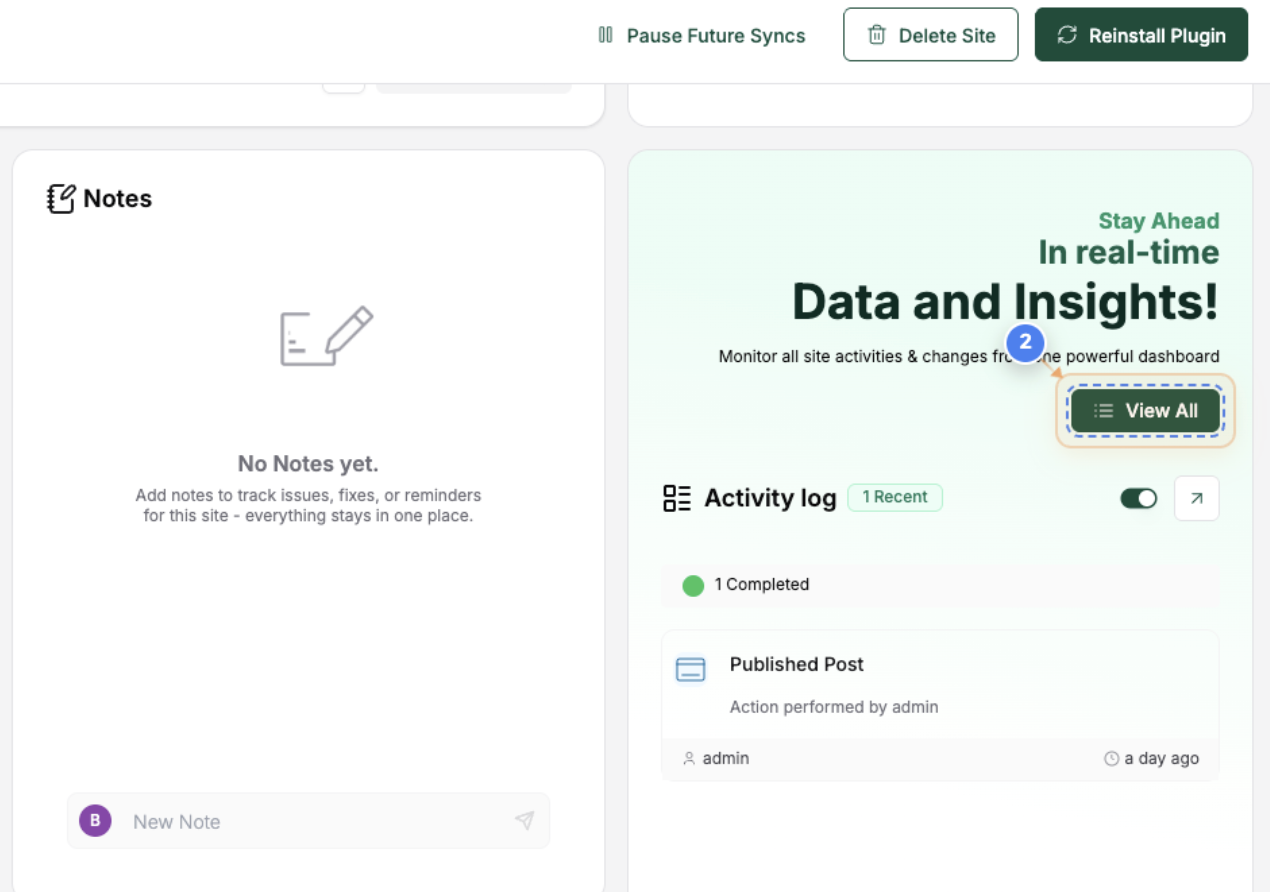
Or
Click the 'View All' button on the right side of the page to open the full Activity Logs section for the selected site.
Note: Scroll down or use the find option to go to the Activity logs area.
Step 3 of 3
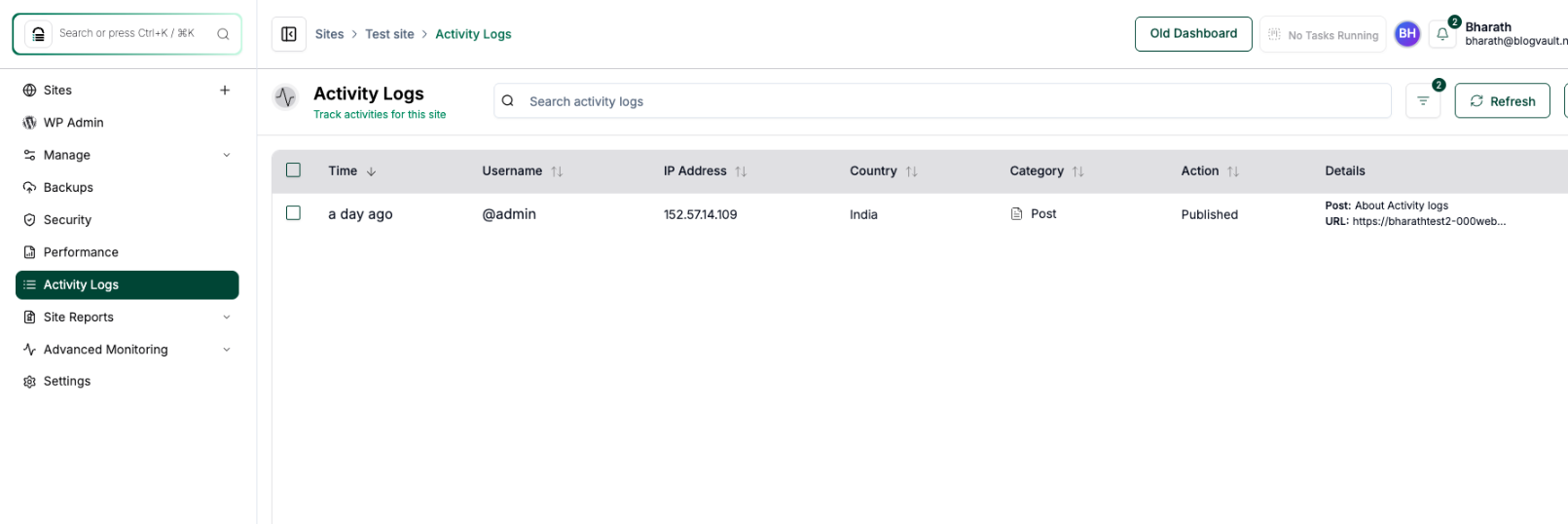
Review Site Activity Logs
The Activity Logs page displays detailed records of your site's actions, including timestamps, usernames, IP addresses, and activity types. Use this data to track changes and identify recent updates or security events.
Note: Check the 'Category' and 'Action' columns to quickly understand what type of change occurred. For example, 'Post Published' or 'Plugin Updated'. You can also filter logs (3.1) to find specific activities for easier troubleshooting.