How Do I Select the Folder with My Site’s WordPress Installation for FTP Cleanup?
Step 1 of 10
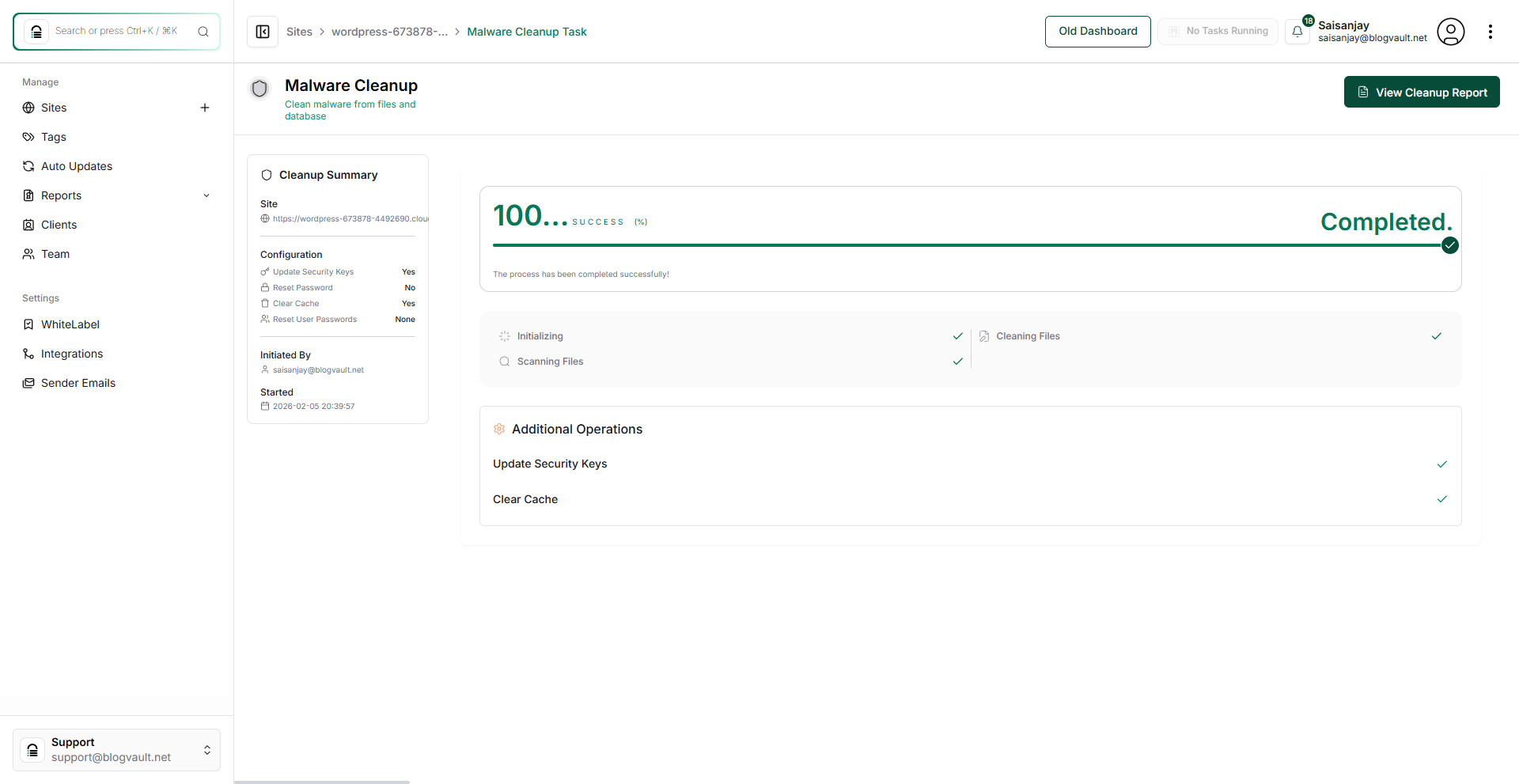
Open site dashboard
Click on your site name in the Sites page to open site management options and security status.
Note: If you manage multiple sites, confirm you select the correct domain before continuing.
Step 2 of 10
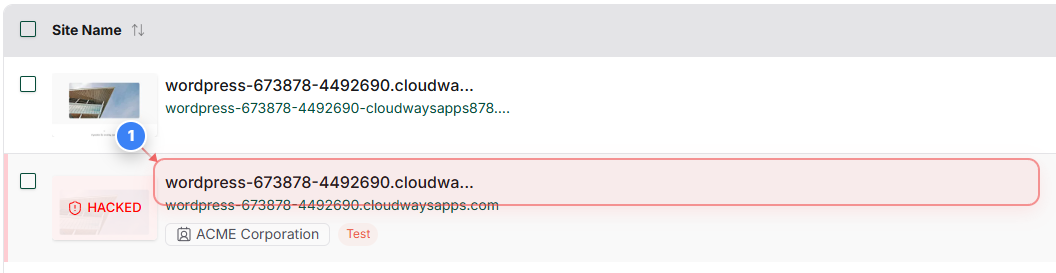
Start malware cleanup
Click the Clean Now button in the site overview section to begin the malware cleanup process for the compromised site.
Note: This option appears when BlogVault detects active threats on your site.
Step 3 of 10
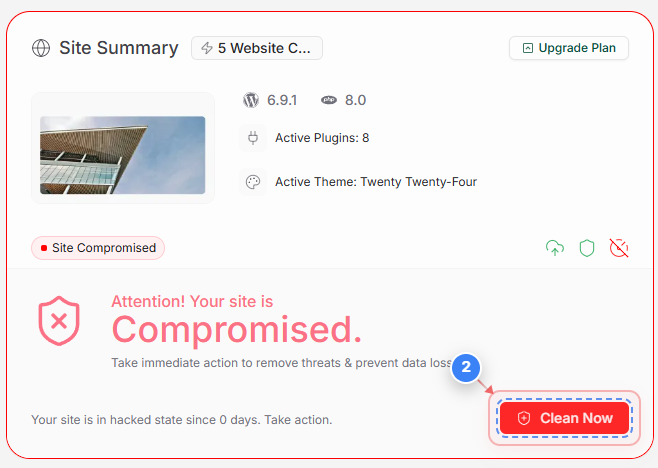
Add FTP credentials
Enter your valid FTP credentials to connect to the site.
Note: Use the same FTP credentials you use to manage files via your hosting provider.
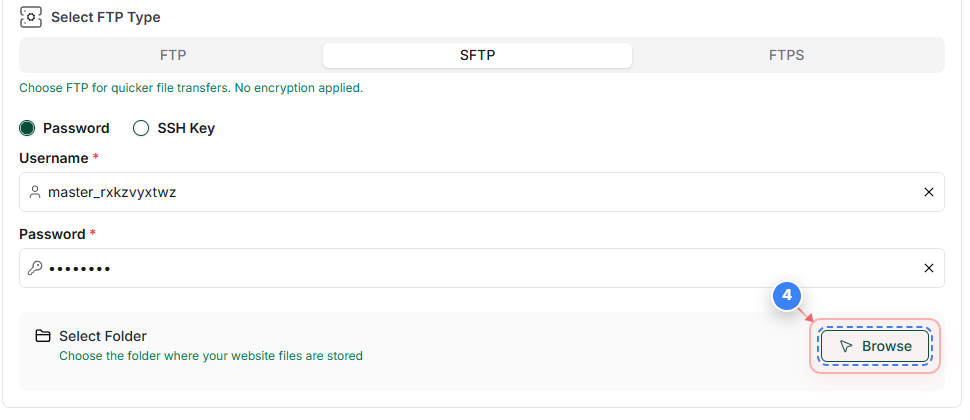
Step 4 of 10
Browse site directory
Click the Browse button in the Select Folder section to locate the directory where your website files are stored.
Note: This helps BlogVault correctly identify your WordPress installation path.
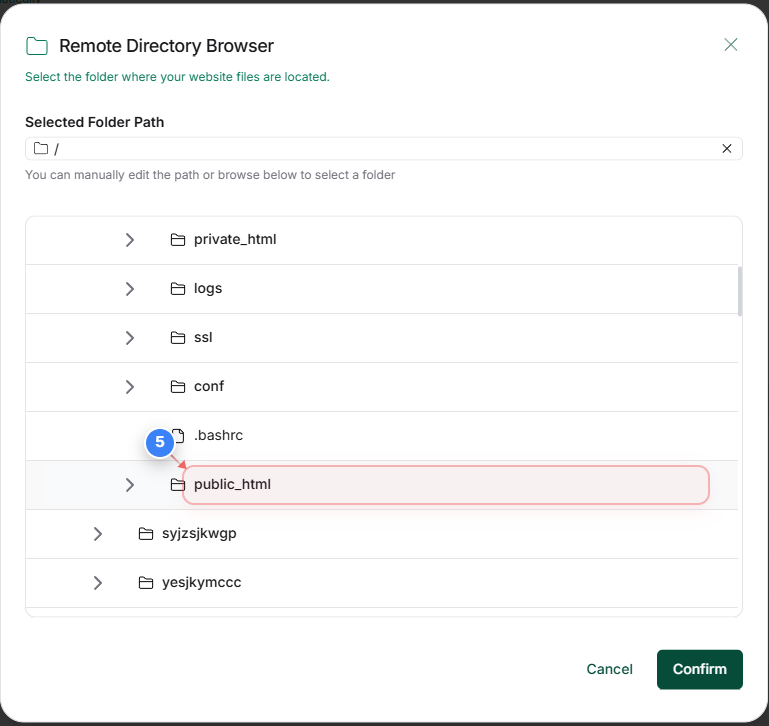
Step 5 of 10
Select website folder
Click the public_html folder in the directory list to select the main location of your website files.
Note: Most WordPress sites are installed inside the public_html directory.
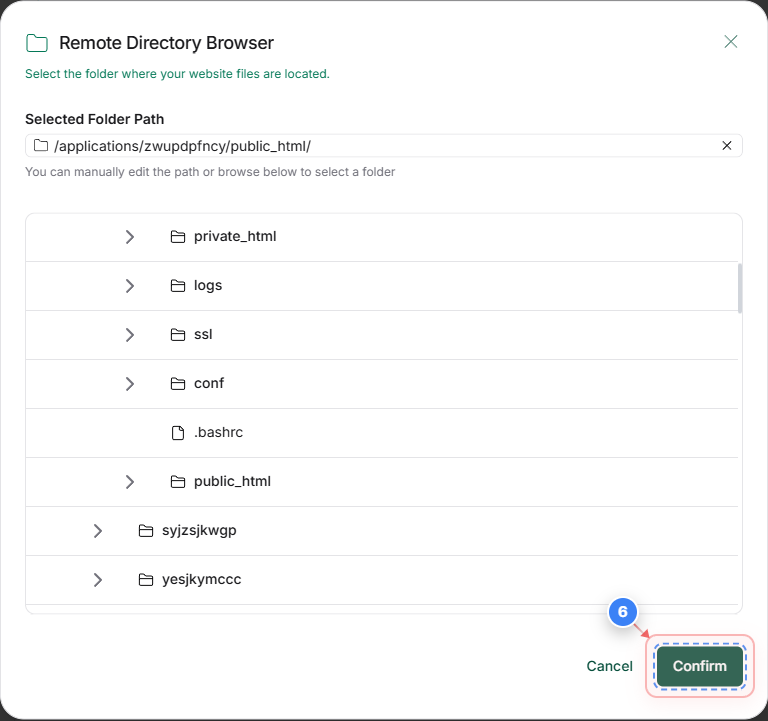
Step 6 of 10
Confirm folder selection
Click the Confirm button at the bottom of the folder selection window to finalize the website directory path.
Note: Ensure the selected path matches your WordPress root directory.
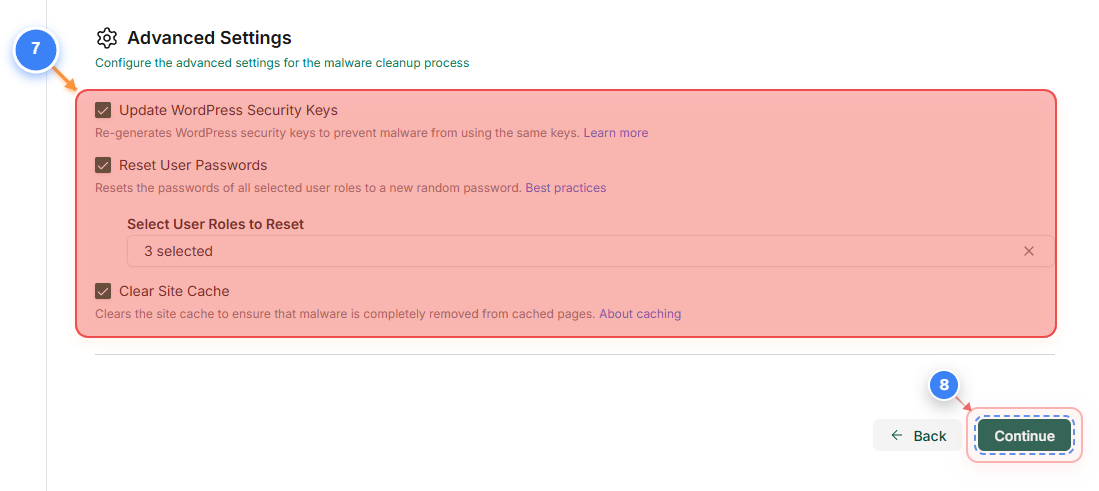
Step 8 of 10
Proceed with cleanup
Uncheck the Reset User Passwords option if you do not want the WP-admin user passwords to be reset(Step 7).
Click the Continue button in the lower-right area after connection checks pass to move to the cleanup summary.
Note: Green connection indicators confirm FTP access is working correctly.
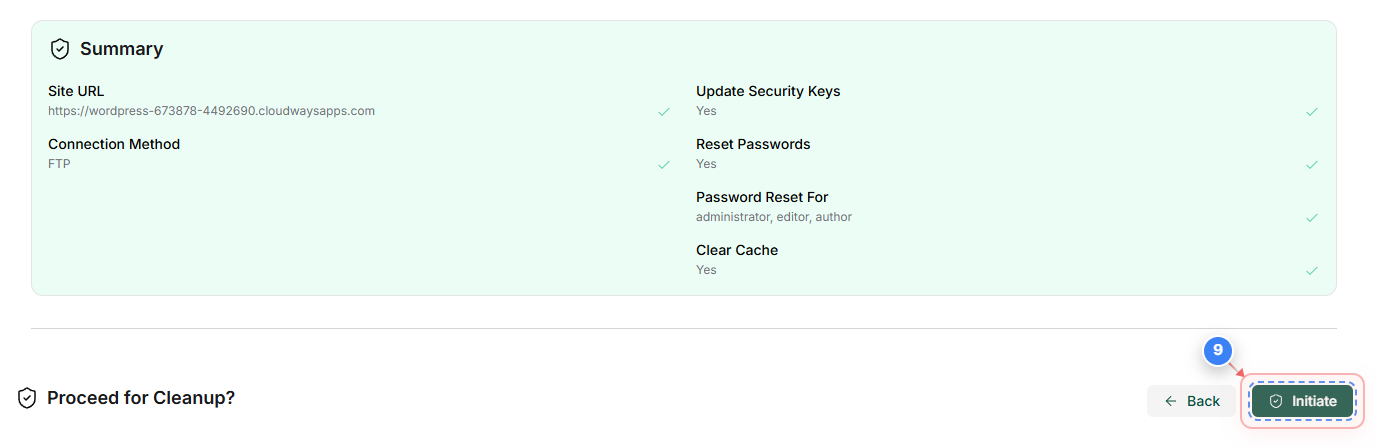
Step 9 of 10
Initiate malware removal
Click the Initiate button on the cleanup summary page to start scanning and removing malicious code from your site.
Note: The process runs automatically and may take several minutes depending on site size.
Step 10 of 10
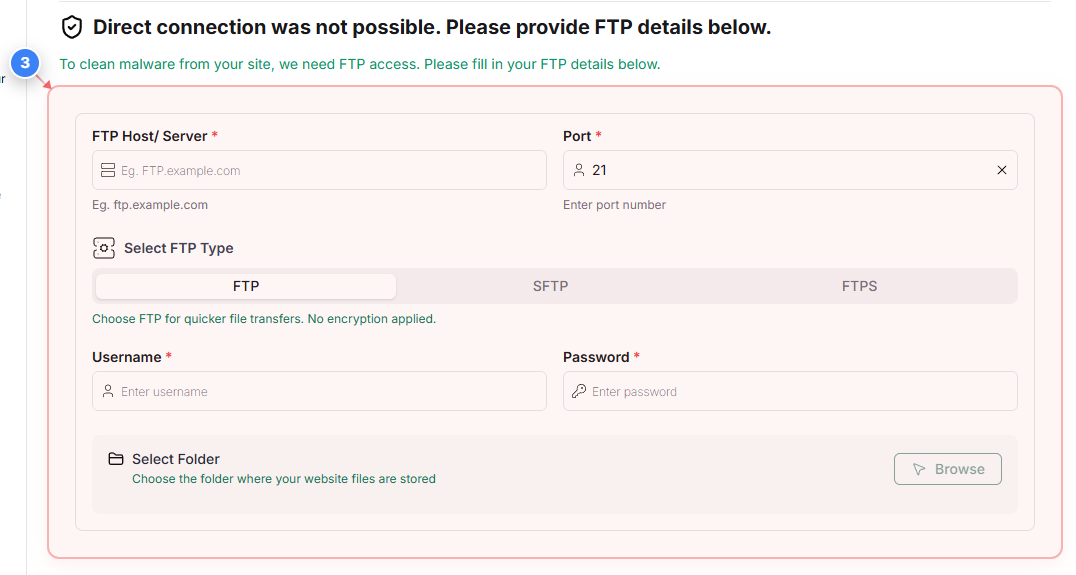
Verify cleanup completion
Review the Malware Cleanup Task page to confirm the cleanup status shows Completed at 100%, with stages like Scanning Files and Cleaning Files marked as finished.
Note: After completion, review the Cleanup Report for details and consider resetting passwords if malware was detected.