How Do I Custom Schedule Scans for My Website?
Step 1 of 5
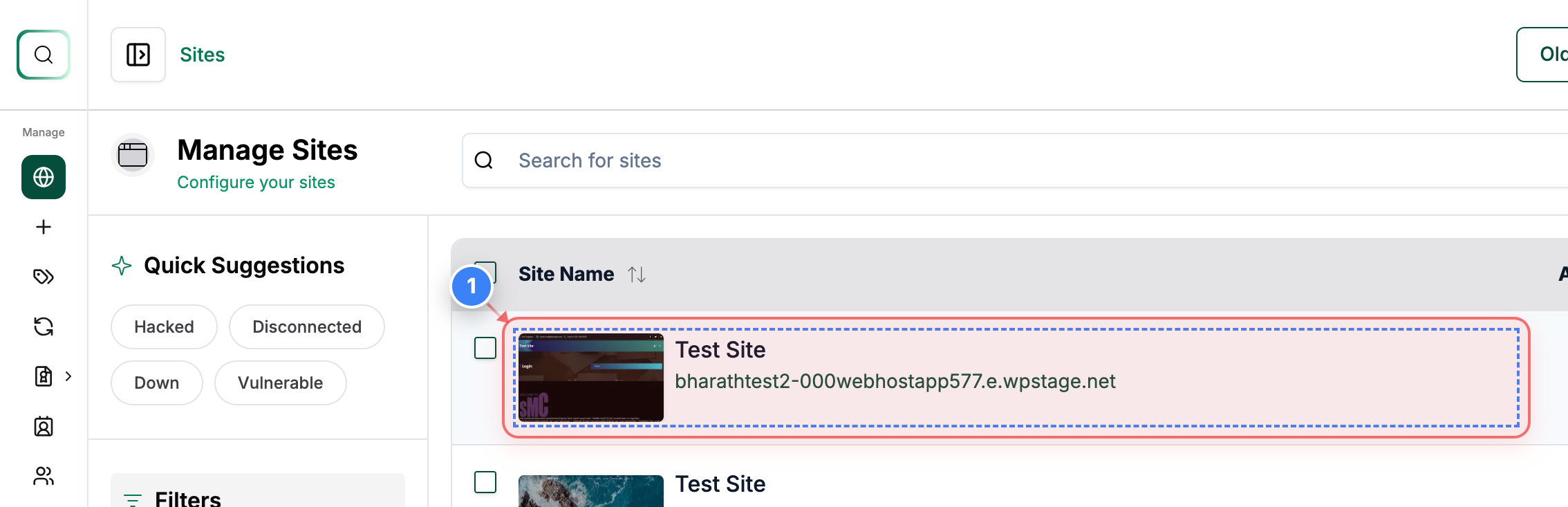
Open your site
Click on your site in the sites list to open its management dashboard.
Note: Make sure you select the correct site if you manage multiple sites.
Step 2 of 5
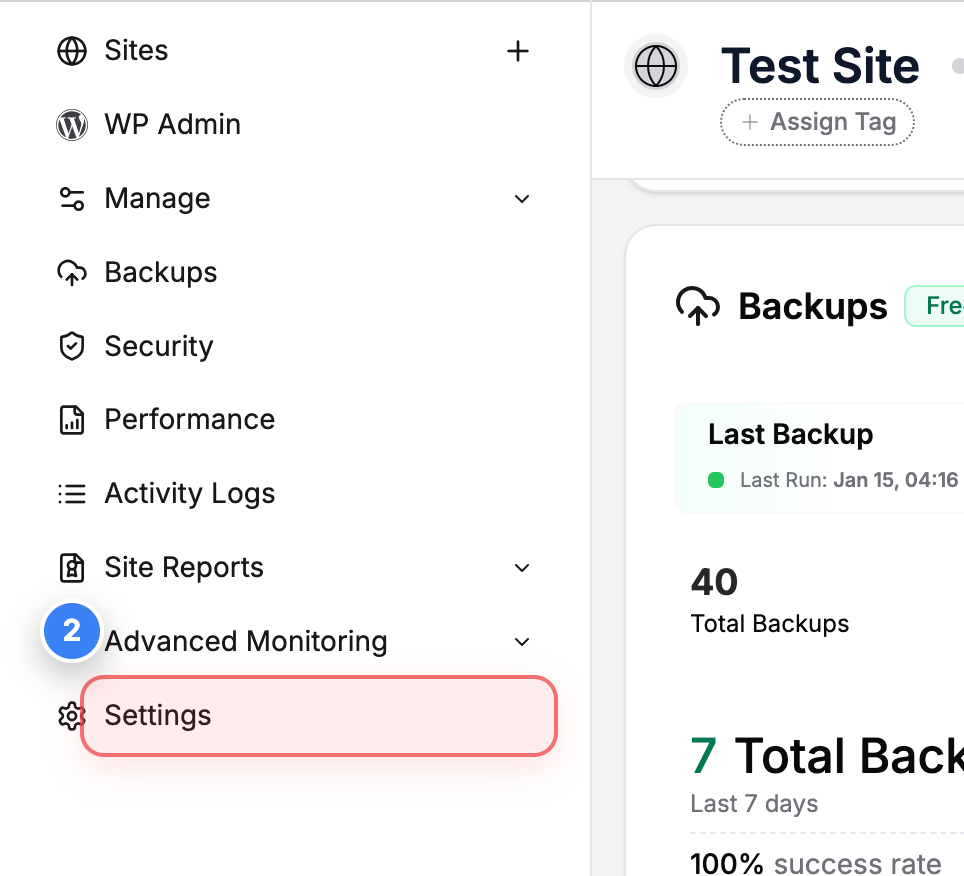
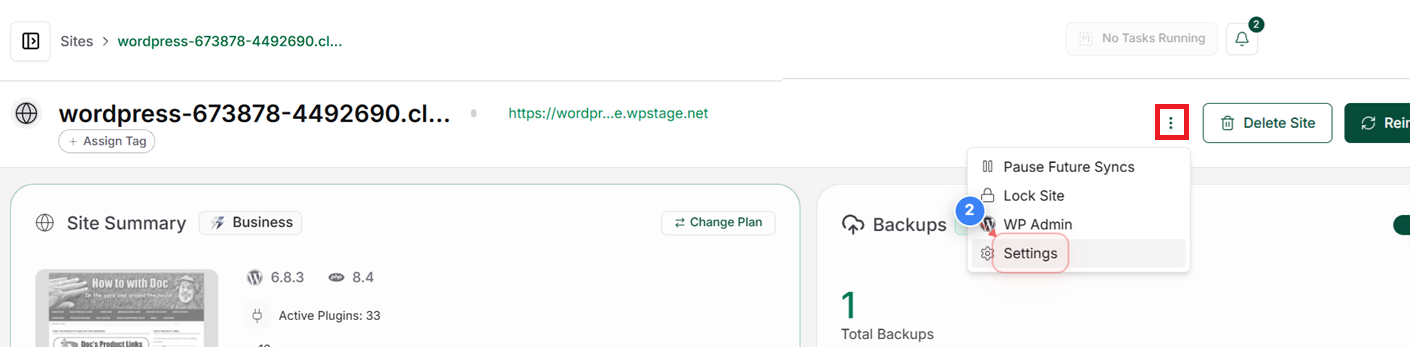
Go to Settings
Click Settings in the left sidebar or use the three-dot button to access configuration options for your site
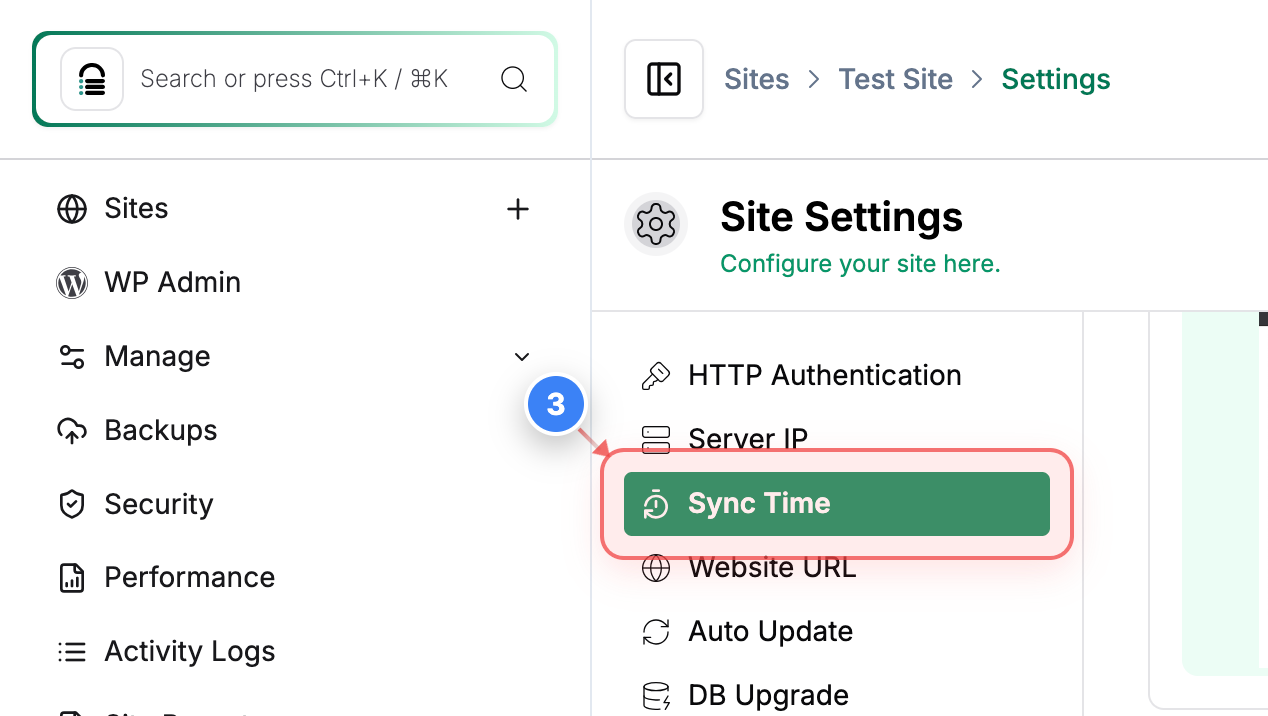
Step 3 of 5
Open sync schedule
Click the Sync Time option in the settings menu to manage when your site syncs.
Note: This section controls the scheduled sync timing for your site.
Step 4 of 5
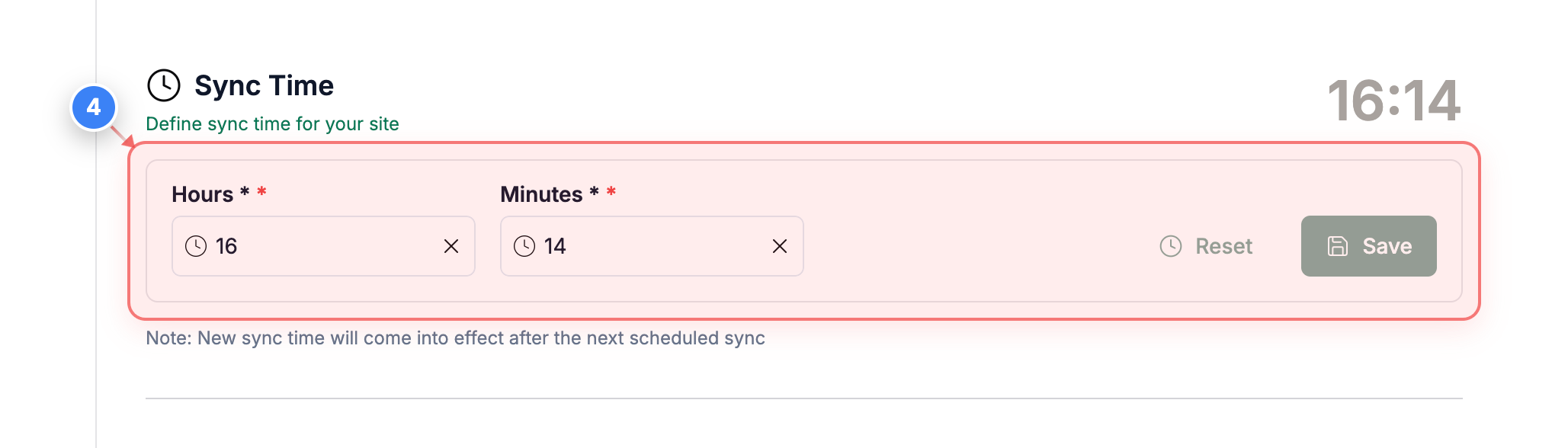
Set sync time
Enter the desired hours and minutes in the Sync Time section to define when the site sync should run.
Note: There is a 24-hour format set. Select the values.
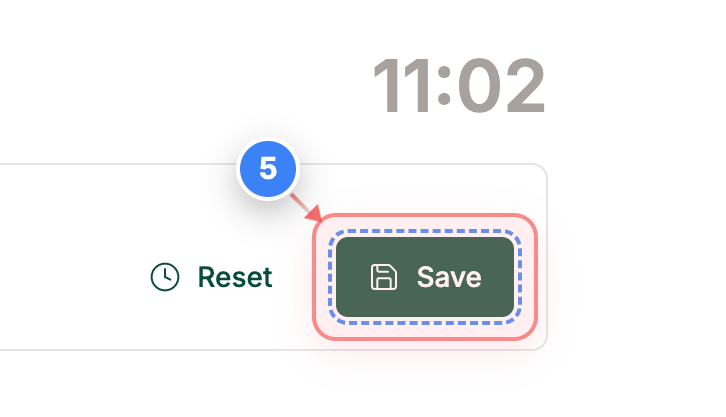
Step 5 of 5
Save changes
Click Save in the Sync Time section to apply and store the updated sync schedule.
Note: Your new sync time takes effect immediately after saving.