How Do I Resume a Paused Scheduled Report?
You can resume an already paused Scheduled Report following the steps below.
Step 1 of 4
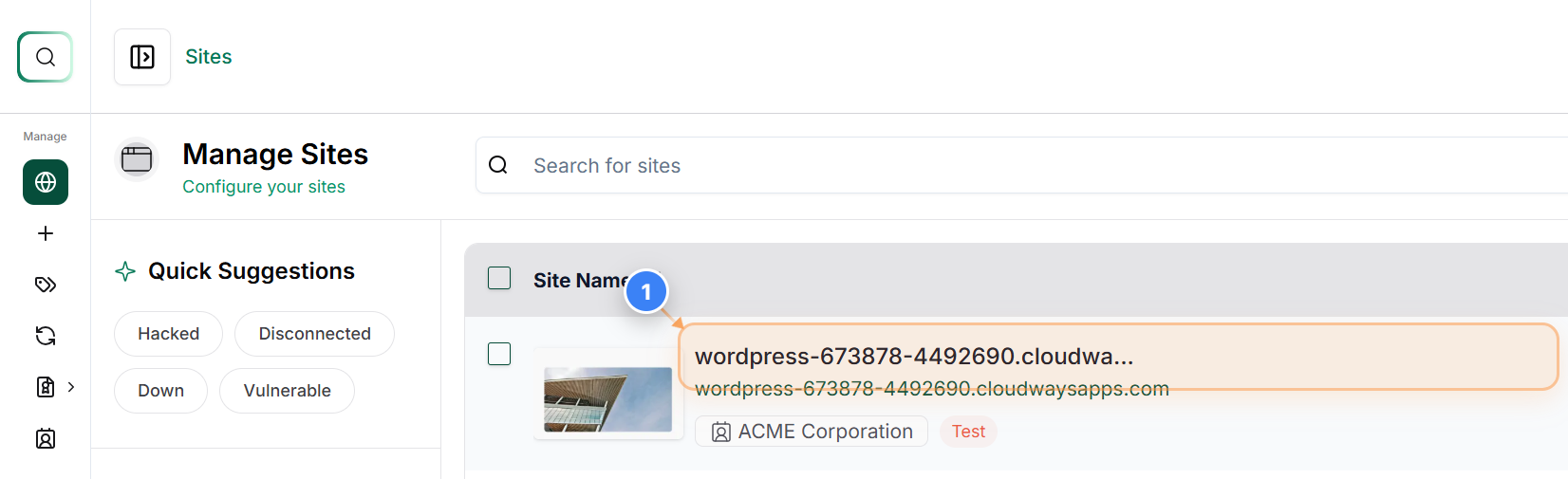
Open Site Management Options
Click on your site name in the main dashboard to open site management options for that specific WordPress installation.
? Note: This lets you view and manage detailed settings, reports, and tools related to the selected site.
Step 2 of 4
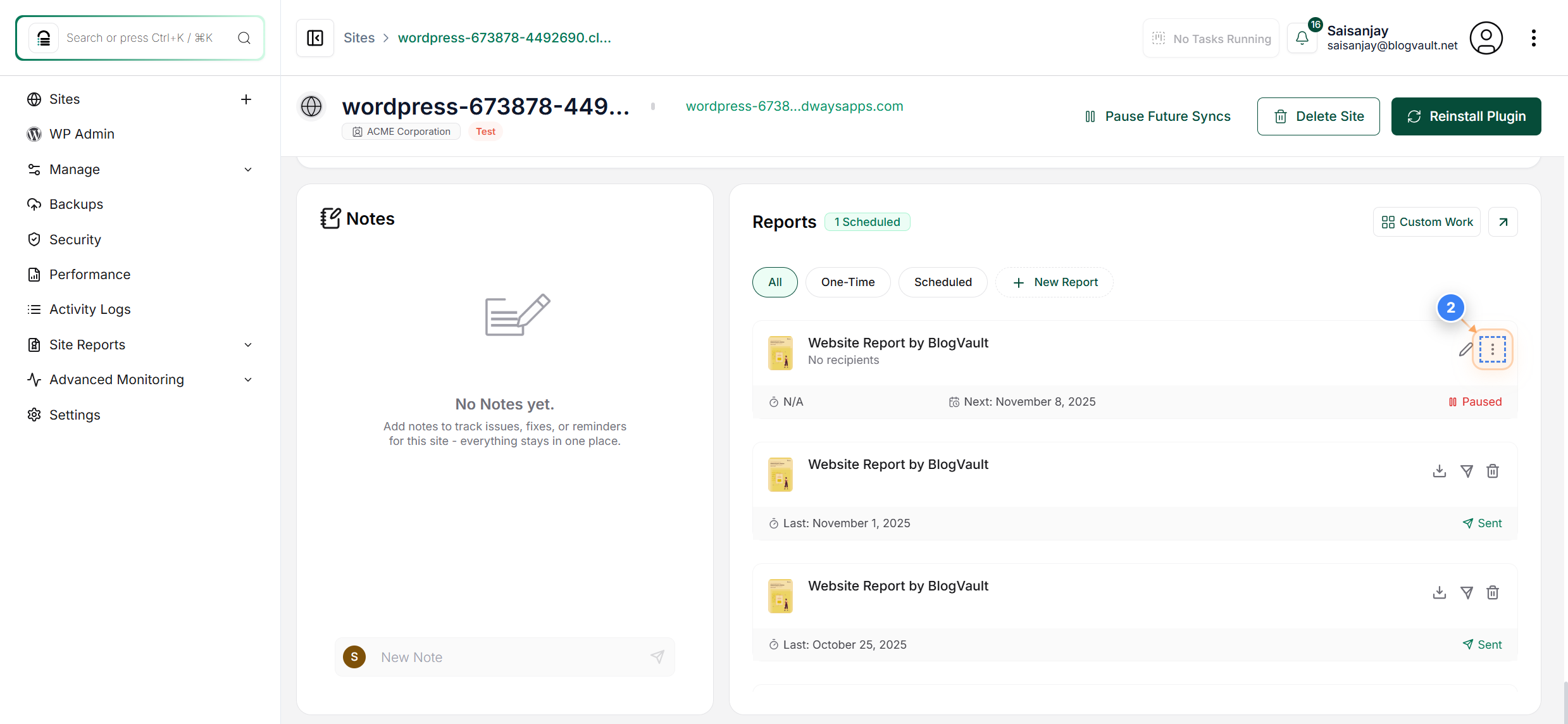
Close Report Details Panel
Click the three-dot button on the right side of the page to access the reports control.
? Note: Using this option, you can also delete a scheduled report
Step 3 of 4
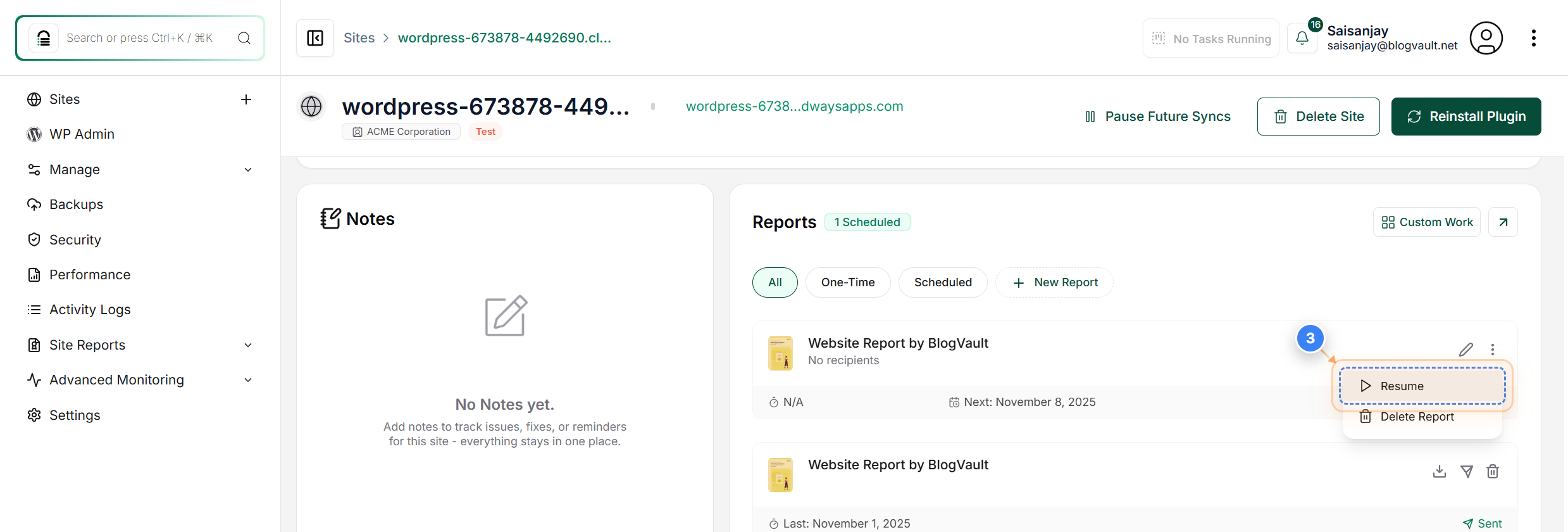
Resume Scheduled Report
Click the Resume button in the report actions menu to restart a previously paused scheduled report.
? Note: This action reactivates automated report generation for the selected site.
Step 4 of 4
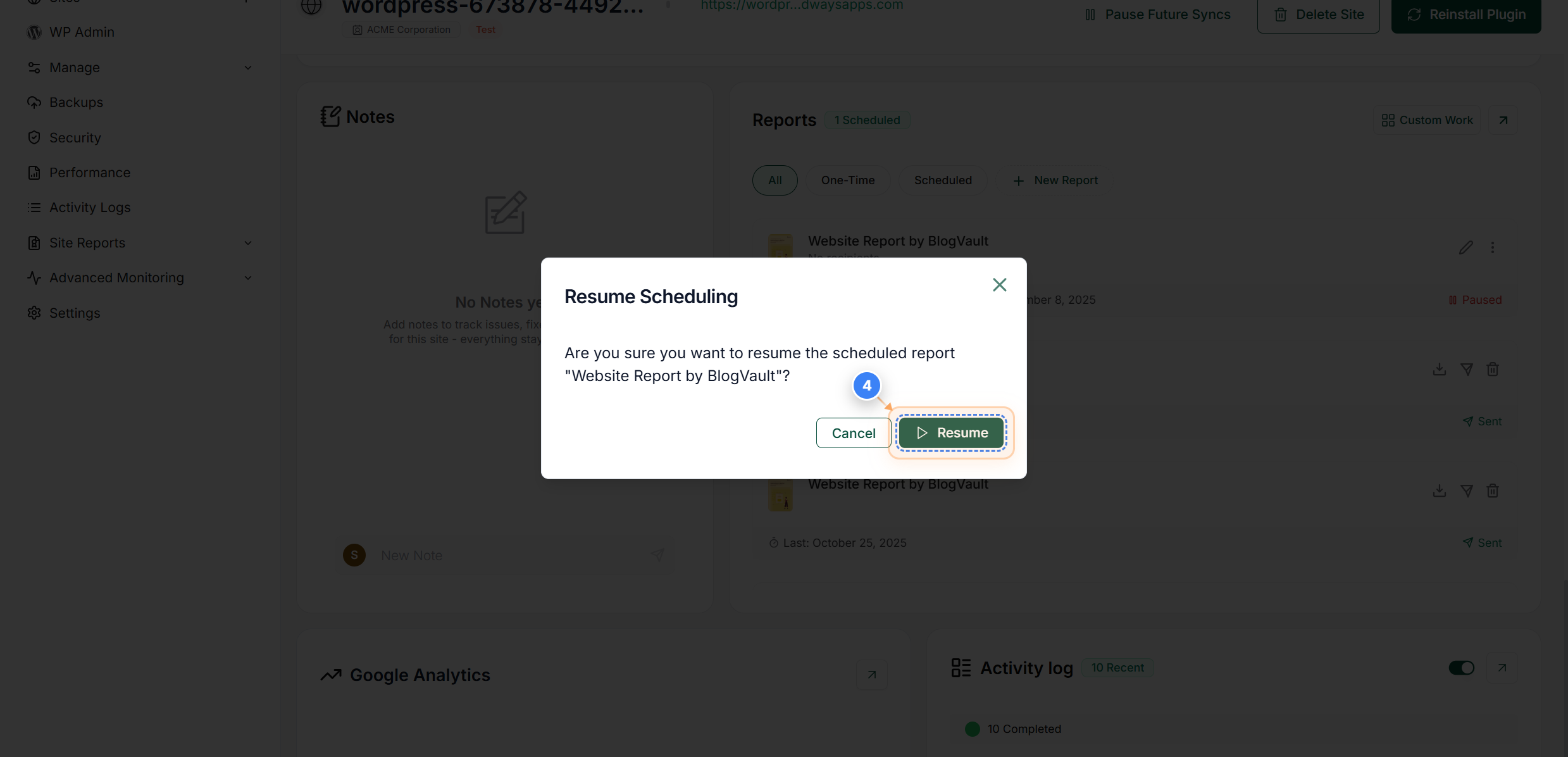
Confirm Report Resumption
In the confirmation dialog at the center of the page, click Resume to confirm that you want to resume the Scheduled Report.
? Note: Selecting Resume will reactivate the report; choose Cancel if you want to keep it paused.