How Do I Create Reports?
Step 1 of 8
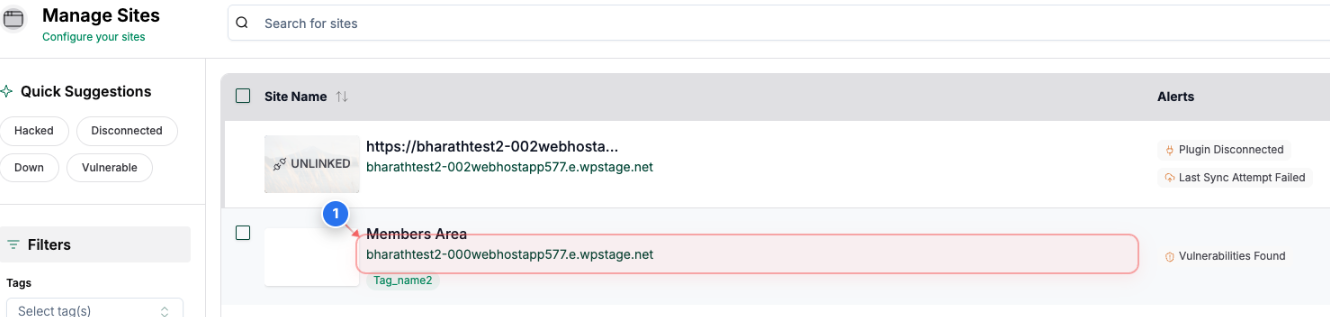
Select Your Website
Click on your site name in the center of the Sites page to access its management options
Note: Your site will be listed with its domain name and any associated tags
Step 2 of 8
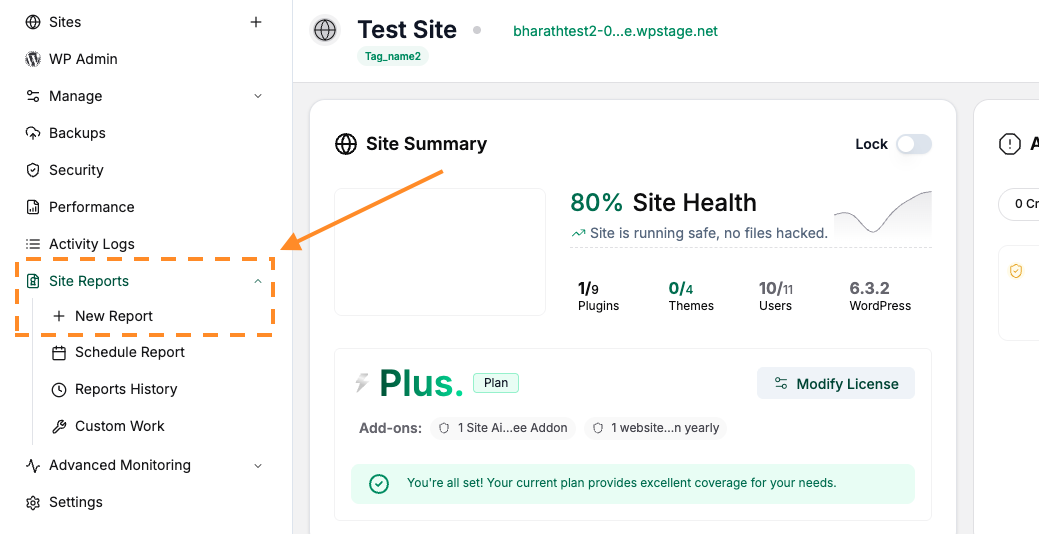
Access Reports Page
Click on the Site Reports drop down and select New Report option
Step 3 of 8
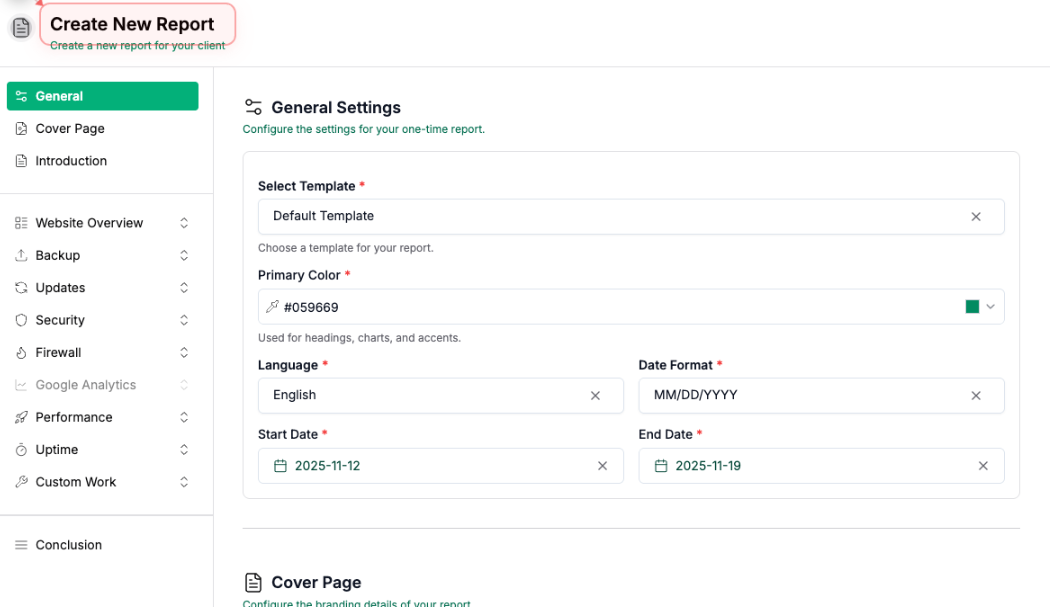
Start New Report Creation
From this page, you can customize the report based on your requirements:
- You can select the Start & End date between which you would like to get the report.
- You can select a pre-built template for the report or leave it to default.
- Add a custom logo and a cover image to replace the BlogVault defaults.
- Provide a Title, Introduction and Conclusion Message to the report.
- Select the data you would like to see in the report like Overview, Updates, Backup, Security, and more.
Step 4 of 8
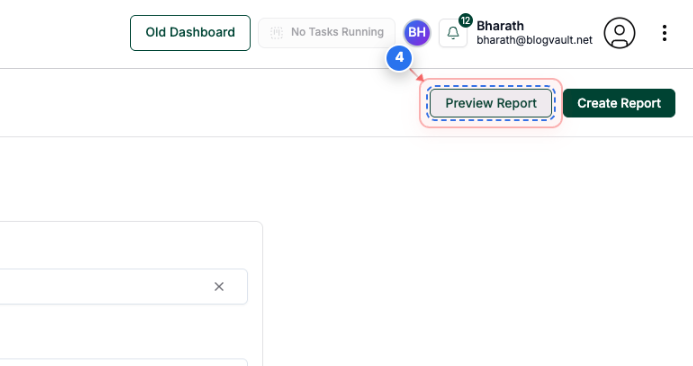
Preview Your Report
Click the "Preview Report" button in the top-right area to review the report before finalizing
Note: Previewing allows you to check the report content and formatting
Step 5 of 8
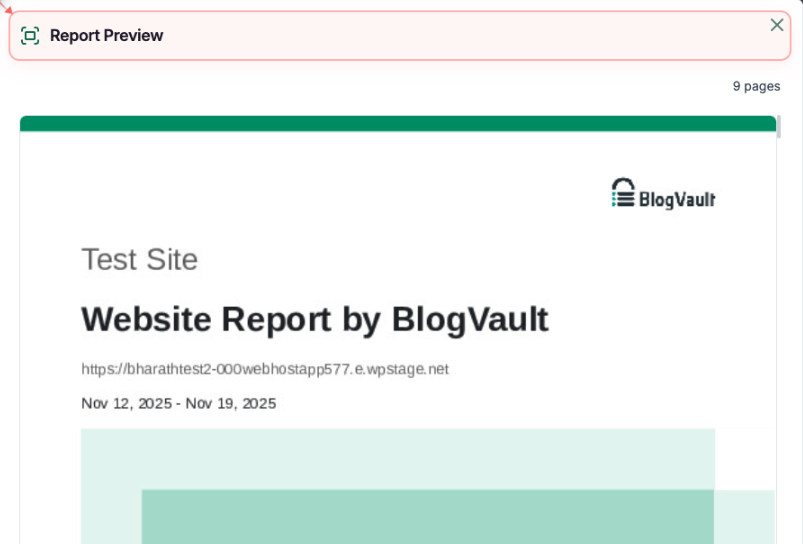
Review Report Preview
Report Preview dialogue box will open. You can preview the report before creating it.
Note: The preview shows all report pages and content layout
Step 6 of 8
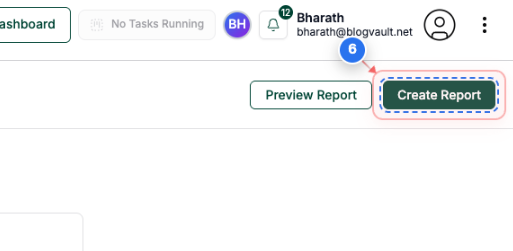
Finalize Report Creation
Click the "Create Report" button in the top-right area to generate the final report
Note: This processes and saves your report for distribution
Step 7.1 of 8
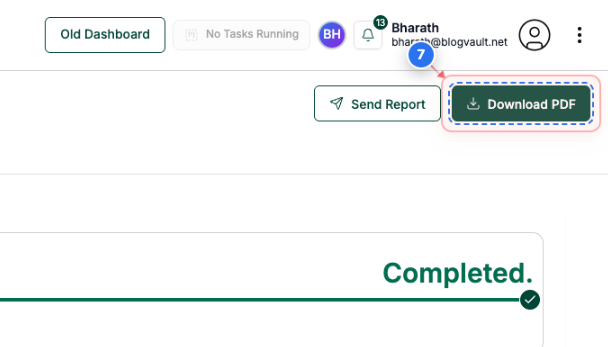
Download Report as PDF
Click the download icon button in the top-right area to save the report as a PDF file
Note: The download button features a downward arrow icon for easy recognition
Step 7.2 of 8
Access Email Sharing
Click the "Send Report" button in the top-right area to share the report via email
Note: The send button features a paper airplane icon for email distribution
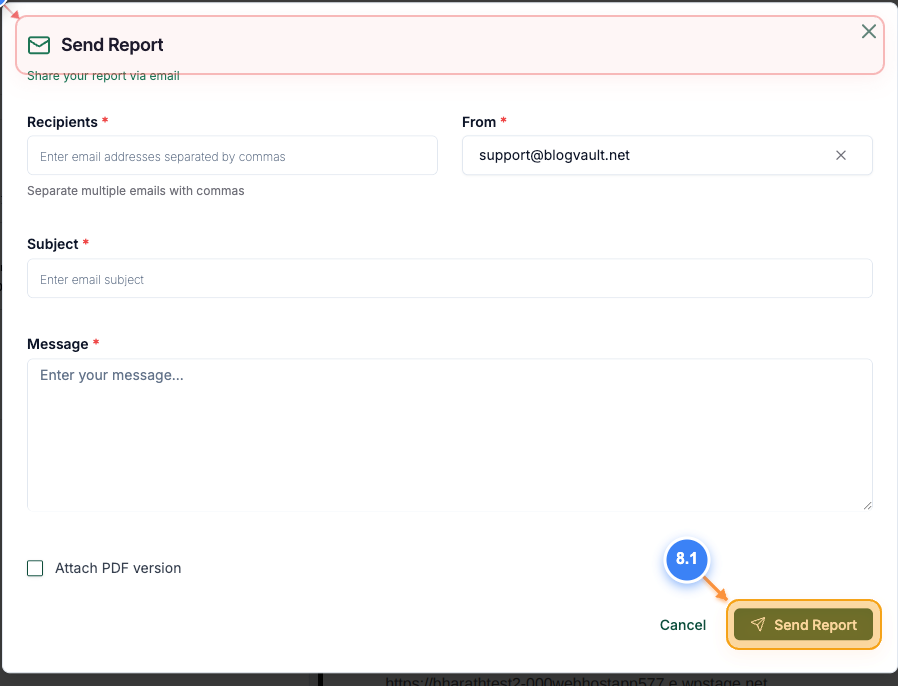
Step 8 of 8
Configure Email Settings
Enter the Recipients, Subject, Message and Select the From address in the Send Report box. Click on the "Send Report" button to send the generated Report.
Note: This opens the email configuration panel for customizing your message