How Do I Check All My Previous Reports?
Website Level
Step 1 of 3
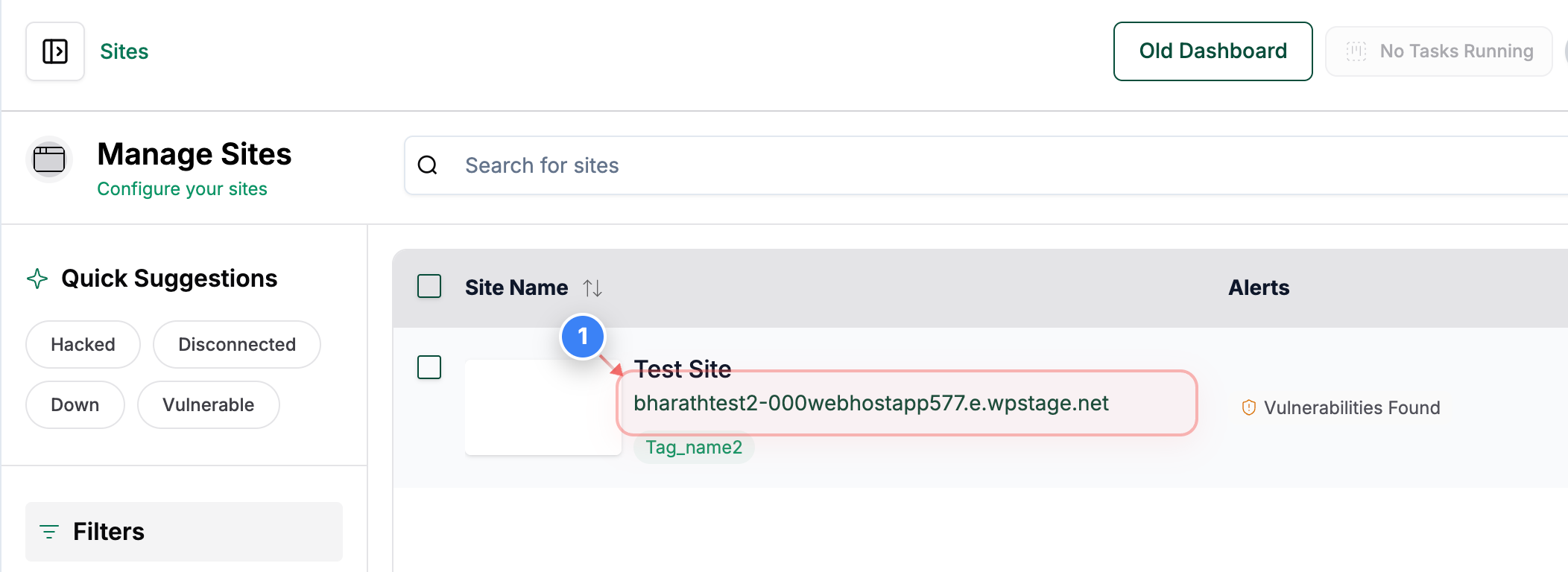
Select Your Website
Click on your site name in the center of the page to access site management options
Note: Look for your site name displayed prominently in the middle section with the domain URL below it
Step 2 of 3
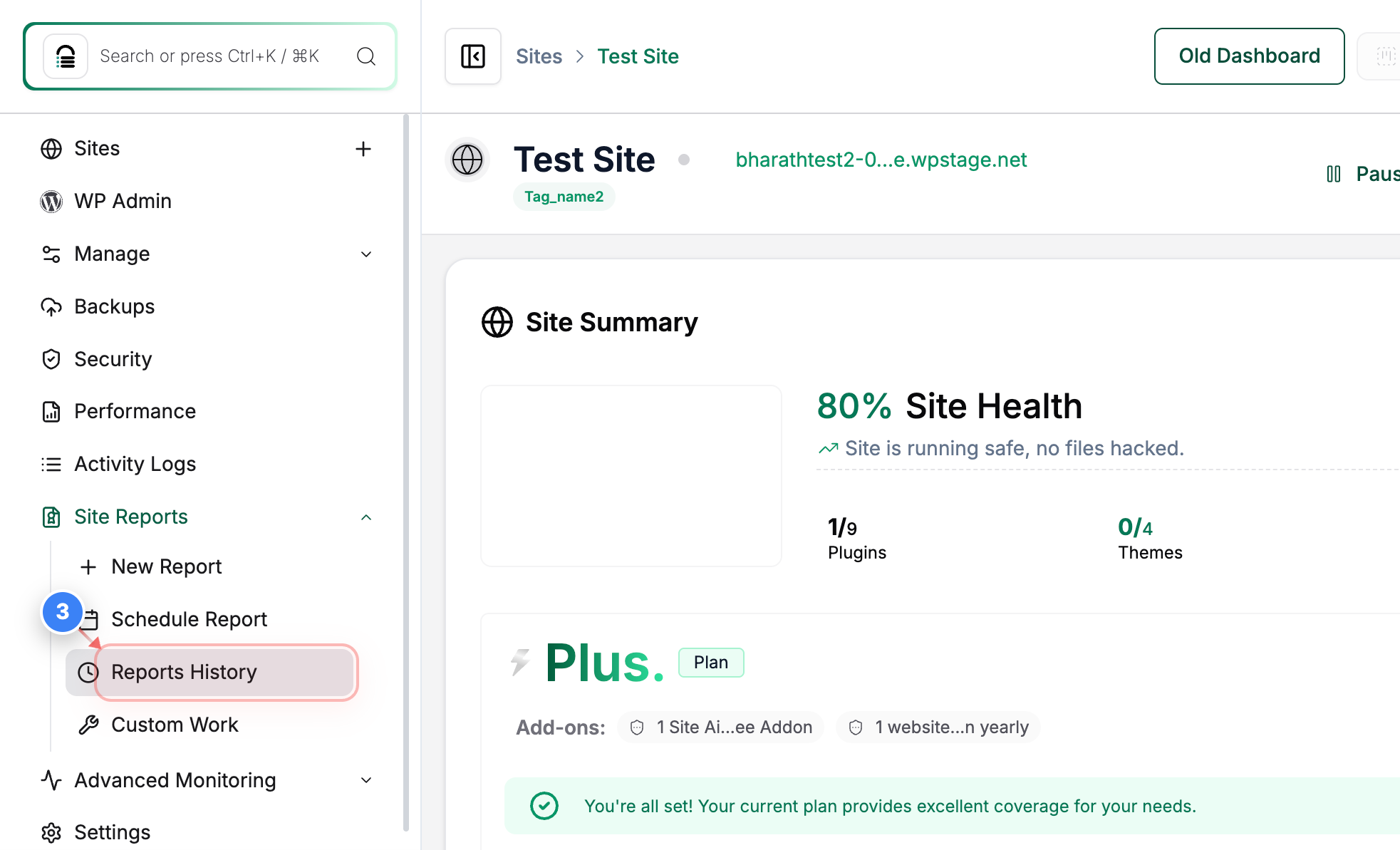
Access Reports History
Click on the Reports History option in the left sidebar to view your site's reporting data
Note: The Reports History section is located in the navigation menu on the left side of the page
Step 3 of 3
Review Generated Reports
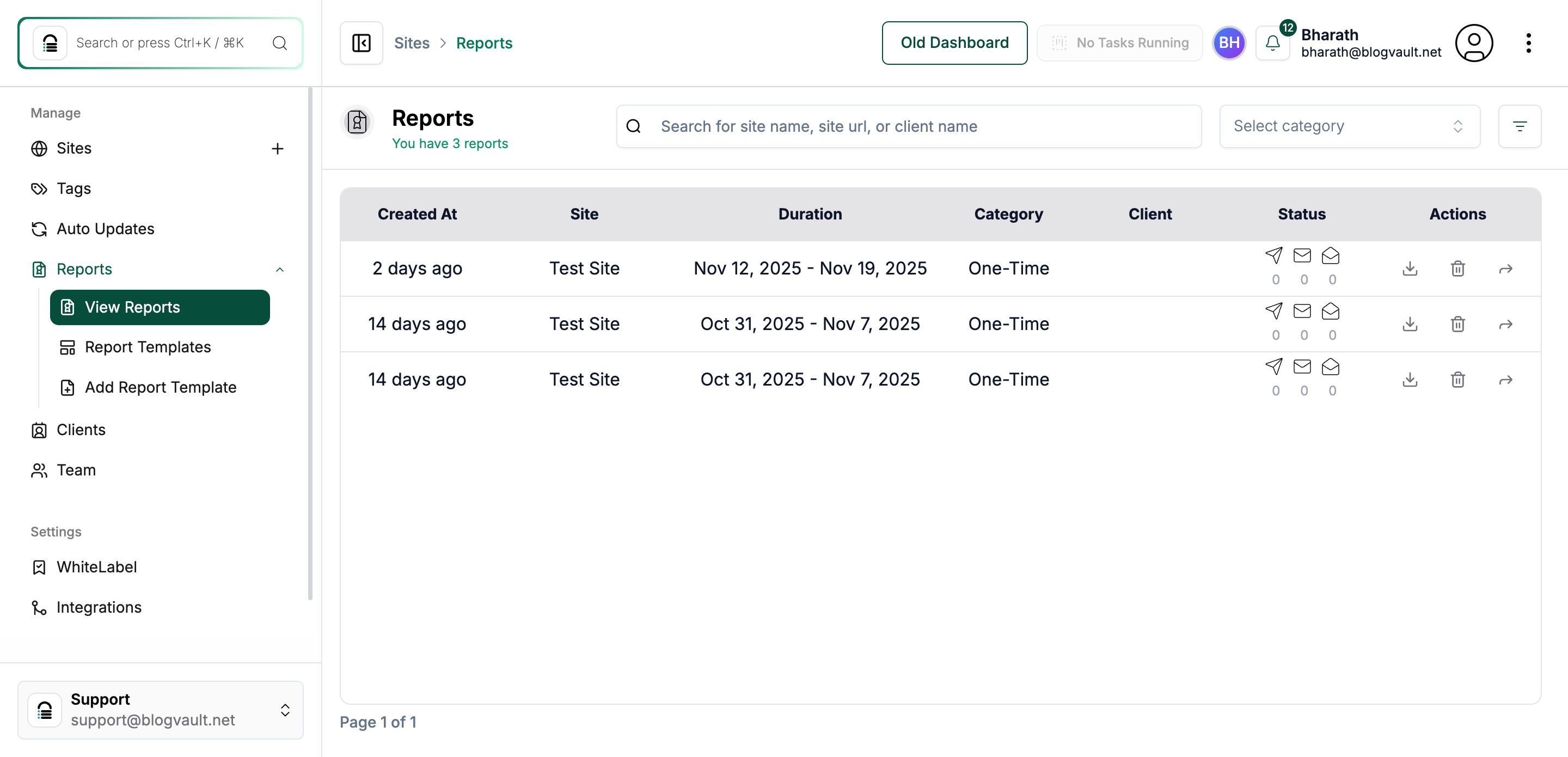
The Reports page displays your site's report history including creation dates, categories, and status for each report
Note: Check the report list to verify dates, categories, and status indicators - reports are organized chronologically with the most recent first
Account Level
Step 1 of 2
Open the Reports Section
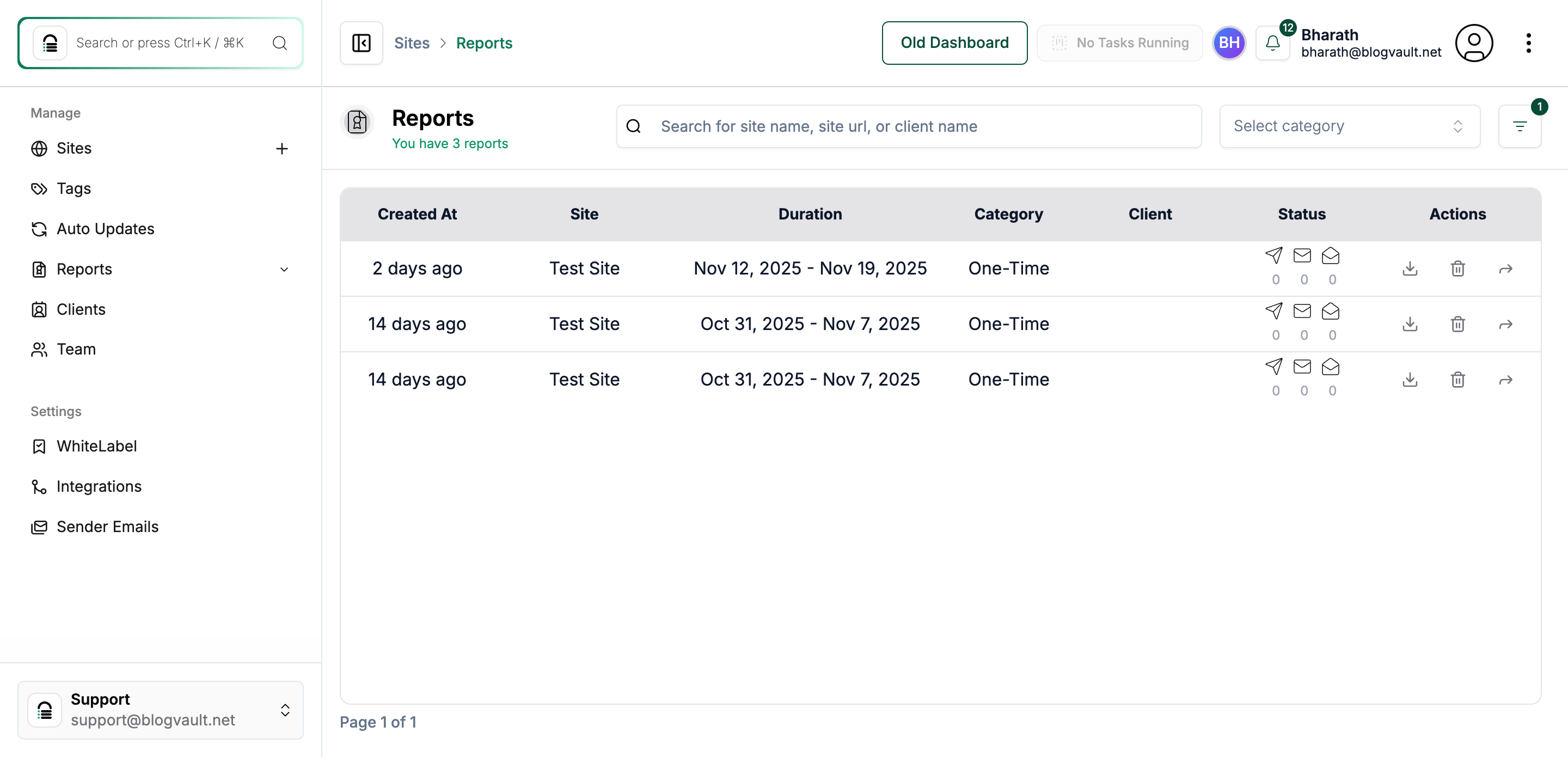
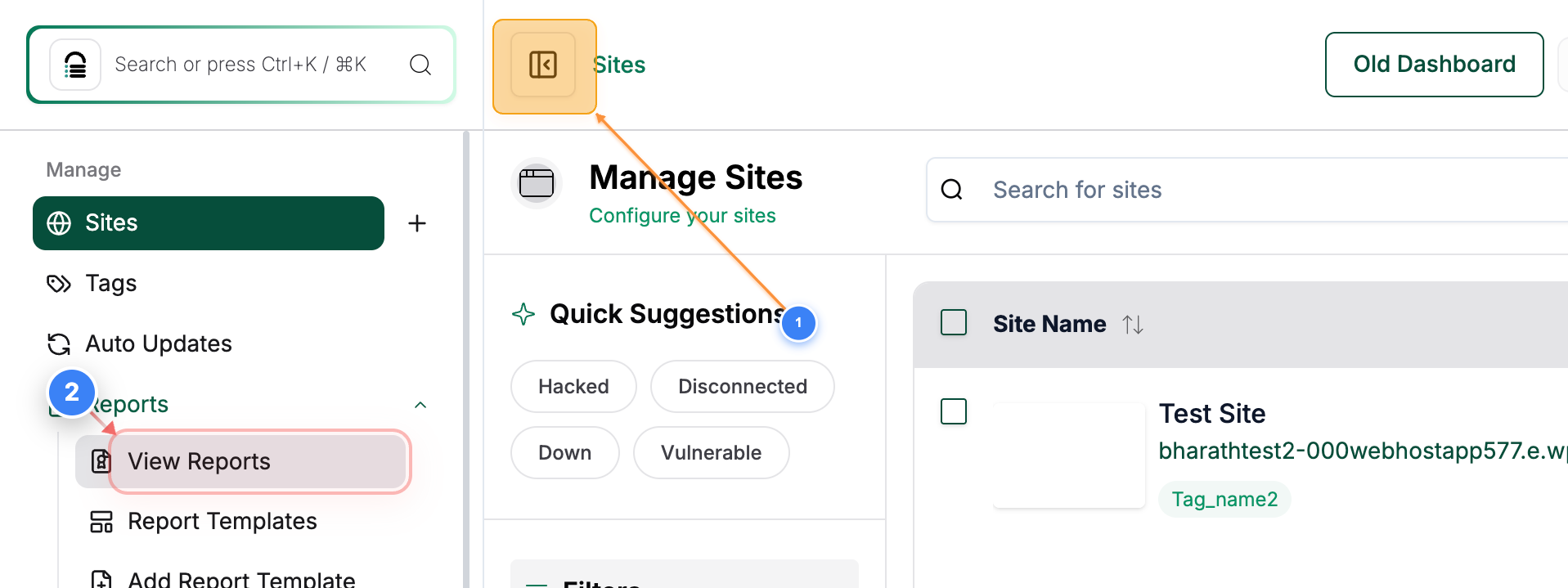
Click the Reports -> View Reports option in the left sidebar to access all generated reports for your sites.
Note: Click on the Hide/Unhide icon (1) to open the sidebar where the Reports and other options are present.
Step 2 of 2
Review Available Reports
The Reports page lists all generated reports, including details such as creation date, site name, report duration, category, client, and status.
Note: Check the table to confirm the latest reports have been generated. Use the Actions column to view, download, or manage individual reports as needed.