How to Start a Backup manually?
Step 1 of 4
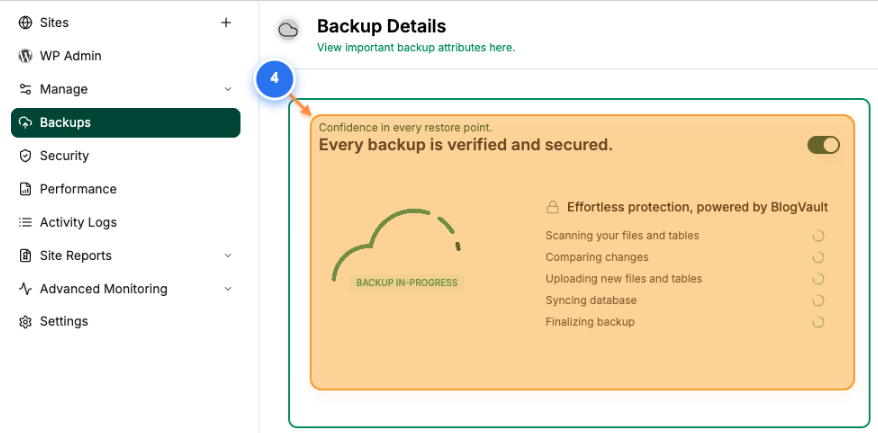
Select Your Website
Click on your site name in the Sites page to access site management options
Note: Your site will be listed with its domain name and a display name
Step 2 of 4
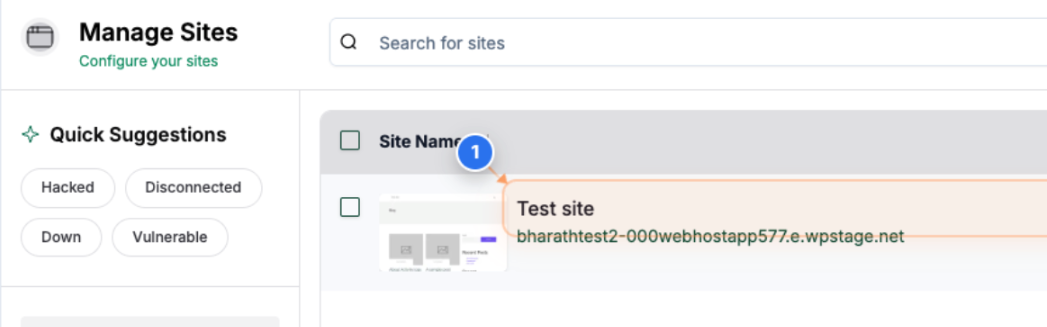
Navigate to the Backups Page
Click on "Backups" in the left sidebar menu to view your backup options and history
Note: The Backups section contains all your backup-related functions and settings
Step 3 of 4
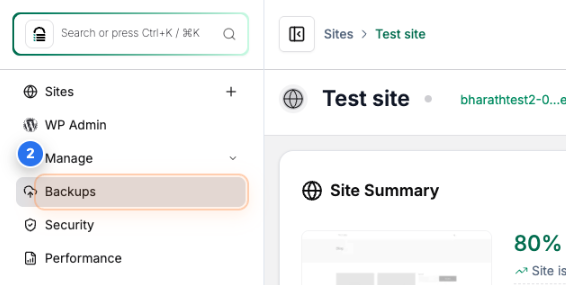
Start Manual Backup
Click the "Backup Now" button in the center of the page to immediately start creating a new backup
Note: This initiates an on-demand backup regardless of your scheduled backup settings
Step 4 of 4
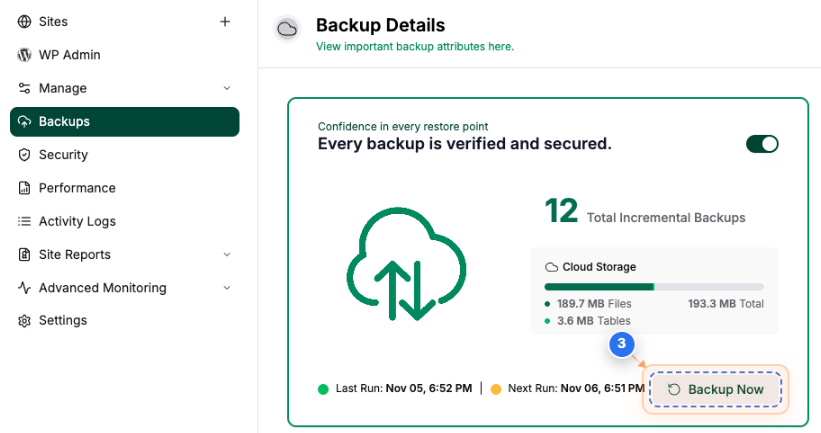
Backup Progress
Review the Backup Details page showing real-time backup status, file scanning progress, database synchronization, and completion indicators
Note: The page displays backup progress through stages: scanning files and tables, comparing changes, uploading files, syncing the database, and finalizing.