How Do I Download a Plugin from an Older Backup in My Account?
Step 1 of 9
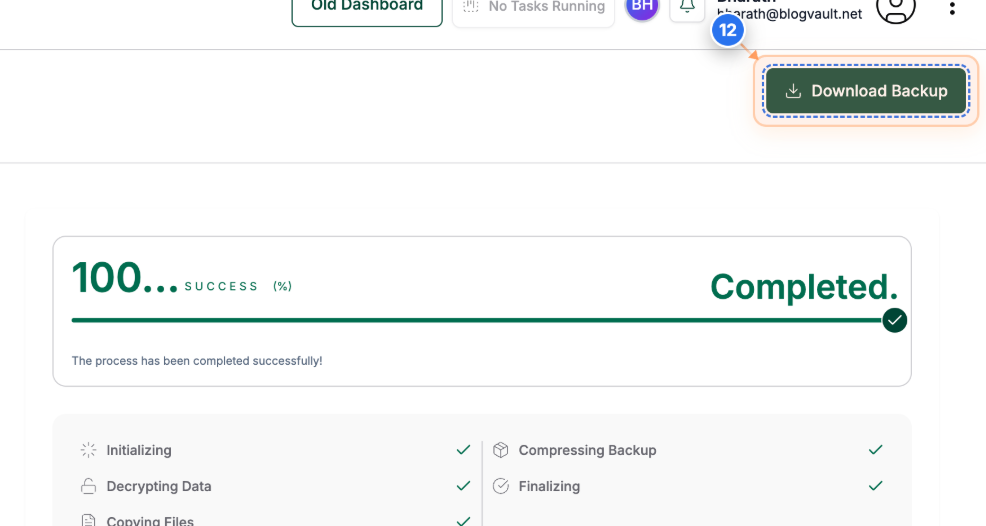
Select Your Site
Click on your site name in the center of the dashboard to access site management options
Note: Your site will be listed with its domain name and status indicators
Step 2 of 9
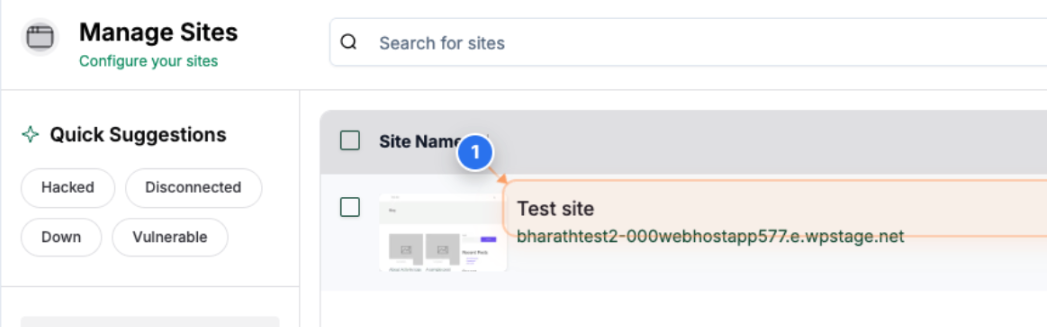
Navigate to Backups
Click on the Backups option in the left sidebar to open your site's backup management dashboard
Note: This section contains all backup operations including download and restore options
Step 3 of 9
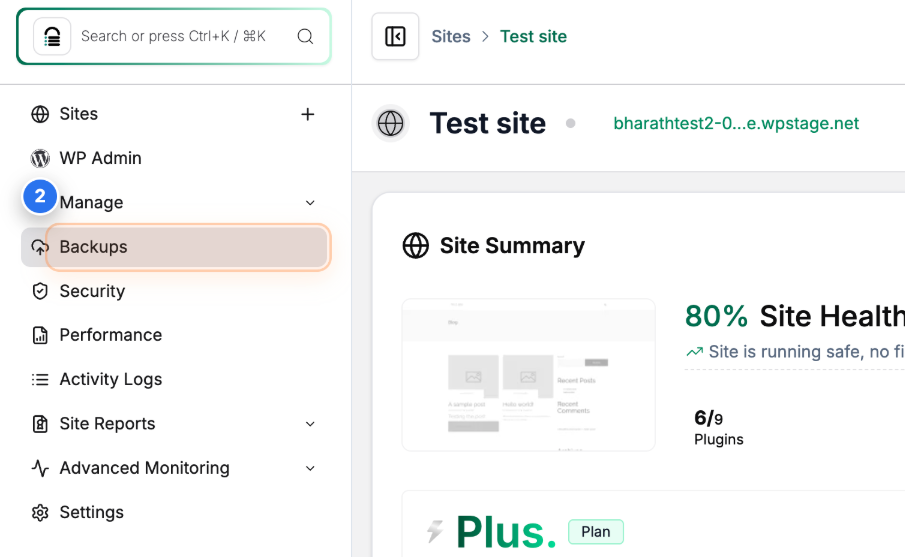
Select Files
Click the Select button next to 'Download Files' in the Selective Download section to choose which files to download.
Note: You can download all files or select specific ones depending on your needs
Step 4 of 9
Choose the Plugin to Download
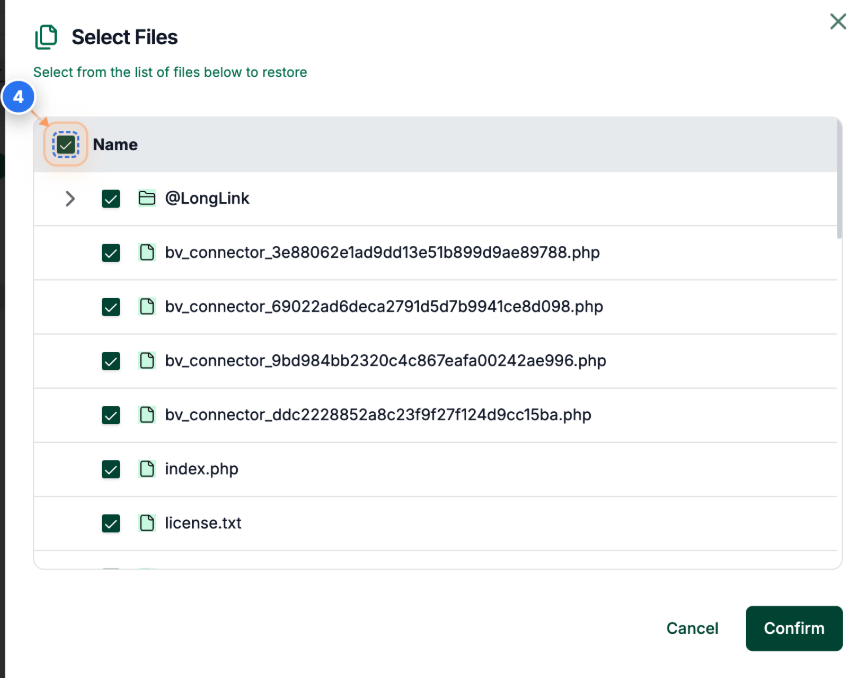
Select the checkboxes next to the specific files you want to download from the file list.
Note: Use the Checkbox provided at the top to select or deselect all files at once.
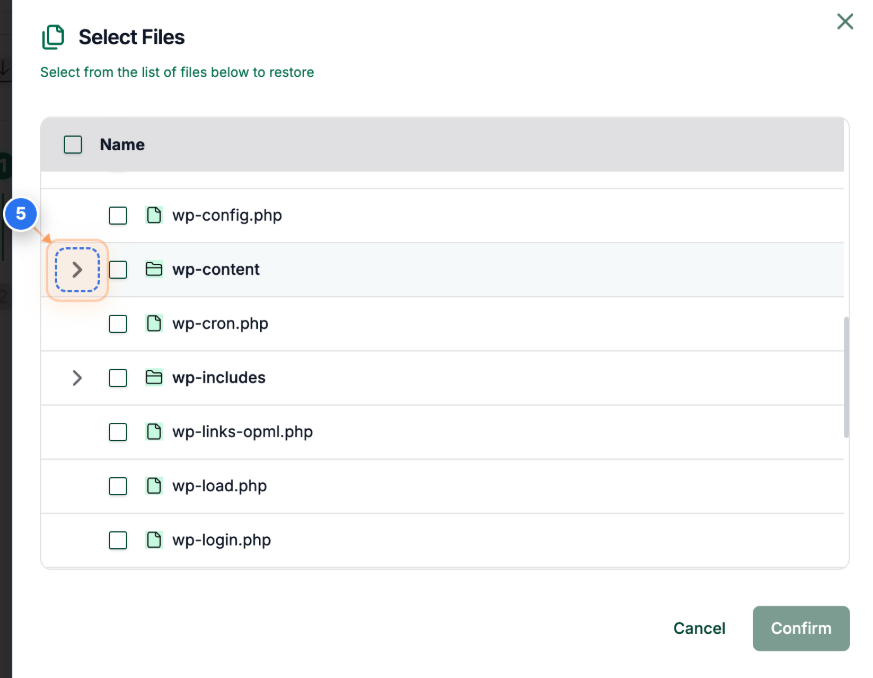
Click the expand arrow next to the wp-content folder to browse the plugins folder.
Note: This allows you to access files in nested folder structures like wp-content, themes, and plugins
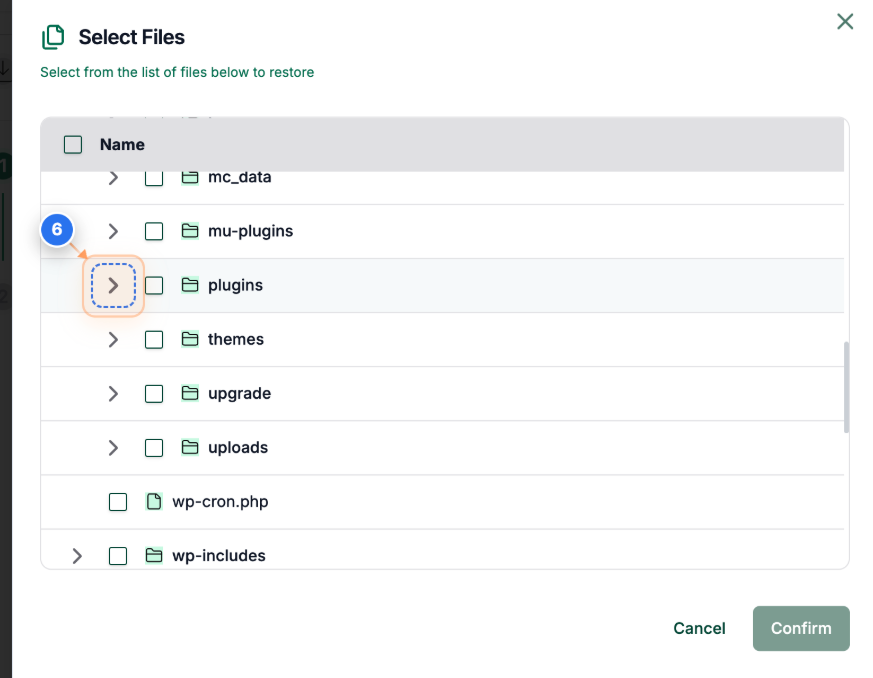
Expand the plugin folder.
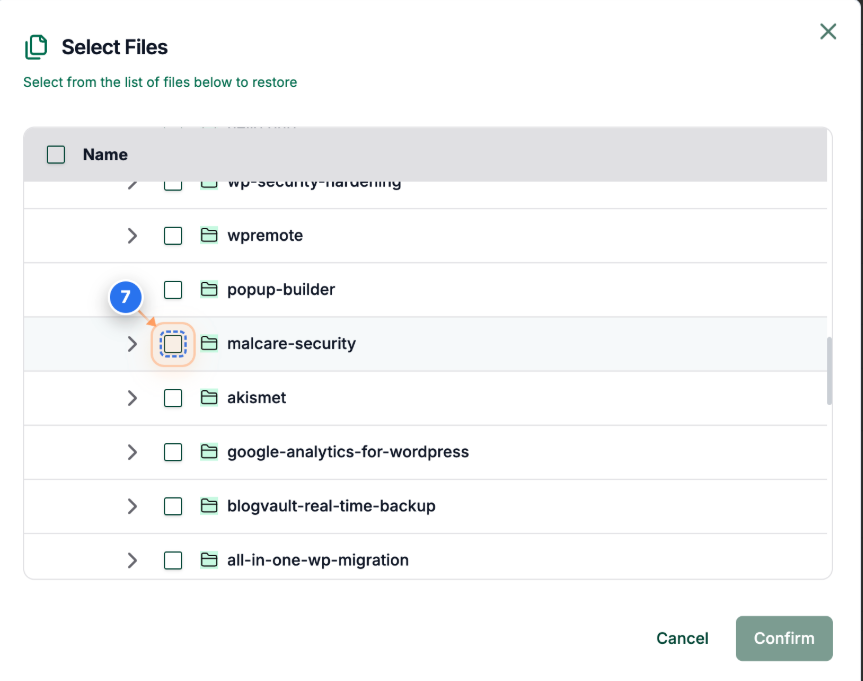
Select the plugin folder you want to download from the previous backup.
Note: Review your selections to ensure all required files are included
Step 5 of 9
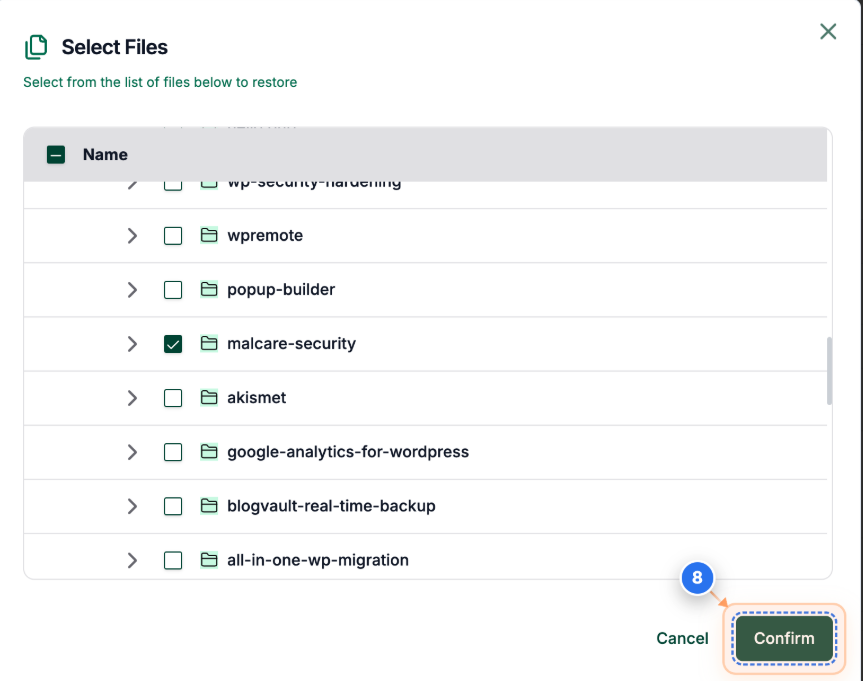
Confirm File Choices
Click the Confirm button at the bottom of the file selection dialog to save your selections
Note: This locks in your file choices and returns you to the main configuration screen
Step 6 of 9
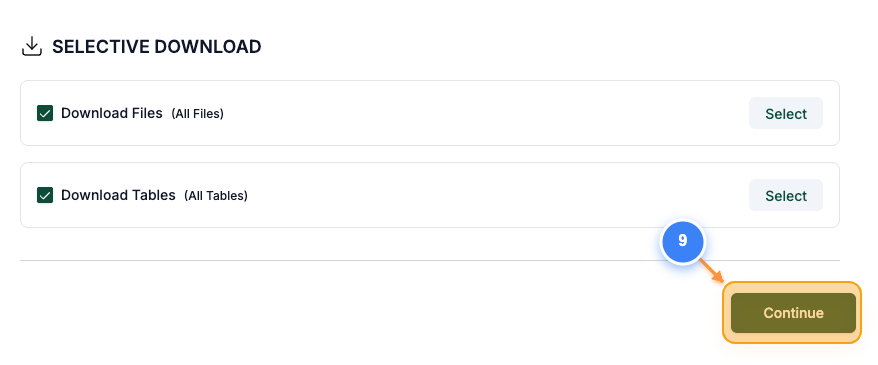
Proceed to Summary
Click the Continue button in the bottom-right corner to review your download configuration
Note: This takes you to the final summary screen where you can verify all settings
Step 7 of 9
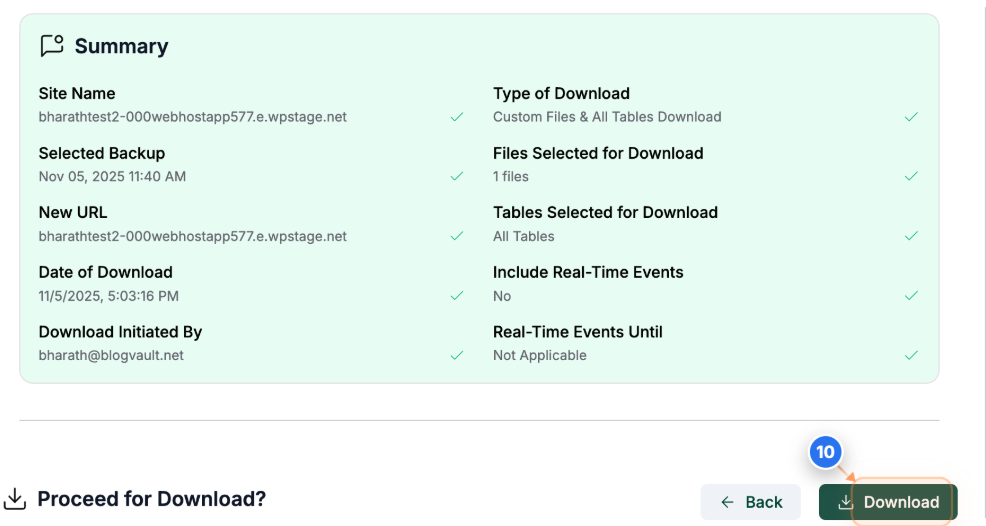
Start Download Process
Click the Download button on the summary page to begin creating your backup download package
Note: The system will prepare your files and notify you when the download is ready
Step 8 of 9
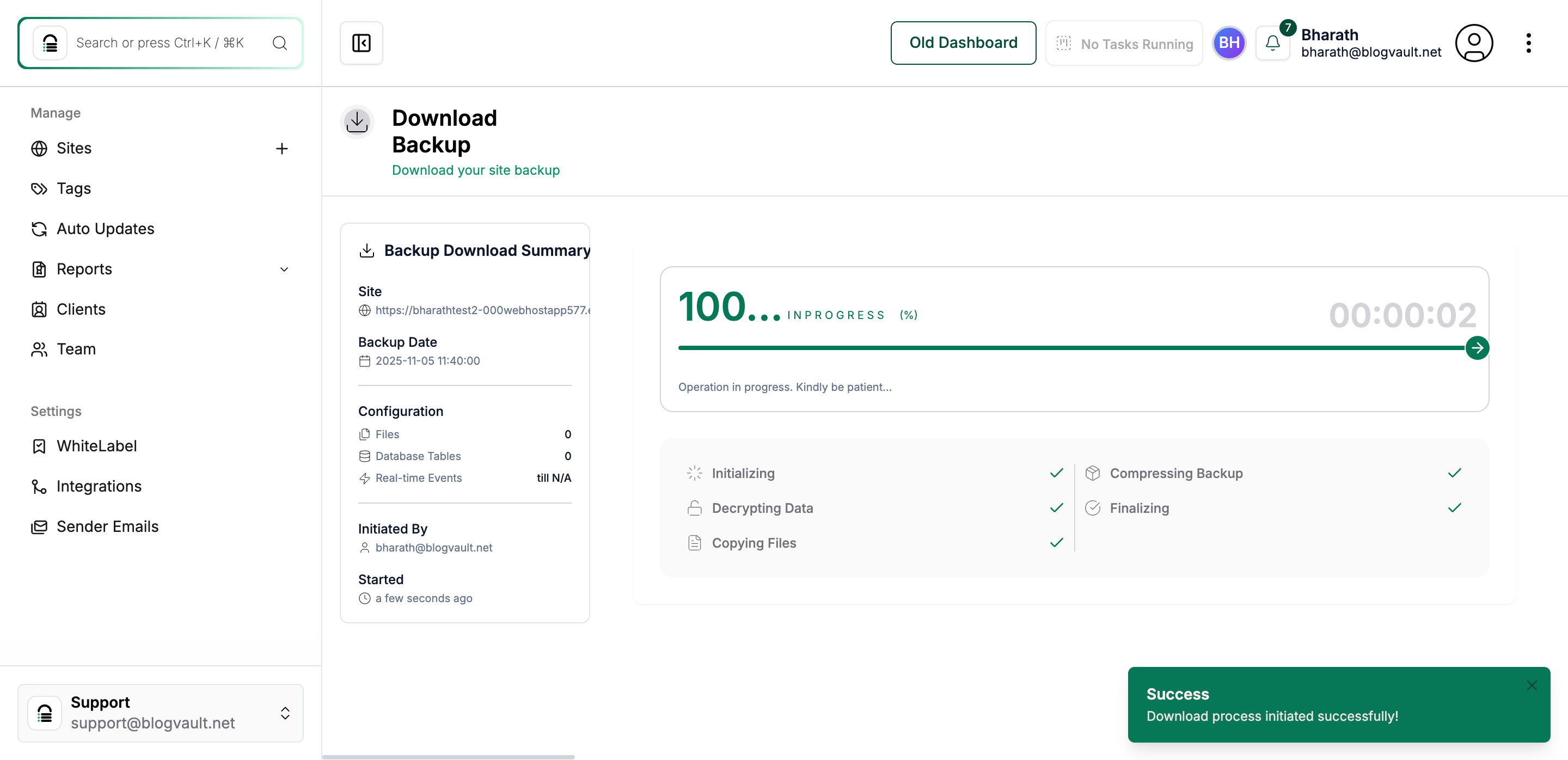
Monitor Download Progress
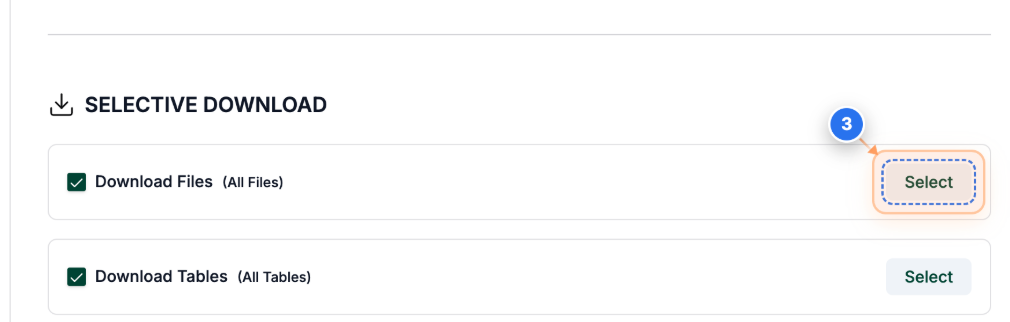
The download progress page shows real-time status with percentage completion and the current operation stage. Wait for the process to complete.
Note: The system processes files through multiple stages: initializing, decrypting data, copying files, compressing backup, and finalizing. You'll receive an email with download instructions when the process completes.
Step 9 of 9
Download the file
Once the process is completed, click on the download icon button at the top-right area of the page to start the download.