How Do I Enable/Disable Two-Factor Authentication for My Account?
Step 1 of 6
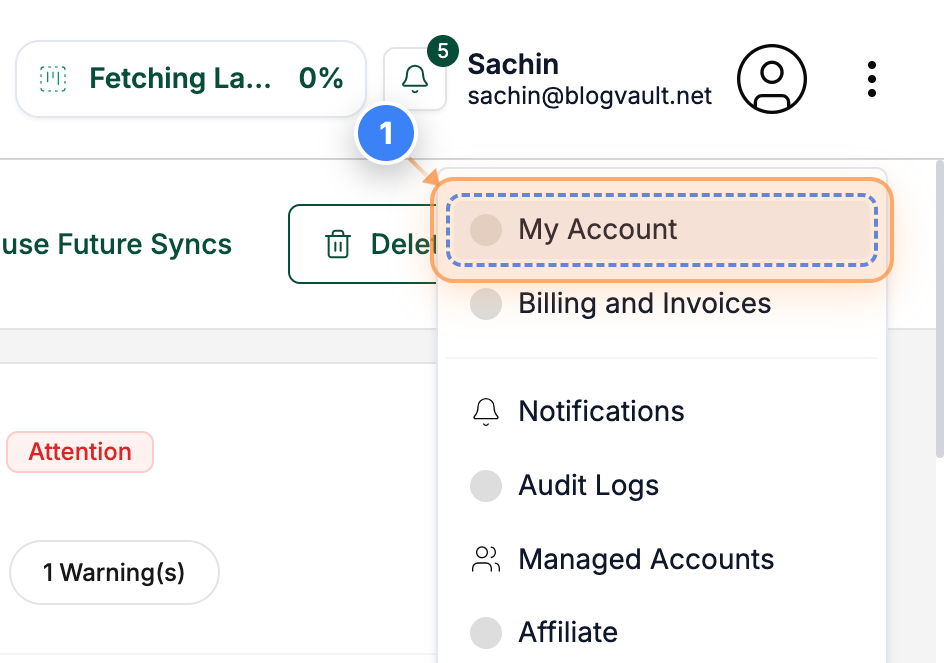
Open Account Settings
Click the "My Account" link in the top-right navigation to open your account settings.
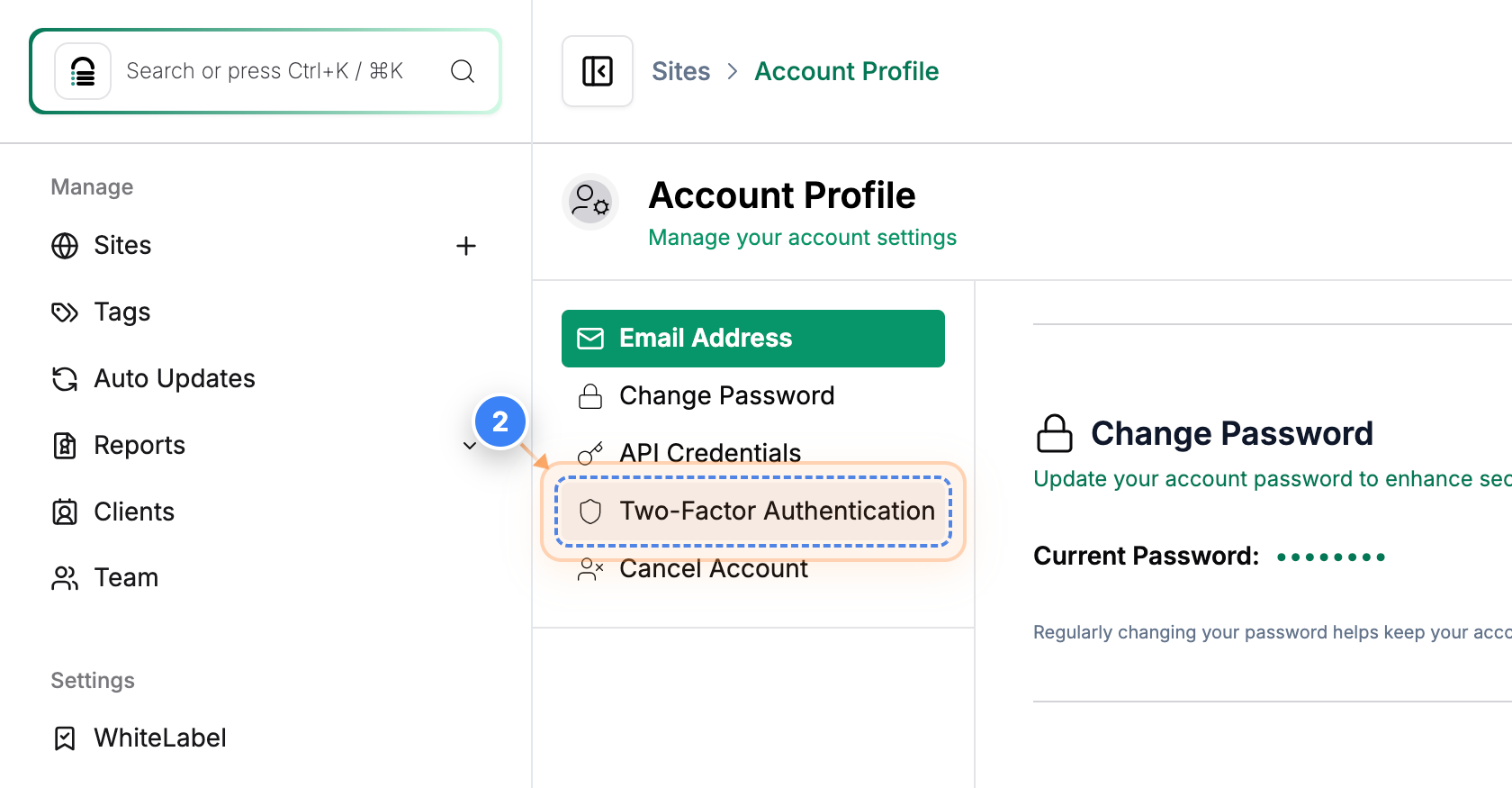
Step 2 of 6
Open Two-Factor Settings
In the left-hand settings panel, select the option that opens your security and two-factor authentication settings.
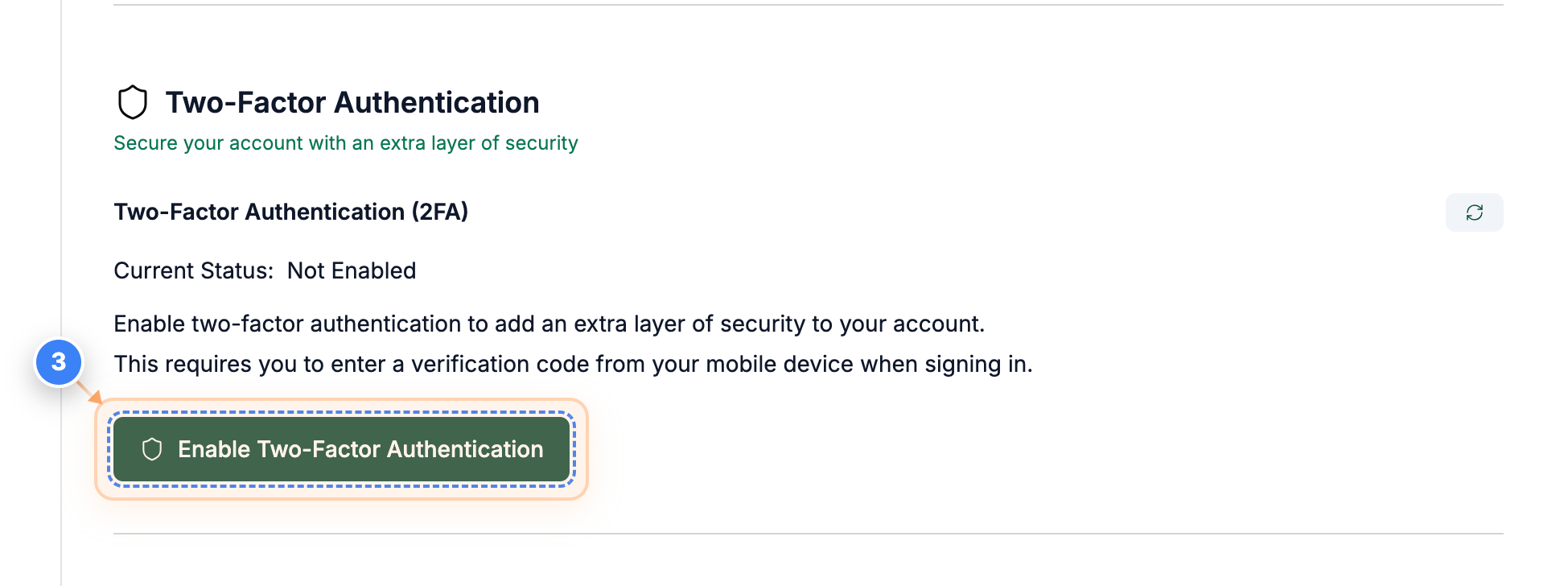
Step 3 of 6
Enabling 2FA
Click the "Enable Two-Factor Authentication" button in the security section to begin setting up 2FA for your account.
Step 4 of 6
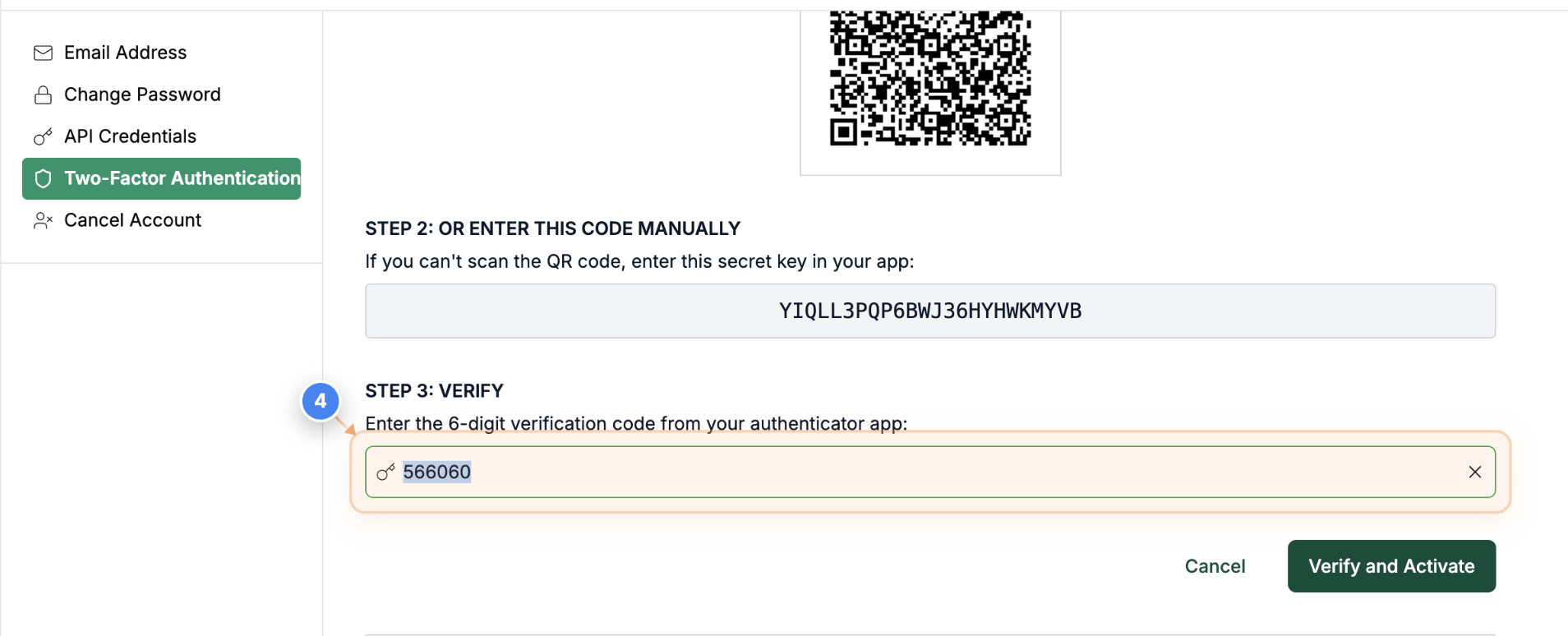
Enter Verification Code
Scan the QR Code to your authenticator app & Enter the 6-digit code from your app into the verification field in the center of the page.
Note: Make sure to use the code from the authenticator app you just linked.
Step 5 of 6
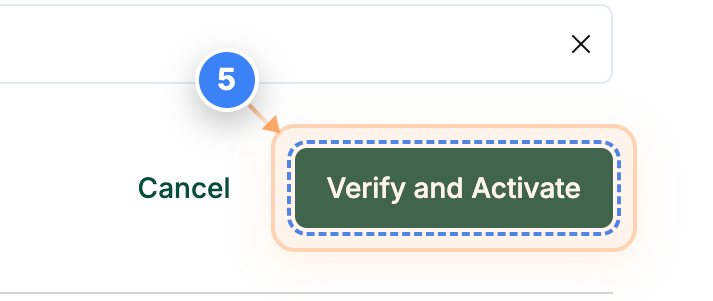
Verify and Activate 2FA
Click the "Verify and Activate" button on the right side of the page to complete two-factor authentication setup.
Step 6 of 6
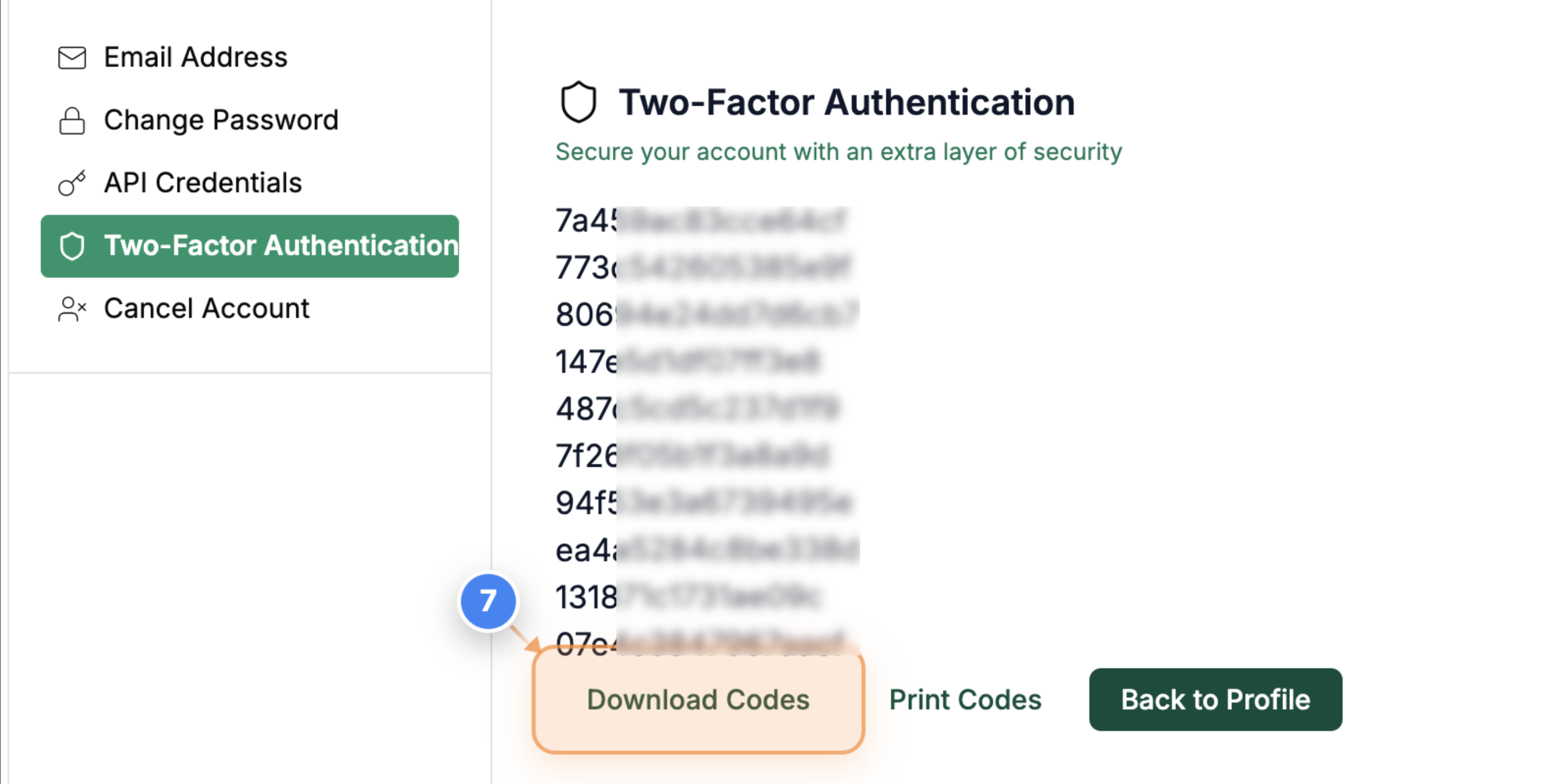
Download Backup Codes
Click the "Download Codes" button in the backup codes section to save your recovery codes for future access.
Note: Store these codes somewhere secure; they can help you log in if you lose access to your authenticator app.
=============================================================
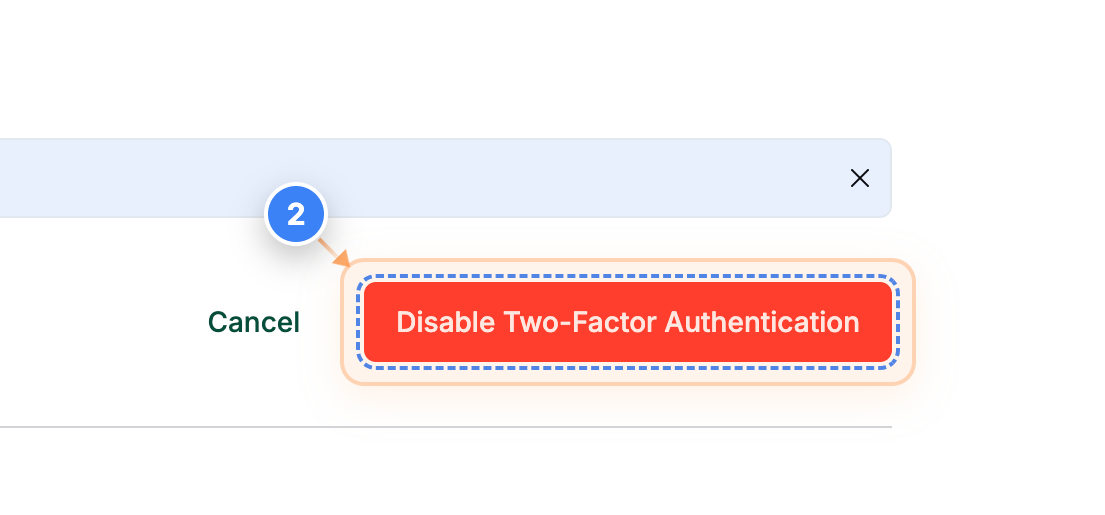
To Disable Two-Factor authentication, see the steps below.
=============================================================
Step 1 of 2
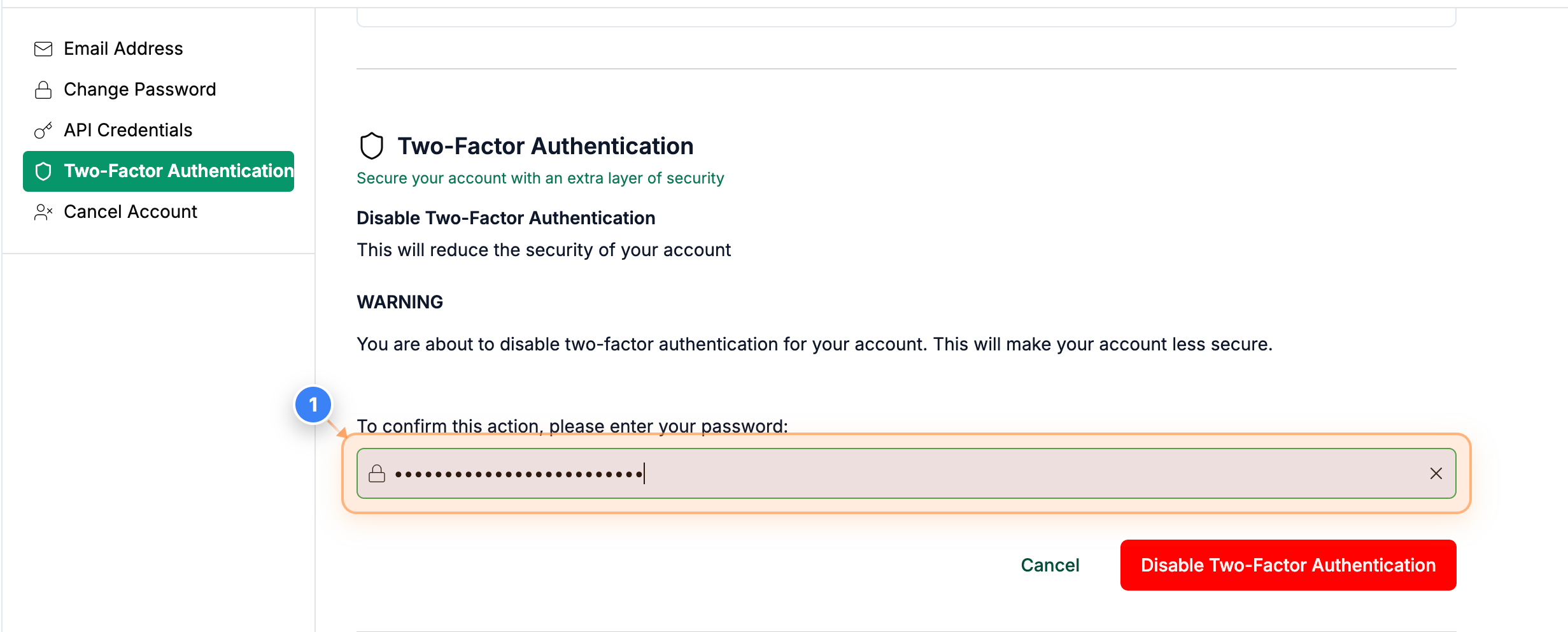
Confirm Action With Password
Enter your account password in the confirmation field in the center of the page to proceed with disabling two-factor authentication.
Note: This step verifies that you are authorized to make security changes.
Step 2 of 2
Disable Two-Factor Authentication
Click the "Disable Two-Factor Authentication" button in the lower-right area to turn off two-factor protection for your account.
Note: Your account will no longer require a verification code during login after this action.